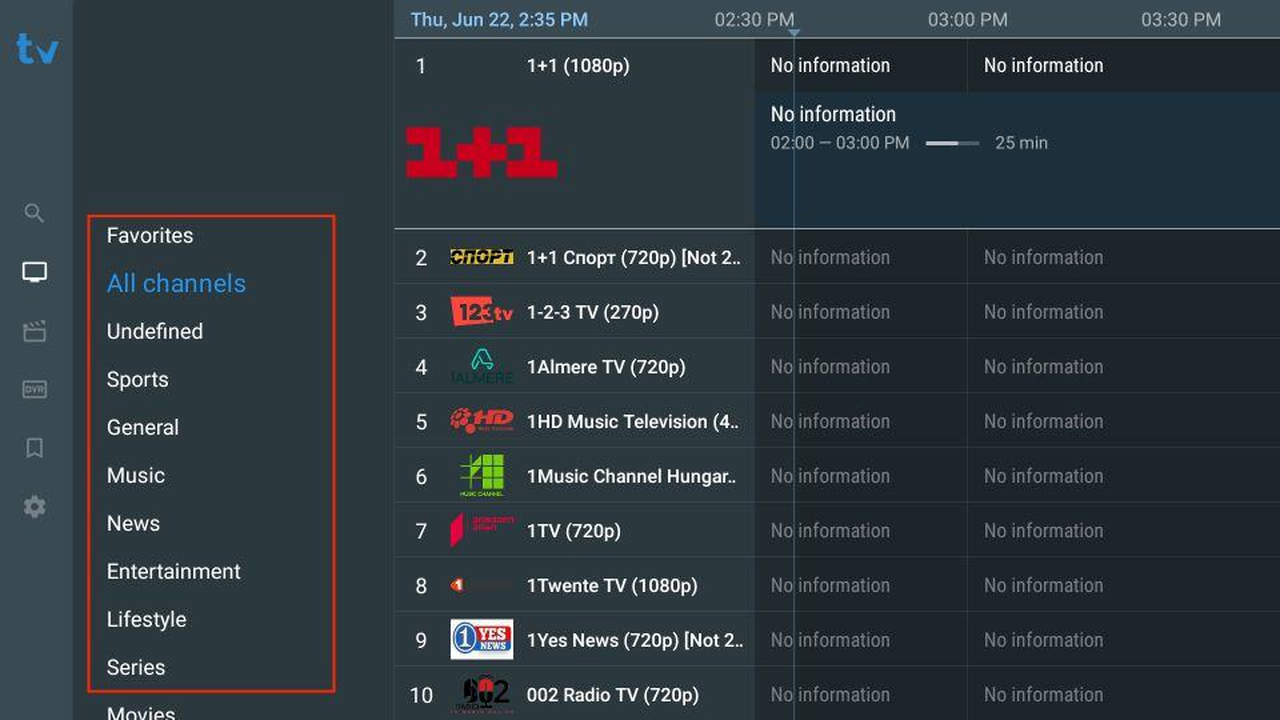
To install IPTV with TiviMate, sideload the official APK on your Android TV, Google TV, Nvidia Shield or Fire TV Stick, accept the permissions and sign in with the Xtream Codes or M3U link from your IPTV provider in the UK. TiviMate is currently not available in the Google Play Store, so installation goes through a downloader app. The app then loads your channels, films, series and programme guide, and you can optionally activate Premium through the Companion app.
TiviMate is an IPTV player for Android TV and Google TV, known for its polished guide, flexible channel management and multi-playlist support. In 2026, TiviMate was removed from the Google Play Store and is now distributed as an APK via the official website. This is a distribution change, not a shutdown: the app itself works normally, but you install it via sideloading. This guide shows how to install TiviMate on Android TV, Google TV and Fire TV Stick, how to sign in with Xtream Codes or M3U, how to activate Premium and how to fix common issues.
Install IPTV with TiviMate: What you need for TiviMate on your device
TiviMate is built for Android and Android TV. For a smooth install, have the following ready.
- A compatible device: an Android TV box, a Google TV device such as the Chromecast with Google TV or Nvidia Shield, or a Fire TV Stick. Fire OS is based on Android, which is why TiviMate runs there.
- Your login details: Xtream Codes (server URL with port, username and password) or an M3U link. Which one you receive is set by your provider.
- An EPG link if your provider supplies the programme guide separately.
- A stable internet connection, preferably through a network cable for 4K streams.
TiviMate is only a player and contains no channels itself. Whether your overall setup is lawful depends on the rights your provider holds for its content, not on the player you use. For broader setup help across devices, see the general IPTV setup guide.
Step 1: Prepare your device and allow installs from unknown sources
On Android TV, Google TV and Fire TV Stick, you need to allow sideloading to install an APK) from outside the store. Do this before you download TiviMate.
1.1. Open your device settings. On Android TV, go to Settings > Device Preferences > Security & restrictions. On Fire TV, go to Settings > My Fire TV > Developer options; if that menu is missing, select About > Fire TV Stick** seven times in a row to enable it.
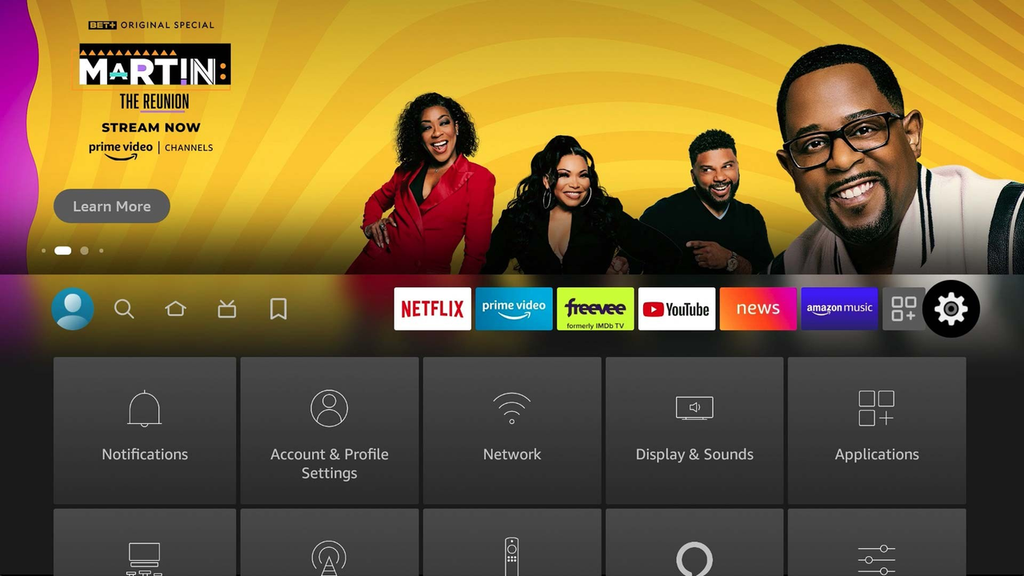
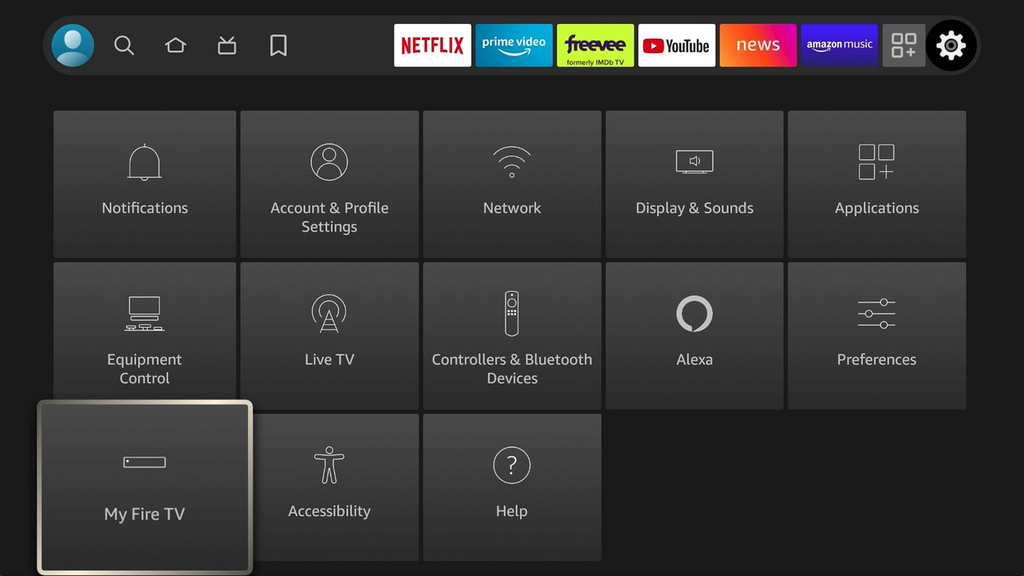
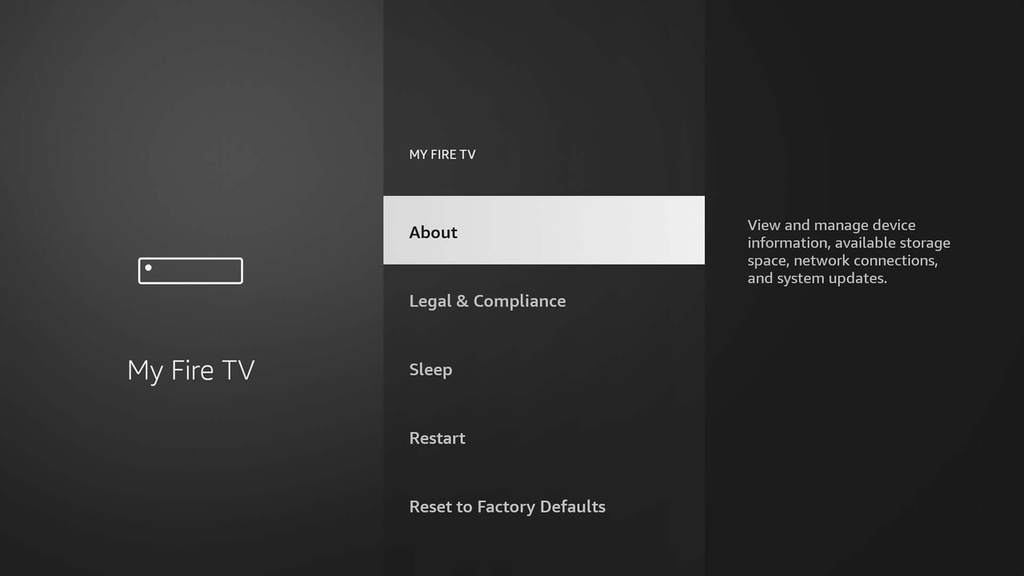
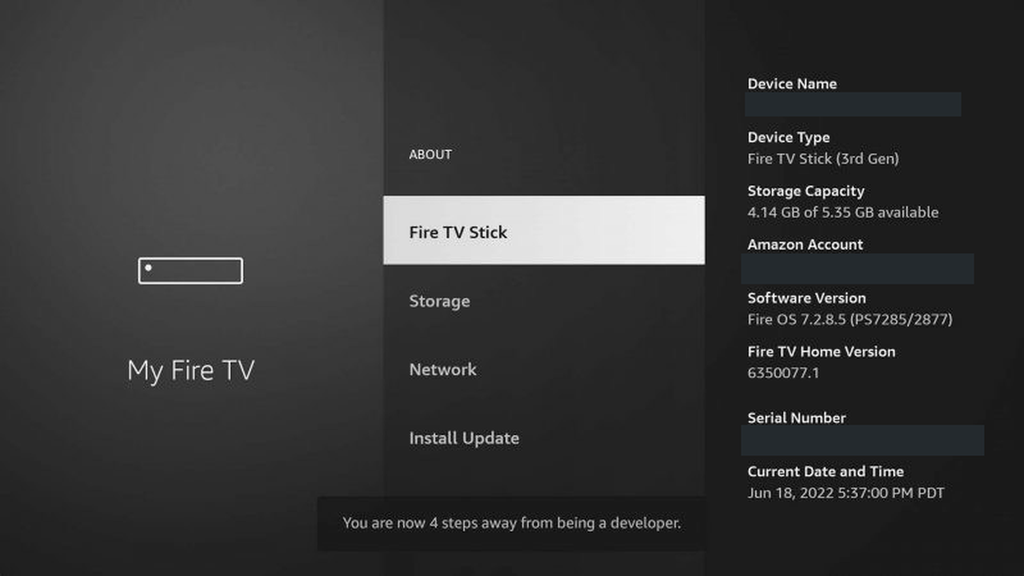
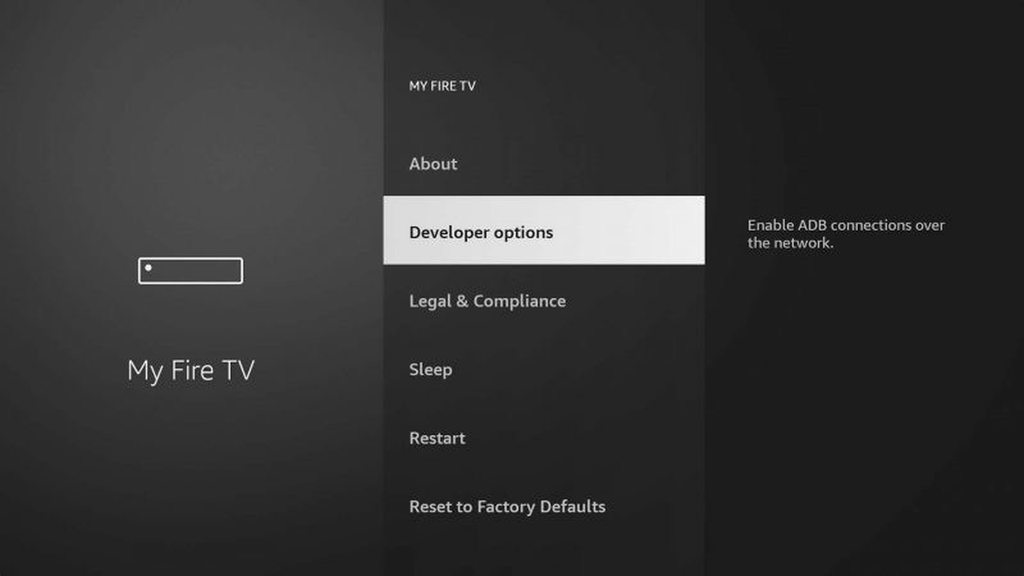
1.2. Open the unknown sources section: Unknown apps on Android TV, Install unknown apps on Fire TV.
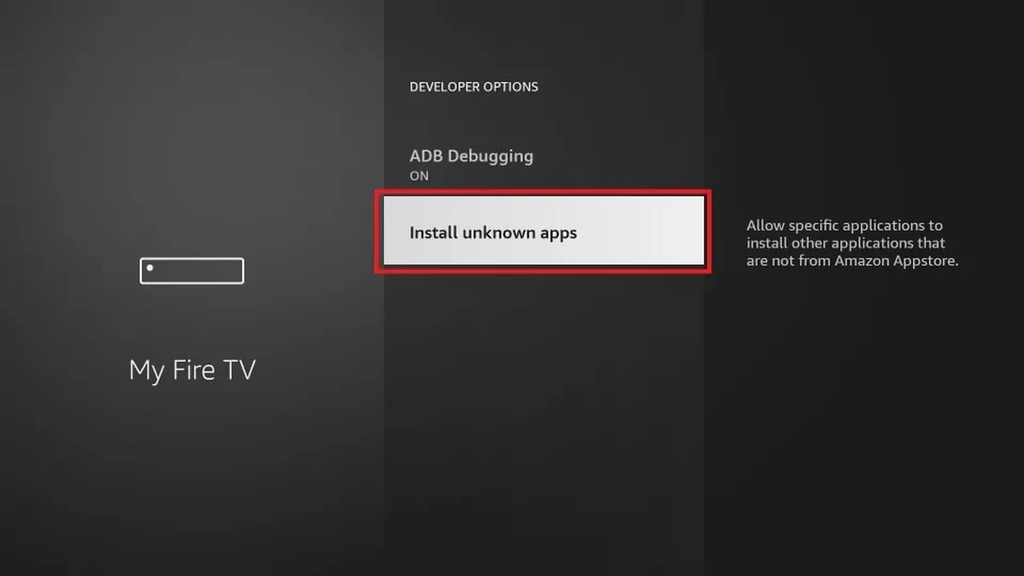
1.3. Allow installation for the downloader app you will use in step 2 (for example Downloader or a file manager). You don’t enable all apps, only that single source. The Fire TV reset and update guide is a useful fallback if the menu behaves unexpectedly after a system update.
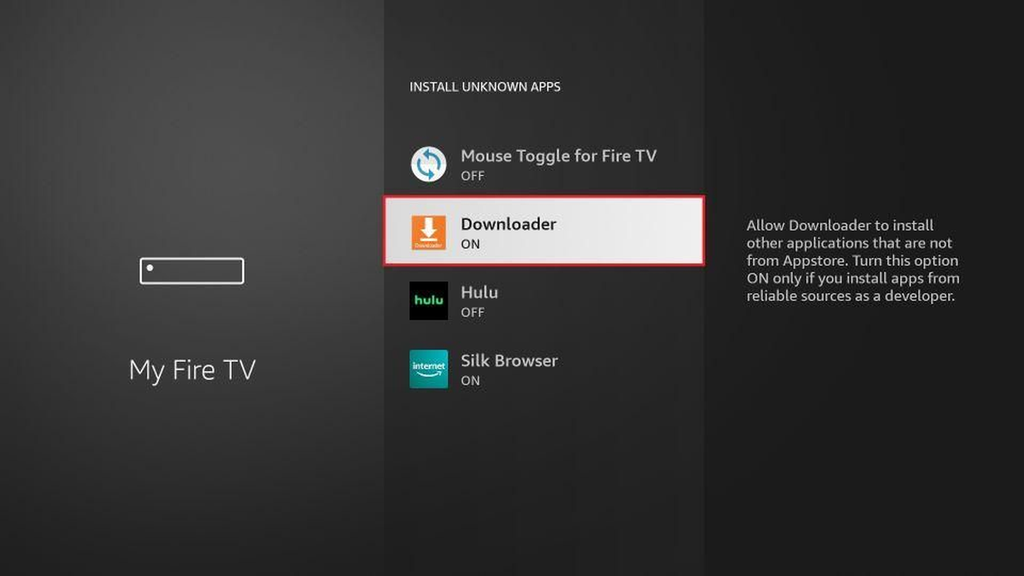
Step 2: Install the Downloader app
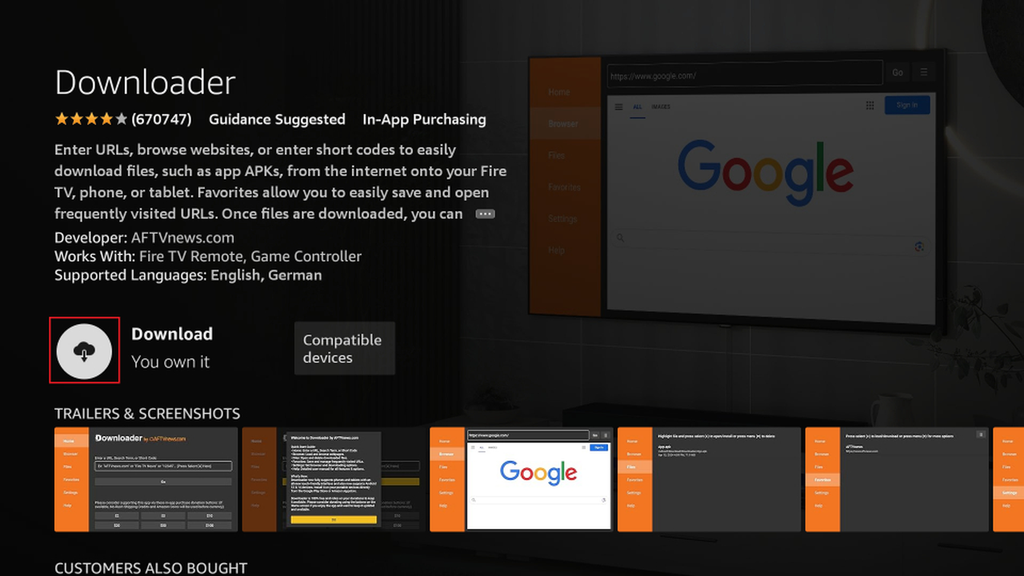
Downloader is a free app by AFTVnews used to fetch APKs directly on your device. It is available in the store on Fire TV and most Android TV devices.
2.1. Open your device store: the Google Play Store on Android TV or Google TV, or the Amazon Appstore on Fire TV.
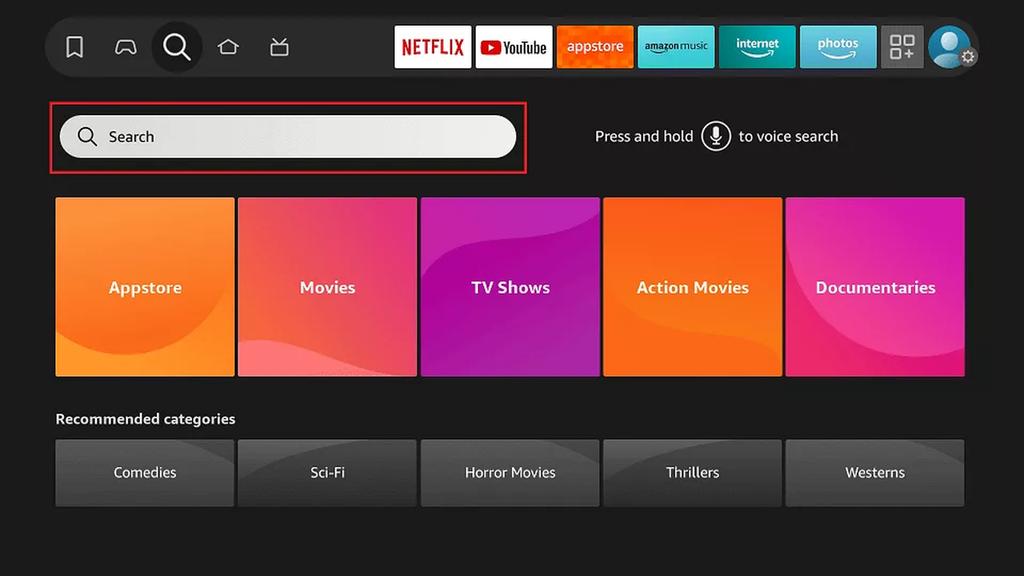
2.2. Search for “Downloader” and pick the app by AFTVnews with the orange icon. Other apps use similar names, so check the publisher.
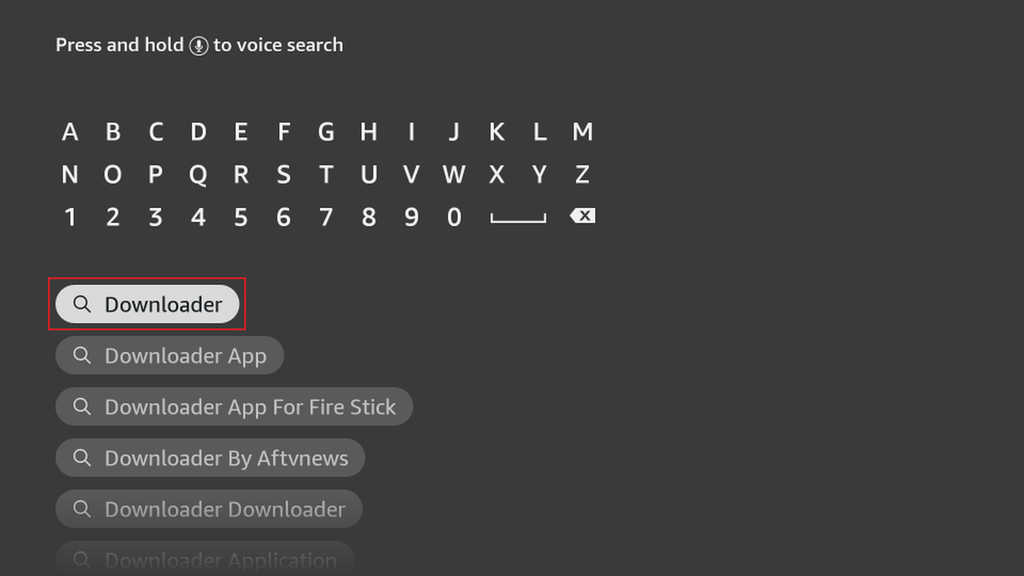
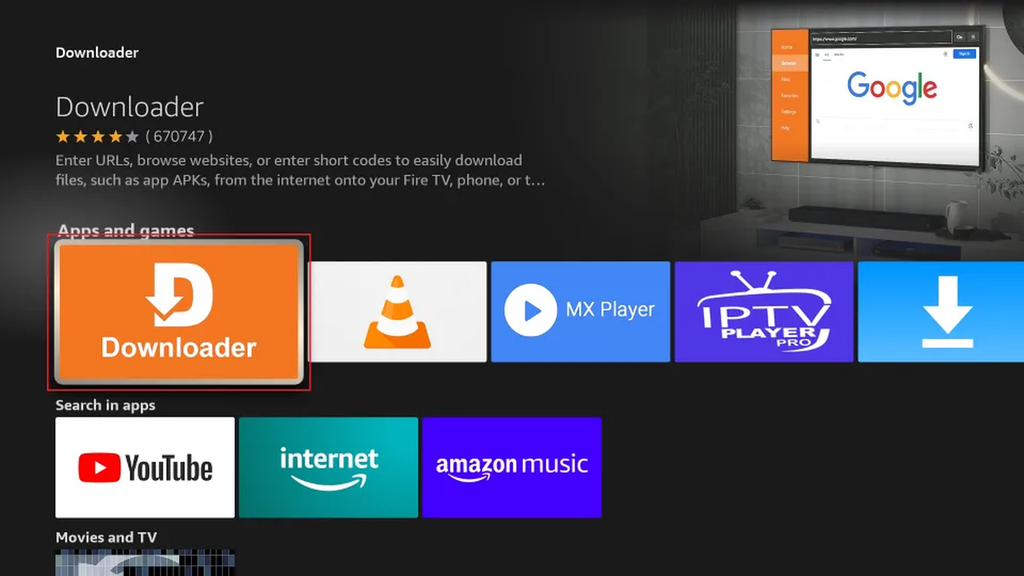
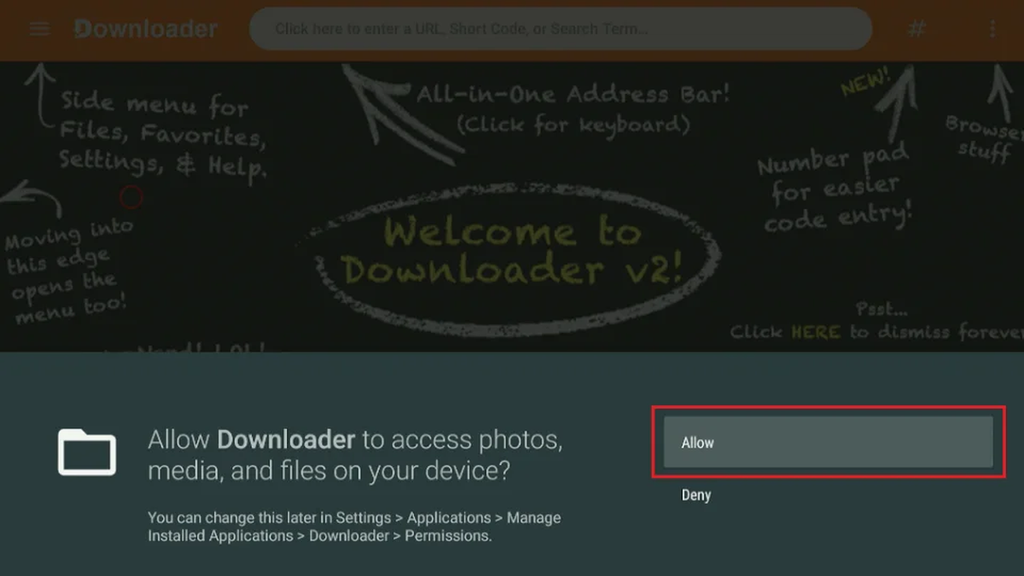
2.3. Install the app and open it once, so you can allow the storage permission it needs to save APK files.
Step 3: Download the official TiviMate APK
TiviMate is currently not available in the Google Play Store. Only get the APK from the official source: the TiviMate download page on tivimate.com. Avoid random mirrors and forums; they may bundle modified builds that compromise your device.
3.1. Open Downloader and choose the Browser section or the URL field at the top of the Home screen.
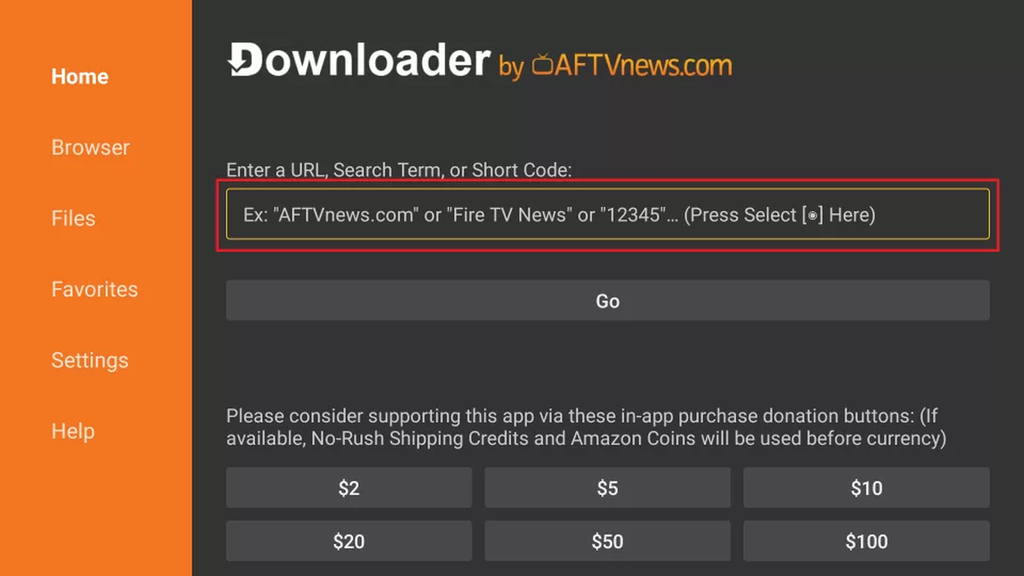
3.2. Enter the official TiviMate URL as listed on tivimate.com. Confirm the exact domain; skip ads and pop-ups that direct elsewhere.
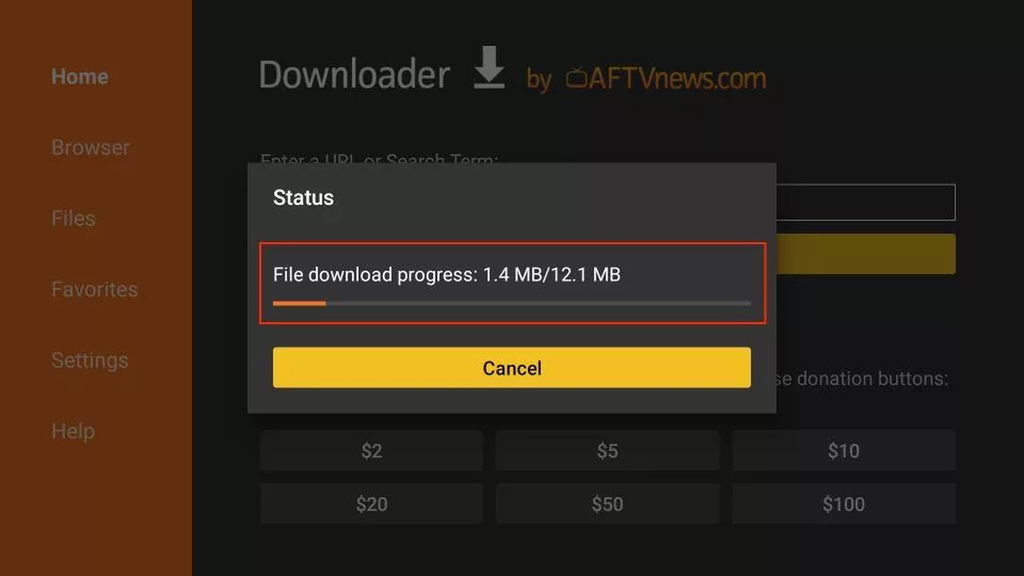
3.3. Download the APK file.** Downloader shows progress; wait for the transfer to finish before continuing.
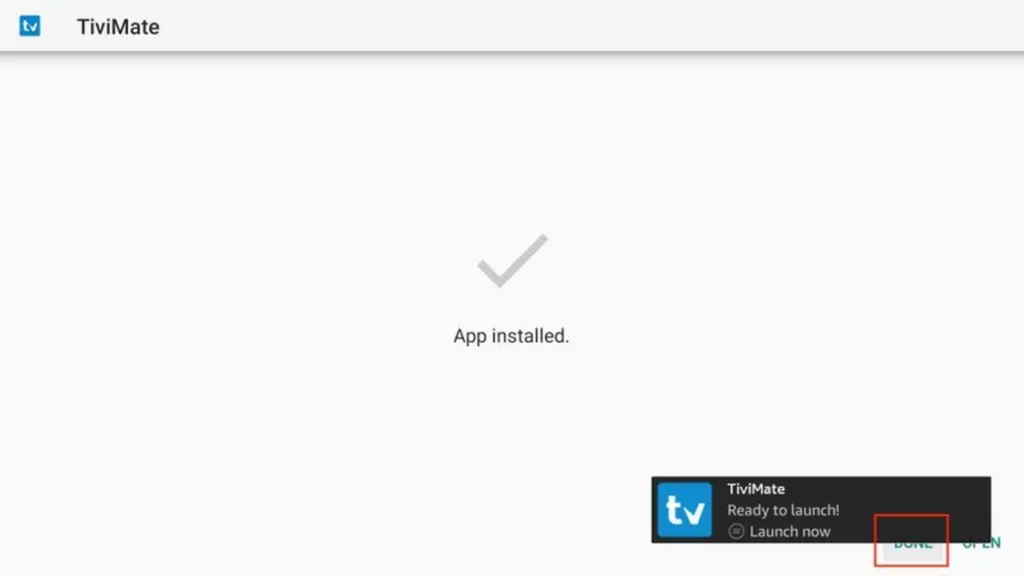
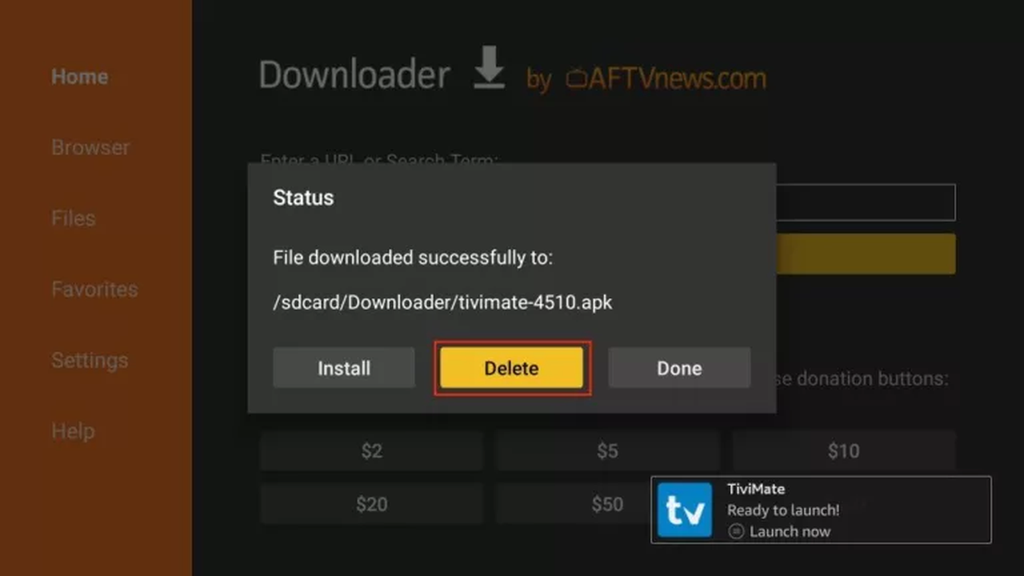
3.4. Choose Install when the install dialog appears, then Done. Delete the APK afterwards to free space.


Step 4: Open TiviMate and add your playlist
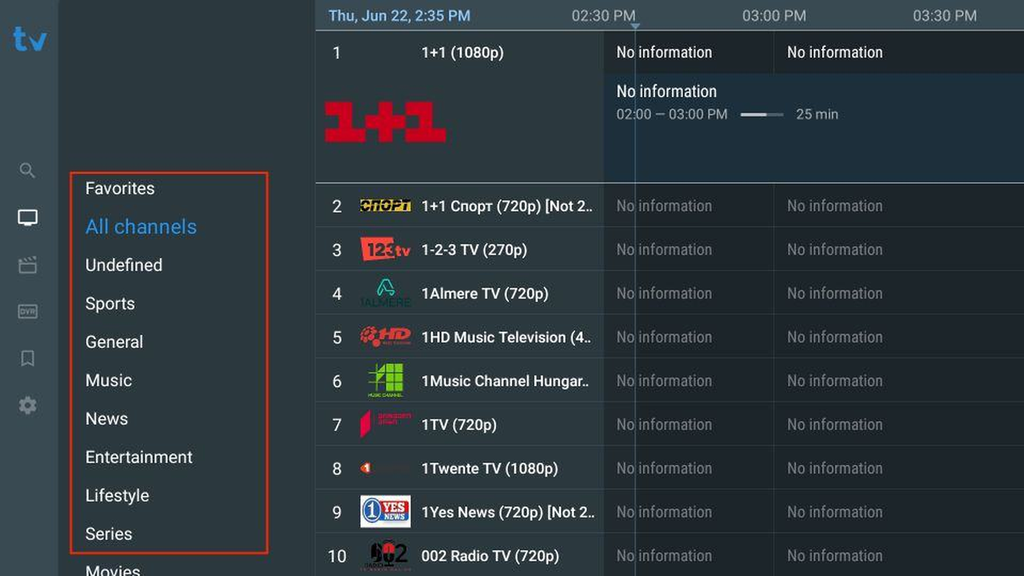
On first launch, TiviMate asks for a playlist. This is where you choose between Xtream Codes and an M3U link.
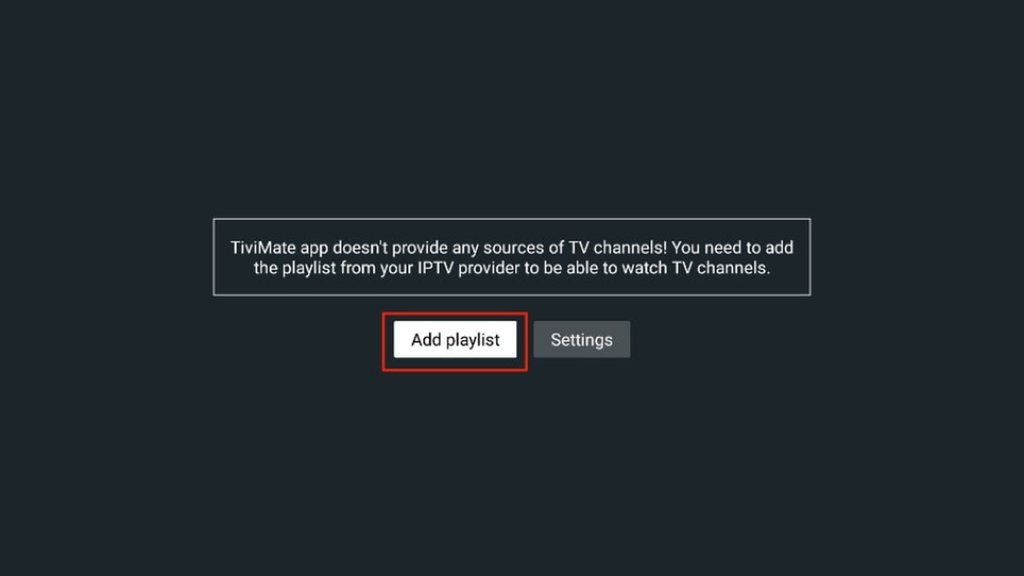
4.1. Open TiviMate and choose Add playlist.
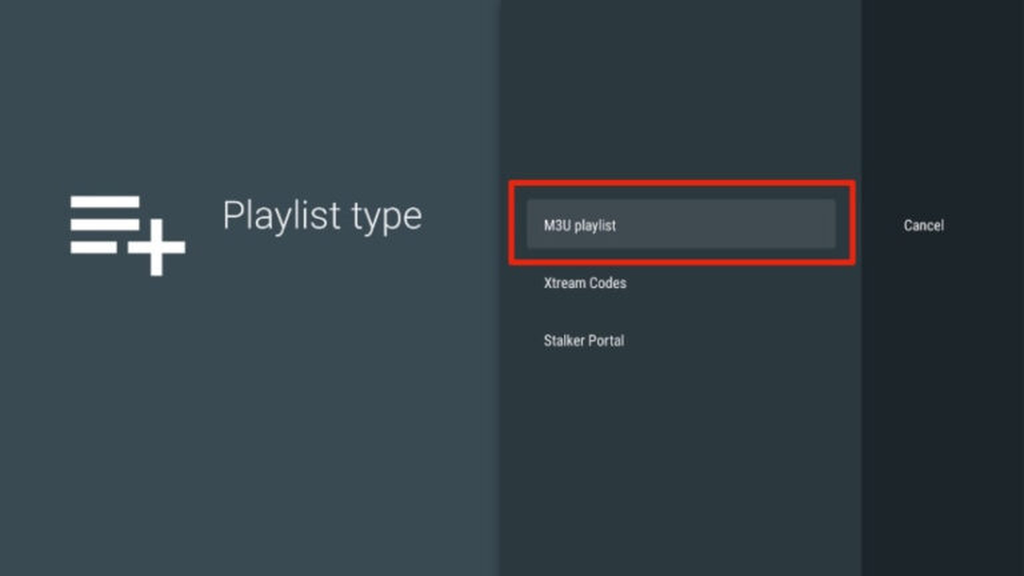
4.2. Choose the source: Xtream Codes if you have a server URL, username and password; M3U playlist if you have one long link.
4.3. Enter your details.** For Xtream Codes, use the server URL including the port (for example http://server.example:8080), your username and your password. For M3U, paste the complete link; check it begins with http:// or https:// and contains no spaces.
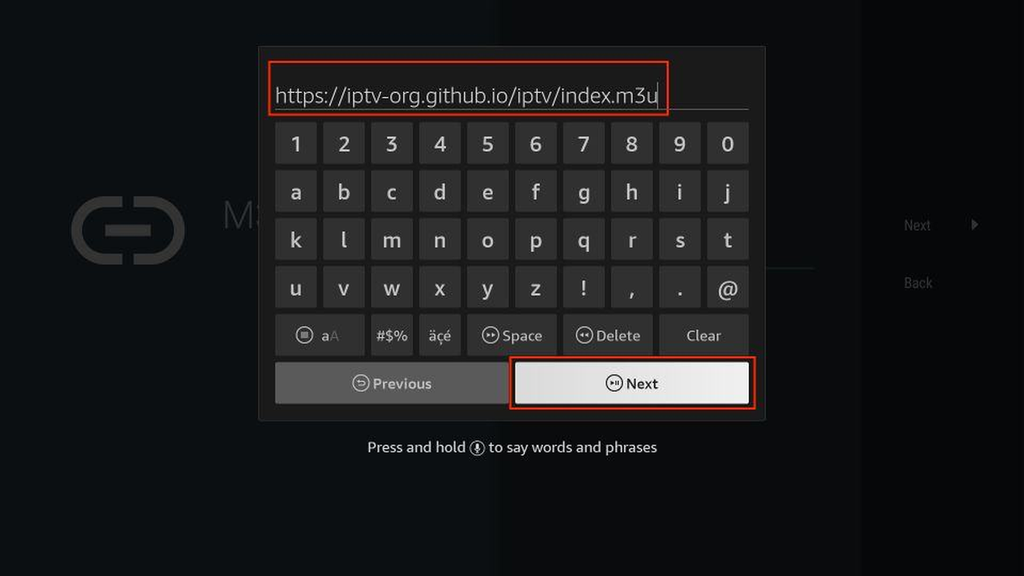
4.4. Give the playlist a recognisable name, confirm and wait for the app to load your channels, films and series.

Step 5: Set up the programme guide (EPG) and player
With Xtream Codes, the programme guide usually loads along. With an M3U link, you add a separate EPG link if it is not fetched automatically.
5.1. Open the TiviMate settings via the gear icon or the side menu.
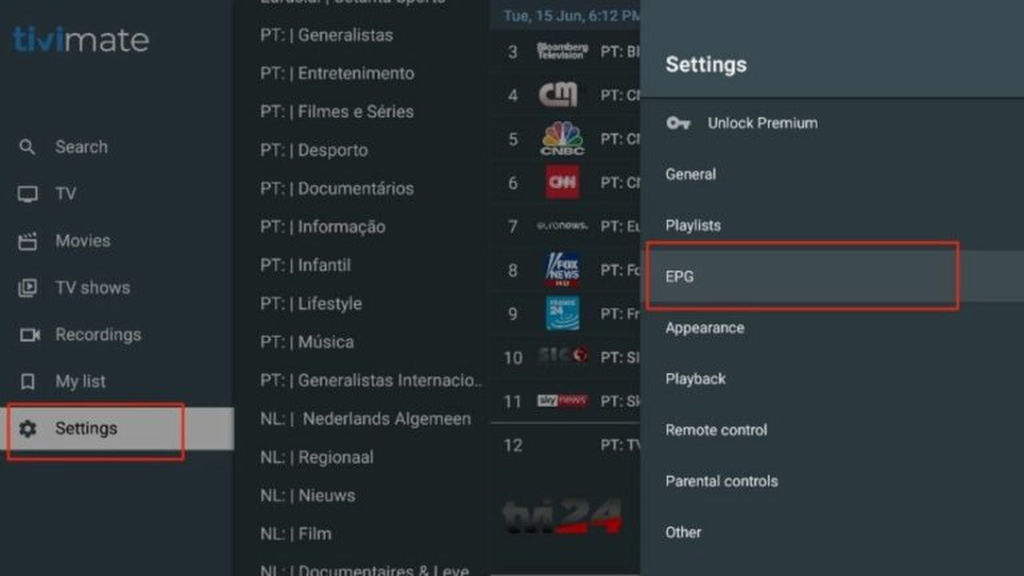
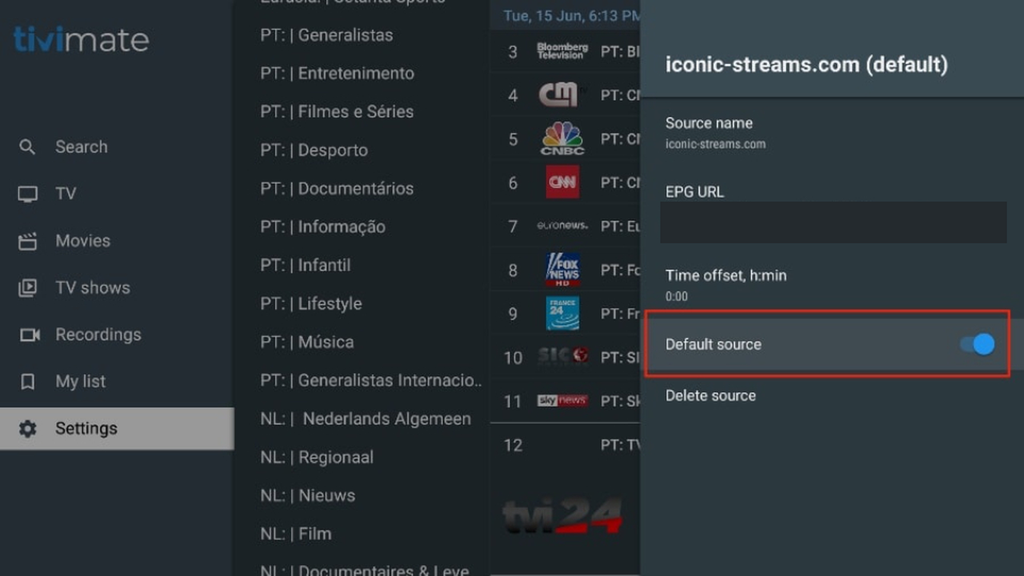
5.2. Go to EPG and add your provider’s EPG or XMLTV link if the grid stays empty. Refresh the guide manually afterwards.
5.3. Open Playback and switch between built-in players (such as ExoPlayer and VLC) and between hardware and software decoding if the picture stutters or you get sound without picture.
5.4. Check the time zone in your device’s system settings if guide times are wrong; TiviMate takes them from there.
TiviMate Premium: what you get for it
TiviMate has a free version and a Premium version. The free version allows one playlist and shows the basics of live TV and the guide. Premium unlocks additional features: multiple playlists at once, recording and scheduled recordings, catch-up from the guide, picture-in-picture and backups of your settings. Whether those features matter for you depends on your viewing habits; for daily use with one provider, the free version is often enough.
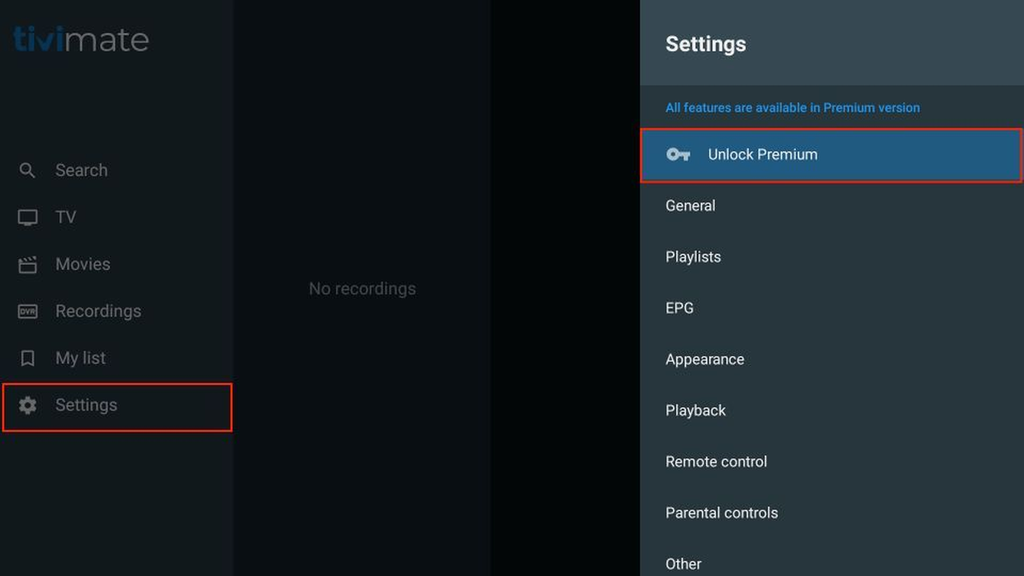
Activating TiviMate Premium via the Companion app
Premium is managed through the TiviMate Companion app. You install it on your Android phone or tablet (where available), buy Premium in the Companion app and link your TV device with the code TiviMate shows on screen. Without an active Google Play purchase in your Companion account, Premium does not work. Prices and periods are listed in the Companion app; we do not quote them here because they can change.
1. Install TiviMate Companion on your Android phone or tablet via the Google Play Store.
2. Open Companion and buy Premium with the Google account you also want to use on your TV device.

3. Open TiviMate on your TV and go to Settings > Account > Sign in. You see a link code.
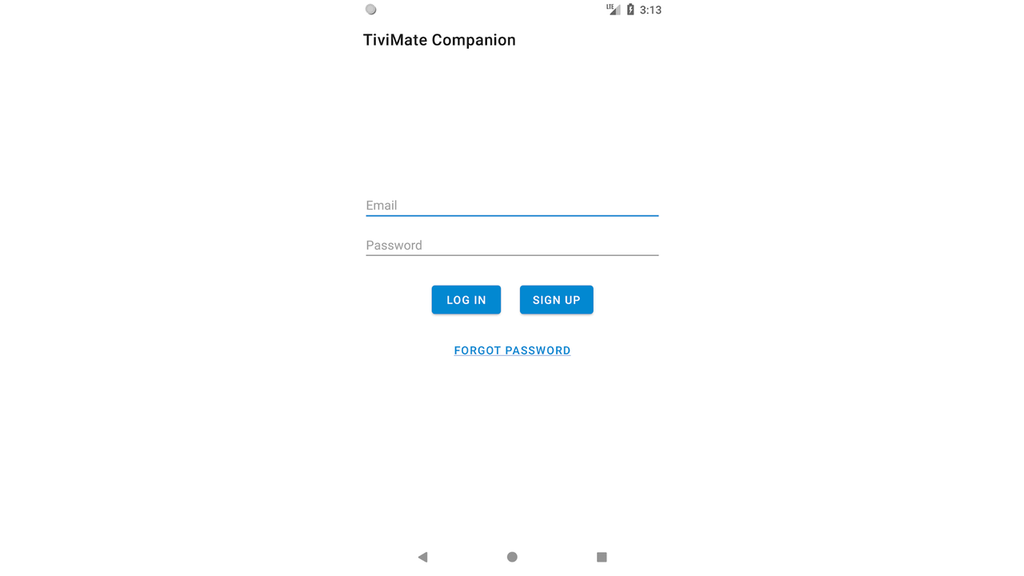
4. Enter that code in the Companion app to link your device to your account. Premium stays active until the end of the purchased period.
Check that everything works
Treat the first load as a test before you go further.
- Channels from two or three different categories start and keep playing without interruption.
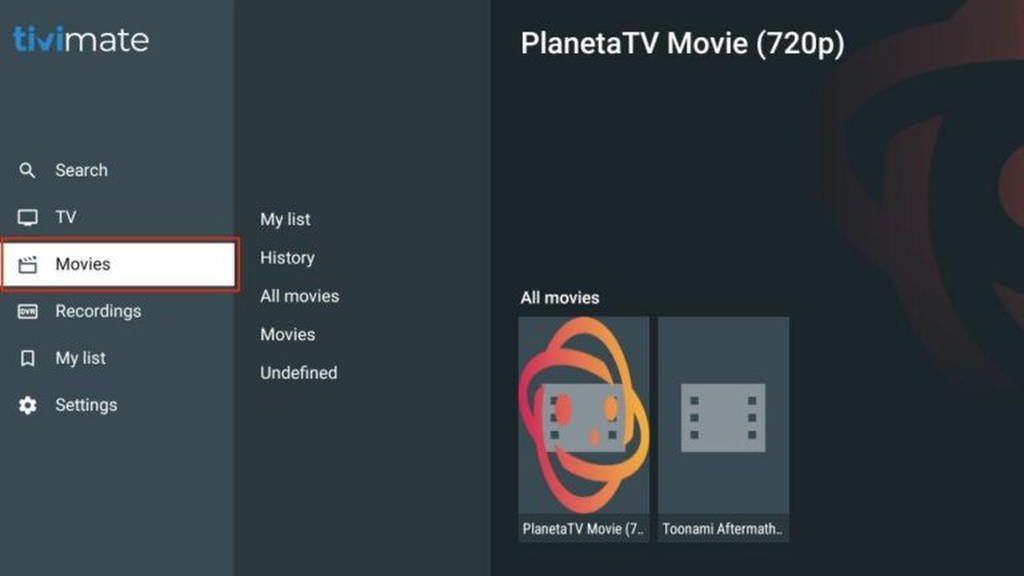
- The Movies and Series sections show titles with posters, if your subscription includes them.
- The programme guide shows the current programme at the right time.
- If Premium is active: recording and catch-up work on at least one channel.
Fixing problems when you install IPTV with TiviMate
| Problem | Likely cause | Solution |
|---|---|---|
| Install blocked | Unknown sources not allowed for Downloader | Enable access for Downloader in Security & restrictions |
| APK download fails | Wrong URL or temporary server issue | Confirm you are on the official TiviMate domain and try again |
| Sign-in fails | Port missing or wrong capitals | Check the server URL including port and retype the details |
| Guide stays empty | No EPG link set | Add your provider’s EPG link and refresh the guide |
| Premium not recognised | Wrong Google account in Companion | Use the same Google account as at purchase |
| Picture stutters or buffers | Network or decoder | Use a cable or 5 GHz Wi-Fi; switch hardware and software decoding |
| Fire TV remote won’t confirm the install | Remote pairing or button issue | See the Firestick remote not working guide and retry |
If stutter continues on your Fire TV, the cause often sits outside TiviMate. A VPN that is on by default on your streaming stick can add latency; the VPN for IPTV on Firestick guide explains when a VPN helps and when it hurts.
Frequently asked questions about installing IPTV with TiviMate
Why is TiviMate no longer in the Google Play Store?
In 2026, TiviMate was removed from the Play Store, along with several other IPTV players during a wider enforcement push. The app itself works normally; distribution now goes via the official APK on tivimate.com. It is a distribution change, not a shutdown.
Is TiviMate free?
There is a free version. Premium unlocks extra features such as multiple playlists, recording and catch-up; prices and periods are managed in the TiviMate Companion app.
Does TiviMate work on iPhone, iPad or Samsung TV?
No. TiviMate is built for Android, Android TV, Google TV and Fire OS. For other platforms, pick a player made for that system; the best IPTV app for Apple TV overview is a starting point for Apple devices.
Xtream Codes or M3U with TiviMate: which works best?
Xtream Codes, if your provider supplies it. Channels, films and series are organised automatically and the guide usually loads along. M3U works fine if that is all you have.
Which other IPTV players can I consider on different devices?
TiviMate is Android-only, so for other platforms you will look elsewhere. The best IPTV player for Windows overview covers desktop options, and the best IPTV app for Firestick guide compares TiviMate with other Fire TV players.
No login details yet? Request a free trial and try installing IPTV with TiviMate on your own device.
Related guides
- How to install IPTV on an Android TV box
- How to set up IPTV on a Smart TV
- How to use IPTV on Chromecast
- How to set up IPTV: a general guide
