
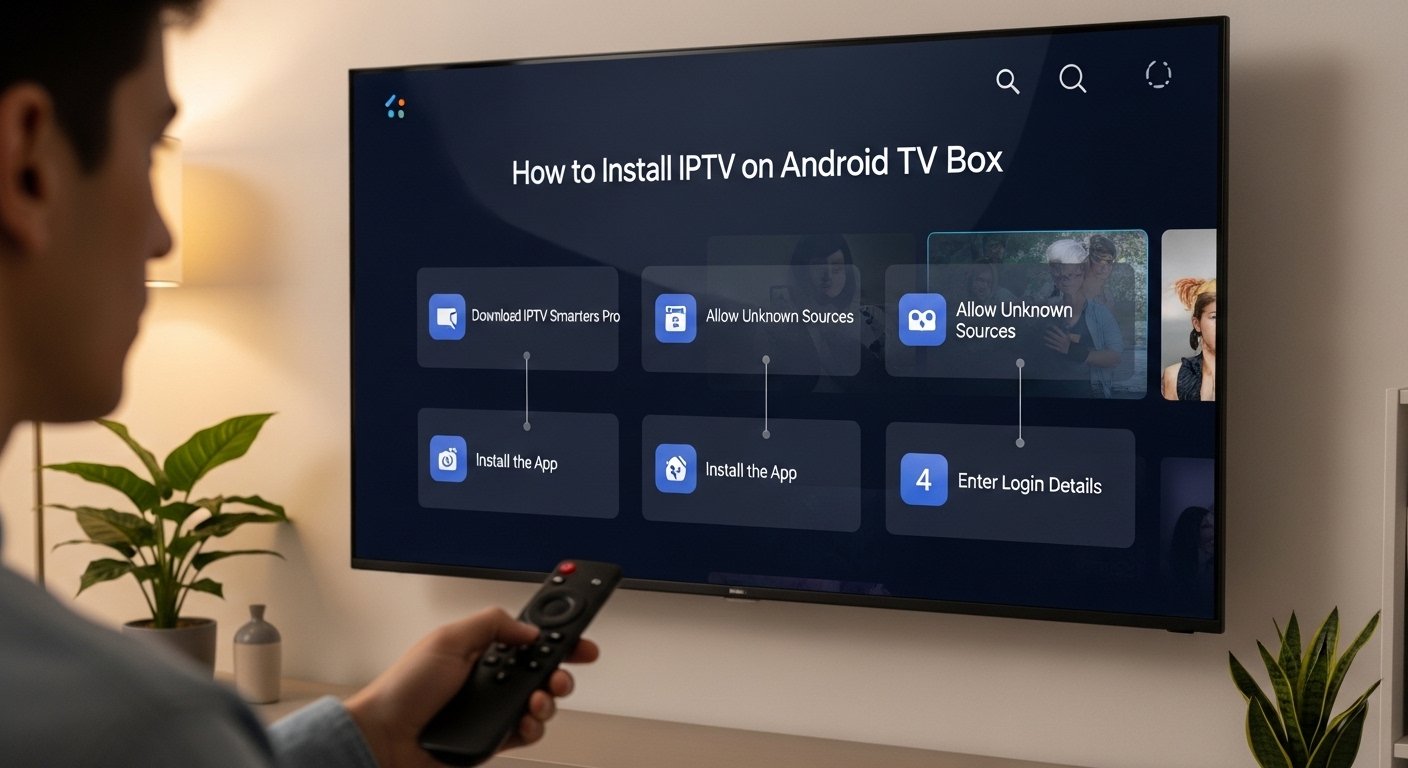
Android TV boxes have become one of the most popular ways to enjoy IPTV in the UK and beyond. Compact, affordable, and remarkably powerful, these small devices plug straight into your TV’s HDMI port and transform any screen into a fully-fledged smart entertainment hub.
Pair one with a quality IPTV subscription and you have access to thousands of live channels, on-demand films, and sports events — all for a fraction of what traditional pay-TV providers charge.
If you’ve just received your Android TV box and you’re not sure where to start, this guide walks you through everything: understanding what Android TV boxes are, which IPTV apps to use, how to install them step by step, and how to troubleshoot the most common issues. By the end, you’ll be watching your first channel in no time.
What Is an Android TV Box?
An Android TV box is a small set-top device that runs a version of Android — either the consumer-friendly Android TV or Google TV interface, or the more open AOSP Android (also called “stock Android”). The distinction matters slightly when it comes to IPTV installation, but both work excellently.
Popular Android TV box brands in the UK include:
- Nvidia Shield TV Pro — the premium option, outstanding for 4K streaming and gaming
- Xiaomi Mi Box S / 4K — compact, affordable, and officially running Android TV
- MECOOL KM Series — Google-certified boxes with strong IPTV compatibility
- Formuler Z Series — purpose-built for IPTV use with dedicated middleware support
- Generic Allwinner/Rockchip boxes — budget-friendly AOSP devices widely sold online
Unlike Amazon Fire Stick or Roku (which run proprietary operating systems), Android TV boxes allow you to install virtually any APK file — including IPTV applications that may not appear in the official Google Play Store. This openness is one of the key reasons they’re a favourite platform for IPTV enthusiasts.
What You Need Before You Start
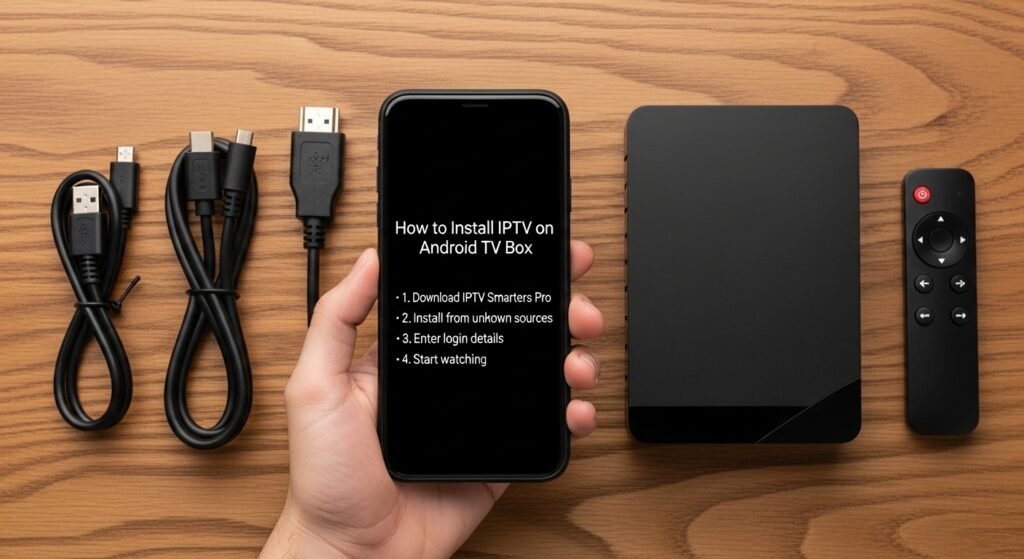
Before installing any IPTV app, make sure you have the following ready:
1. A working Android TV box Connected to your TV via HDMI, powered on, and connected to your home Wi-Fi or Ethernet network. For best streaming performance, a wired Ethernet connection is always preferable to Wi-Fi.
2. A valid IPTV subscription You’ll need credentials from your chosen IPTV provider .This will either be:
- An M3U URL (a web link ending in .m3u or .m3u8)
- Xtream Codes login details — a server URL, username, and password
- A MAC address-based portal URL (less common, used by some dedicated boxes)
If you don’t yet have a subscription, take advantage of free trial offers before committing. A 24–48 hour trial will let you test stream quality, channel availability, and server stability on your specific connection before paying.
3. A stable internet connection Aim for at least 20 Mbps for reliable HD streaming. For 4K content or multiple simultaneous streams, 50 Mbps or more is recommended.
4. A mouse or keyboard (optional but helpful) Navigating app settings is easier with a Bluetooth mouse or a mini wireless keyboard during initial setup.
The Best IPTV Apps for Android TV Box
There are dozens of IPTV applications available for Android devices. The following five are the most widely used and consistently well-reviewed in 2026.
1. TiviMate IPTV Player
TiviMate is widely considered the gold standard of Android IPTV players. Its interface is polished, intuitive, and genuinely feels like a premium broadcast TV experience. Key features include:
- Beautiful EPG (Electronic Programme Guide) with grid and list view
- Catch-up support (where enabled by your provider)
- Multiple playlist management
- Parental controls and channel grouping
- Recording to external storage (Premium version)
TiviMate has a free version with core functionality and a Premium unlock (available as a one-off purchase or annual subscription) that adds features like multiple playlists, recording, and an automatic panel.
2. IPTV Smarters Pro
IPTV Smarters Pro is one of the most widely compatible apps available, supporting M3U playlists, Xtream Codes API, and external player integration. It’s available on the Google Play Store, making installation straightforward on official Android TV devices. The interface is clean, multi-screen management is simple, and it supports VOD and series sections alongside live TV.
3. GSE Smart IPTV
GSE Smart IPTV is a feature-rich, free application that handles both M3U and JSON playlist formats. It includes a built-in media player with hardware decoding support, an EPG manager, and the ability to import playlists remotely or from local storage. It’s an excellent choice for users with more complex playlist configurations.
4. Ottoplayer
Ottoplayer has gained a strong following thanks to its clean interface and the ability to set up playlists via a web browser rather than entering URLs directly on the TV — a welcome convenience when dealing with lengthy M3U links. It supports Xtream Codes, M3U, and stalker portal connections.
5. Perfect Player IPTV
Perfect Player is a long-established, lightweight IPTV player with a classic grid-style EPG. It’s straightforward to configure, resource-efficient (important on budget boxes), and highly reliable. It doesn’t have the visual polish of TiviMate, but it’s a dependable workhorse that works well even on older hardware.
Method 1: Installing IPTV Apps from the Google Play Store
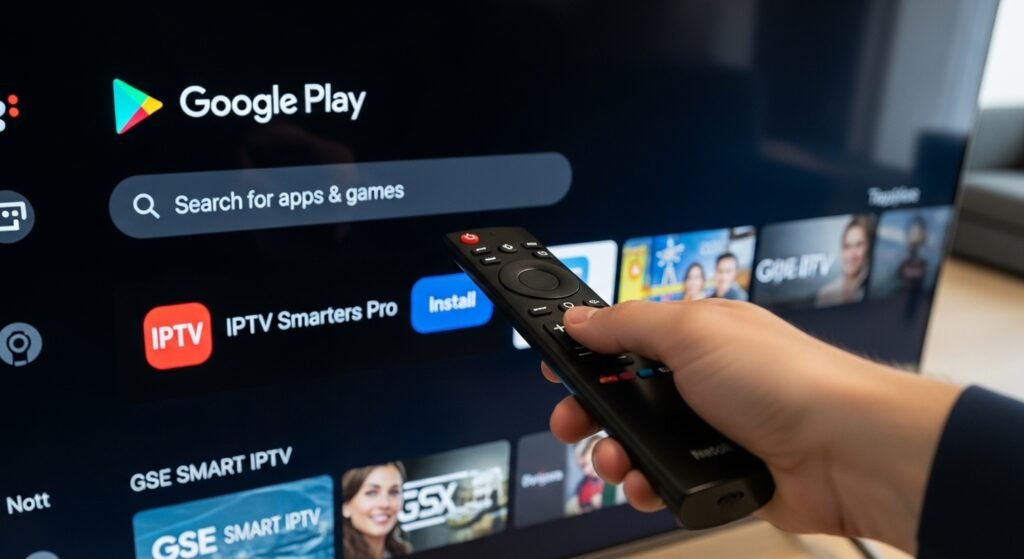
If your Android TV box runs official Android TV or Google TV (Nvidia Shield, Xiaomi Mi Box, MECOOL boxes, etc.), many IPTV apps are available directly from the Google Play Store. This is the simplest installation method.
Step 1: Open the Google Play Store
From your Android TV home screen, navigate to the Google Play Store icon and open it.
Step 2: Search for Your Chosen App
Use the search bar to find your preferred IPTV player. For example, search for “IPTV Smarters Pro” or “TiviMate”. Note that TiviMate’s Premium companion app is a separate download from the main player.
Step 3: Install the App
Select the app from the search results and press Install. The download and installation will complete automatically within a minute or two, depending on your internet speed.
Step 4: Launch the App and Add Your Playlist
Once installed, open the app and follow the on-screen setup wizard. You’ll typically be prompted to choose your connection type (M3U URL, Xtream Codes, or portal) and enter your provider credentials.
- For M3U: Paste the full M3U URL provided by your IPTV service
- For Xtream Codes: Enter the server URL, username, and password separately
- For Portal: Enter the portal URL and, if required, your device’s MAC address
Step 5: Load Channels and EPG
After entering your details, the app will download and parse your channel list. This may take a few minutes, especially on first run. Once complete, your channels will be organised into groups (Entertainment, Sports, News, etc.) and your EPG will begin populating with programme schedule data.
Method 2: Sideloading APK Files on Android TV Box
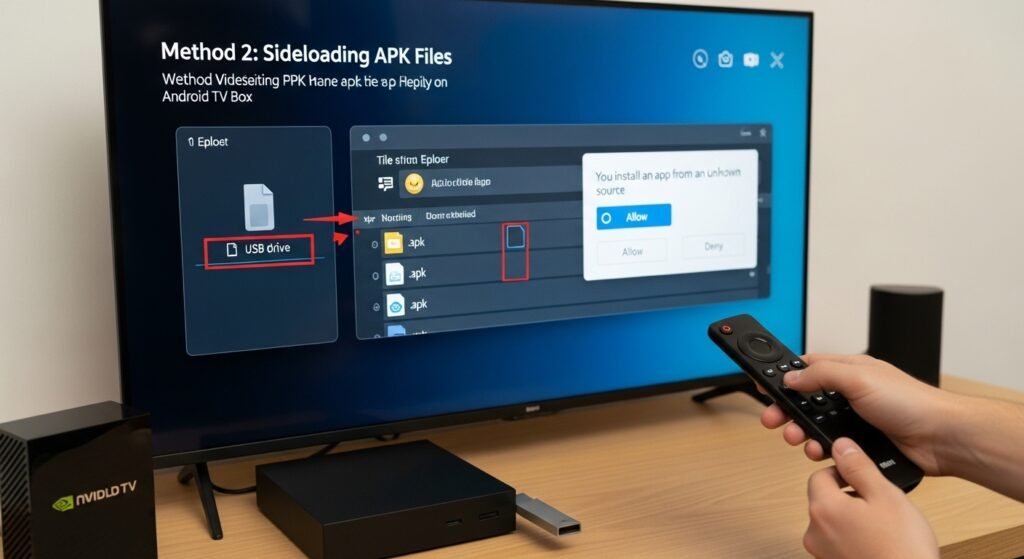
For boxes running stock Android (AOSP) — or when an app isn’t available on the Play Store — you’ll need to sideload the APK file manually. This sounds technical but is actually a very straightforward process.
Step 1: Enable Installation from Unknown Sources
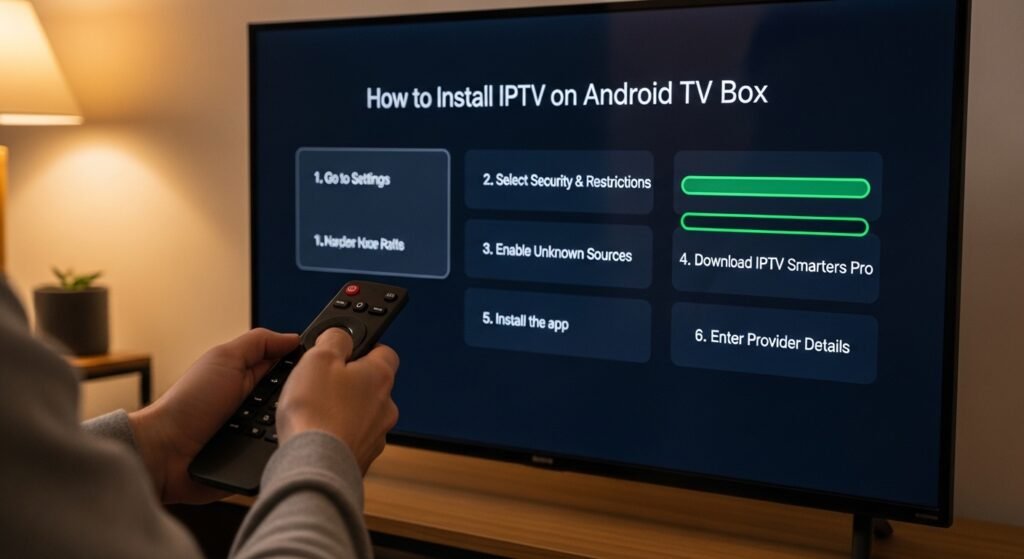
Go to your box’s Settings menu. Navigate to Security (or Privacy on some devices) and enable the option labelled “Unknown sources” or “Install unknown apps.”
On Android TV specifically, you may need to grant this permission per app — for example, allowing the File Commander or Downloader app to install other applications.
Step 2: Install the Downloader App
The easiest way to sideload on Android TV is using the Downloader app by AFTVnews (available on the Play Store). It functions as a simple browser and file manager that lets you download APK files directly to your box.
Alternatively, you can:
- Transfer the APK via USB stick
- Use the Send Files to TV app to push the APK from your phone
- Use ADB (Android Debug Bridge) from a computer for more advanced users
Step 3: Download the APK
Open Downloader and type in the direct APK download URL for your chosen IPTV app. You can find official download links on the developer’s website. For TiviMate, for instance, the official APK is available from the TiviMate website. For IPTV Smarters Pro, the provider link supplied with your subscription often includes a direct APK download.
Step 4: Install the APK
Once the download completes, the Downloader app will prompt you to install the file. Press Install, wait for the process to finish, and then press Done (not “Open” — return to your home screen first to tidy up if you wish).
Step 5: Configure Your IPTV App
Launch the newly installed app from your app drawer and proceed with entering your subscription credentials, exactly as described in Method 1, Steps 4 and 5.
Optimising Your IPTV Experience on Android TV Box
Installing the app is just the beginning. A few extra steps will significantly improve stream quality and reliability.
Use a Wired Ethernet Connection
Wi-Fi is convenient but introduces latency, packet loss, and interference — all of which cause buffering. Most Android TV boxes include a built-in Ethernet port. Plug it directly into your router with a Cat5e or Cat6 cable and you’ll notice an immediate improvement in stability, particularly during HD and 4K streams.
Enable Hardware Decoding
Within your IPTV player’s settings, look for a Hardware Decoder option and make sure it is enabled. Hardware decoding offloads video processing from the CPU to the dedicated video processor on your box, dramatically reducing buffering and enabling smooth 4K playback without excessive heat generation.
Adjust Buffer Size
Most players allow you to increase the buffer size in settings. A larger buffer (typically 5,000–10,000 KB) gives the app more time to pre-load stream data, reducing the impact of temporary network slowdowns on your viewing experience.
Clear the App Cache Regularly
Over time, cached data from your IPTV player can accumulate and cause sluggishness. Go to Settings > Apps > [Your IPTV App] > Clear Cache every few weeks to keep things running smoothly.
Install a VPN (Optional)
Many IPTV users in the UK choose to run a VPN on their Android box for added privacy. VPNs encrypt your traffic and prevent your ISP from monitoring your streaming activity. Look for VPN apps with dedicated Android TV interfaces — ExpressVPN, NordVPN, and Surfshark all offer polished TV-friendly applications. Connect to a UK server to maintain fast speeds while protecting your privacy.
Troubleshooting Common IPTV Problems on Android TV Box
Even with the best setup, you may occasionally run into issues. Here’s how to resolve the most common ones.
Buffering and freezing The most frequent complaint. First, test your internet speed using a speed-test app on the box itself — not your phone. If speeds are fine, switch from Wi-Fi to Ethernet. If buffering persists, try increasing the buffer size in your player’s settings, or contact your IPTV provider to check whether the specific channel’s server is under load.
Channels not loading / black screen This usually means the stream link for that channel has changed or gone offline. Refresh your playlist within the app (look for a “Reload Playlist” or “Update” option) and try again. If the problem affects all channels, check your subscription hasn’t expired.
EPG not loading EPG data requires a separate URL or automatic fetch from your provider. Check that your EPG source URL is correctly entered in the app’s settings. Some providers offer a dedicated EPG URL separate from the M3U playlist link.
App crashing on startup Clear the app’s cache and data (Settings > Apps), then uninstall and reinstall. If the problem persists on a sideloaded APK, the version you downloaded may be outdated — look for the latest release on the developer’s official site.
Poor quality or SD streams when HD is expected Some IPTV apps default to SD streams for bandwidth conservation. Look for a stream quality selector within the player — many providers offer SD, HD, and FHD versions of the same channel — and switch to the HD link manually.
Frequently Asked Questions
Is it legal to use IPTV on an Android TV box in the UK? IPTV as a technology is completely legal. The legality depends on your provider and whether they hold the appropriate broadcasting licences for the channels they distribute. Always check that your chosen service operates within UK law.
Can I use IPTV on multiple devices with one subscription? Most IPTV providers offer multi-connection packages. A two-connection plan lets you stream simultaneously on two devices — for example, your Android TV box and a phone or tablet.
Do I need to buy an expensive Android TV box? Not at all. Budget-friendly boxes from £30–£50 handle HD streaming perfectly well. If you want 4K HDR with Dolby Vision and a future-proof processor, the Nvidia Shield Pro is the benchmark, but it’s far from a requirement for most users.
Which IPTV app is best for beginners? TiviMate offers the most intuitive, TV-friendly interface and is consistently recommended for newcomers. IPTV Smarters Pro is also very beginner-friendly and is available directly from the Play Store without any sideloading.
Final Thoughts
Installing IPTV on an Android TV box is one of the most rewarding upgrades you can make to your home entertainment setup. The combination of open Android architecture, widely available IPTV apps, and affordable subscriptions creates a genuinely compelling alternative to expensive satellite or cable TV packages.
To summarise the process: enable unknown sources if needed, install your chosen IPTV player (via the Play Store or by sideloading an APK), enter your subscription credentials, load your playlist, and optimise your settings for the best possible picture quality. That’s genuinely all there is to it.
Take your time choosing a reliable IPTV provider — test a free trial before committing — and pair it with a quality player like TiviMate or IPTV Smarters Pro, and you’ll be enjoying seamless, high-definition television on your Android TV box for years to come.

UK-based streaming specialist with years of hands-on experience testing, reviewing, and breaking down the best ways to watch TV online. As the founder of TVXWatch, Allen has helped thousands of UK viewers make the switch away from expensive cable and satellite packages, cutting through the technical jargon to make IPTV accessible for everyone.