If you own an Amazon Firestick and you’ve been hearing about IPTV, chances are you’ve already started wondering how the two work together. The Firestick is one of the most widely used streaming devices in the UK, and it happens to be one of the most capable pieces of hardware for running an IPTV app.
But before you dive in, there’s quite a bit worth understanding, from what an IPTV app actually does on a Firestick, to how to set one up, what to expect from performance, and what to watch out for along the way.
This guide covers everything in plain terms, without assuming you already know the ins and outs of IPTV or streaming technology.
What Is an IPTV App and Why Does It Matter on a Firestick?
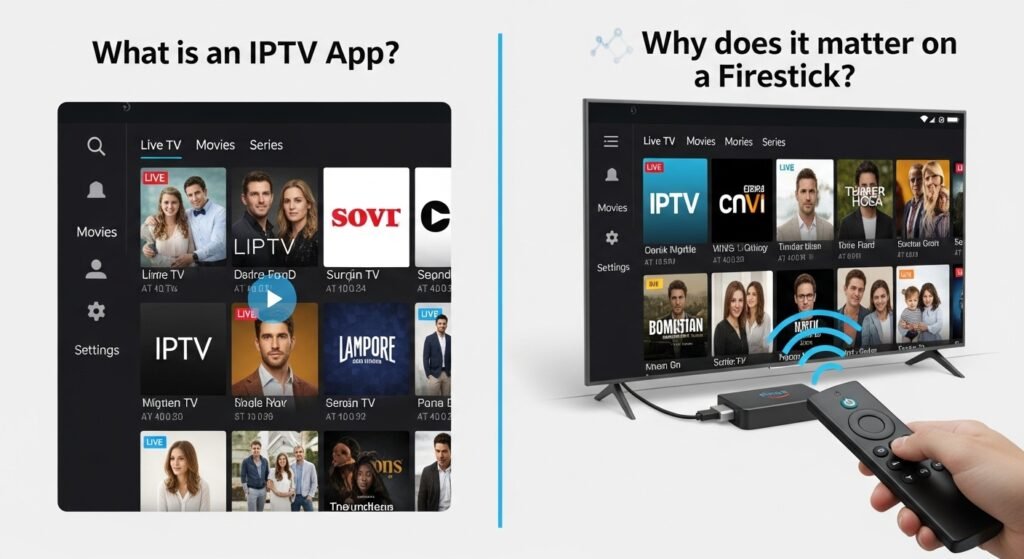
IPTV stands for Internet Protocol Television. Rather than receiving TV signals through a satellite dish or a cable connection, IPTV delivers television content over the internet.
This means that as long as you have a stable broadband connection, you can stream live TV channels, on-demand content, and catch-up TV through an app on your device.
A Firestick is essentially a small Android-based computer that plugs into your TV’s HDMI port. It runs a modified version of Android called Fire OS, which means it can run a wide range of apps including IPTV players. These players act as the interface between your IPTV subscription and your screen.
The IPTV app is the software that takes the stream data from your provider and displays it as a watchable TV channel or video-on-demand library. Without an app, your IPTV subscription data has nowhere to go. The app is the bridge.
How IPTV Apps Work on a Firestick
When you install an IPTV app on your Firestick, you’re installing what’s called an IPTV player. This player doesn’t come with content of its own. It simply reads a playlist file (usually in M3U format) or connects via a protocol called Xtream Codes, which your IPTV provider supplies.
Once you enter your subscription details into the app, it loads your channel list, EPG (Electronic Programme Guide), and any VOD content included in your plan. From that point, the app organises everything into a familiar TV-style interface, letting you browse channels, search for content, and control playback.
The Firestick handles all the decoding and rendering locally. The performance you experience depends on three things: the quality of the IPTV app, the speed and stability of your internet connection, and the server quality of your IPTV provider.
Types of IPTV Apps Available for Firestick
Not all IPTV apps are the same. They differ in interface design, features, format support, and how they handle stream buffering. Here’s what you’ll typically encounter:
M3U Player Apps
These apps accept an M3U playlist URL from your provider and load all your channels and VOD content directly from it. They’re flexible and work with virtually any IPTV provider. Examples of well-known M3U-based players include TiviMate, IPTV Smarters Pro, and GSE Smart IPTV.
Xtream Codes Apps
Some apps connect directly using Xtream Codes API credentials, a username, password, and server URL. This method is often more stable and allows the app to load categories, EPG, and on-demand content in a more structured way. Many modern IPTV apps support both M3U and Xtream Codes.
Dedicated Provider Apps
Some IPTV providers build their own branded apps. These are designed specifically for their service and tend to offer a more polished experience for that provider’s content. However, they’re less flexible and only work with that one provider.
Multi-Portal Apps
Apps like Duplex Play or Formuler’s myTVOnline operate as portals, connecting to provider-specific portal URLs. These are more common with providers that use MAG box infrastructure and tend to have a very traditional TV-style navigation experience.
Installing an IPTV App on Your Firestick
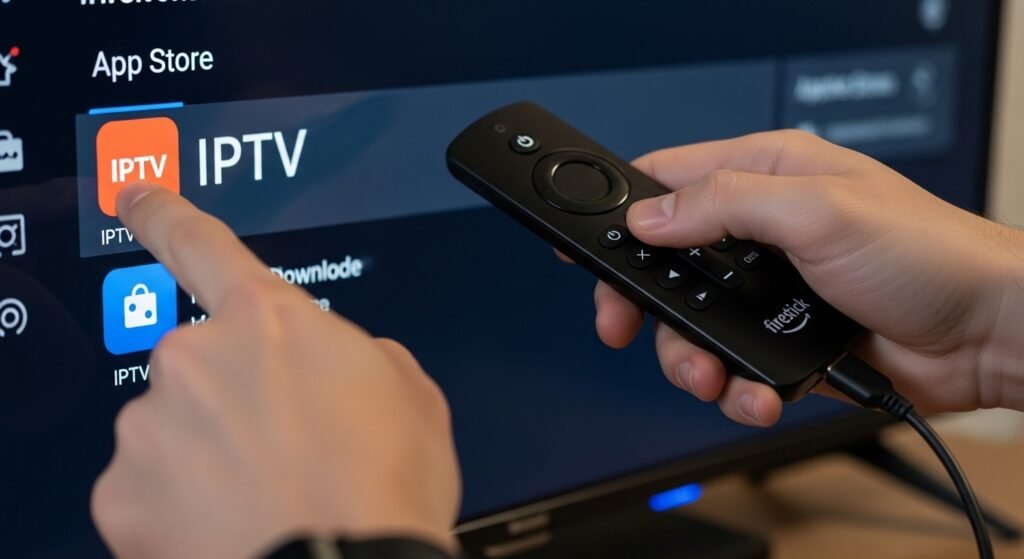
This is where Firestick users often hit their first obstacle. Amazon’s own app store (the Amazon Appstore) doesn’t carry most dedicated IPTV players. This means you’ll need to sideload apps, that is, install them from outside the official store.
Here’s a general overview of how that process works:
Step 1: Enable Apps from Unknown Sources Go to your Firestick’s Settings, then My Fire TV, then Developer Options. Enable the toggle that says “Apps from Unknown Sources.” This allows your device to install APK files from outside the Amazon Appstore.
Step 2: Install a File Browser or Downloader App The most commonly used tool is called Downloader, which is available directly on the Amazon Appstore. It lets you enter a URL and download APK files directly to your Firestick.
Step 3: Download the IPTV App APK Using Downloader, navigate to the official website of the IPTV app you want to install and download its APK file. Always use the official source to avoid tampered files.
Step 4: Install the APK Once downloaded, Downloader will prompt you to install the file. Accept, and the app will be installed on your Firestick.
Step 5: Enter Your IPTV Credentials Open the newly installed app and enter the details your IPTV provider gave you, whether that’s an M3U URL, Xtream Codes credentials, or a portal URL.
If you’ve set up IPTV on other Android-based devices before, this process will feel familiar. It’s similar to how to install IPTV on an Android TV box, since both platforms share Android roots and the sideloading method is largely the same.
Key Features to Look for in a Firestick IPTV App
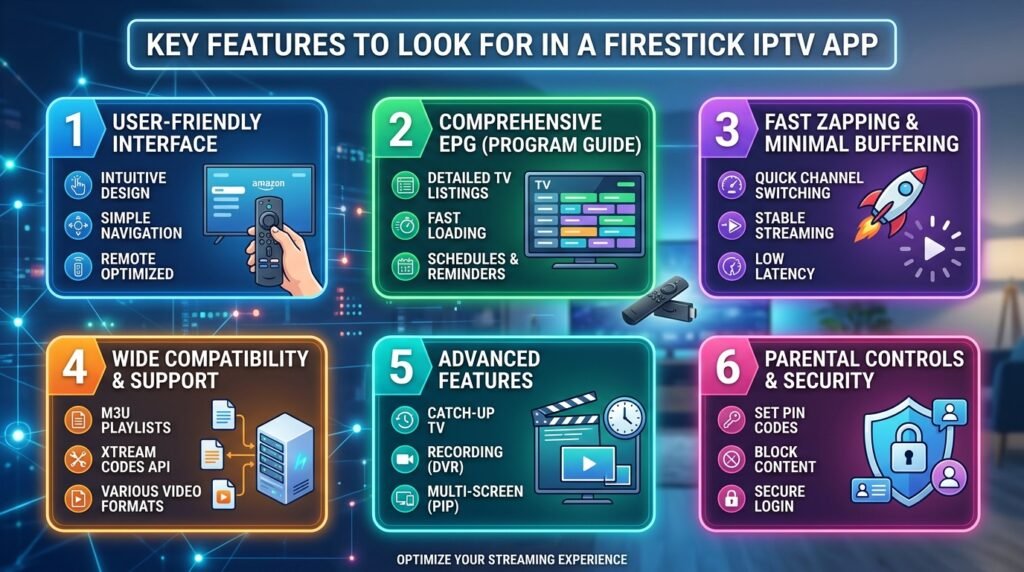
Once you understand that the app is just a player, the next question is: what makes one player better than another? Here’s what to pay attention to:
EPG (Electronic Programme Guide) Support
A good IPTV app will display a full programme guide showing you what’s on now and what’s coming up, just like a traditional TV guide. Look for apps that support EPG from your provider automatically and allow manual EPG source input as a backup.
Multi-Screen or Multi-Connection Support
Some apps let you open more than one stream simultaneously, useful if you want to keep an eye on one channel while watching another. This depends partly on your subscription allowing multiple connections.
VOD Organisation
If your IPTV plan includes a video-on-demand library, a good app will categorise this content clearly by genre, release year, or language, and ideally support search functionality.
Catch-Up TV
Catch-up, the ability to go back and watch something you missed from the last few days, is a feature not all apps support well. If catch-up matters to you, check that the app you choose handles it properly.
Parental Controls
Some IPTV apps allow you to password-protect certain channels or VOD categories. Useful for households with children.
Buffer and Stream Settings
Advanced apps let you adjust buffer size, stream timeout, and decoder settings. This matters more than it sounds. Having the ability to tweak these settings can be the difference between a smooth stream and a frustrating one.
Internet Speed Requirements for IPTV on Firestick
One of the most common reasons IPTV streams stutter or buffer on a Firestick isn’t the app. It’s the internet connection. Here’s a rough guide to the minimum speeds you should have for different quality levels:
Standard Definition (SD) requires around 4 to 6 Mbps. High Definition (HD) needs 10 to 15 Mbps. Full HD at 1080p requires 15 to 25 Mbps. For 4K or Ultra HD content, you’ll want 25 to 50 Mbps available.
These are per-stream figures. If other devices in your home are also using the internet at the same time, you need headroom above these numbers.
The Firestick connects via Wi-Fi, which introduces another variable. A weak Wi-Fi signal can cause buffering even on a fast broadband connection. If you’re experiencing issues, consider moving your router closer, using a Wi-Fi extender, or where possible, using a powerline adapter to get a more stable connection to your Firestick.
IPTV Subscriptions and the Firestick
The app itself is just software. What gives it content is your IPTV subscription. A subscription typically provides you with a set number of connections (how many devices can stream at once), access to a certain number of channels, and potentially a VOD and catch-up library.
When choosing a subscription, make sure the provider supports the format your chosen app uses, whether that’s M3U, Xtream Codes, or portal. Most reputable UK-based providers support all three.
If you’re new to IPTV and aren’t sure whether it’s right for you, many providers offer a short trial period. A free trial IPTV UK option is worth using before committing to a paid plan. It lets you test both the provider’s streams and how well they work with your chosen Firestick app.
Once you’ve confirmed it works well for you, you can look into longer subscription plans. There are genuinely affordable options available. Cheap IPTV subscriptions in the UK don’t necessarily mean lower quality, and many budget-friendly plans include a full HD channel list and solid VOD libraries.
Common Issues with IPTV Apps on Firestick and How to Fix Them
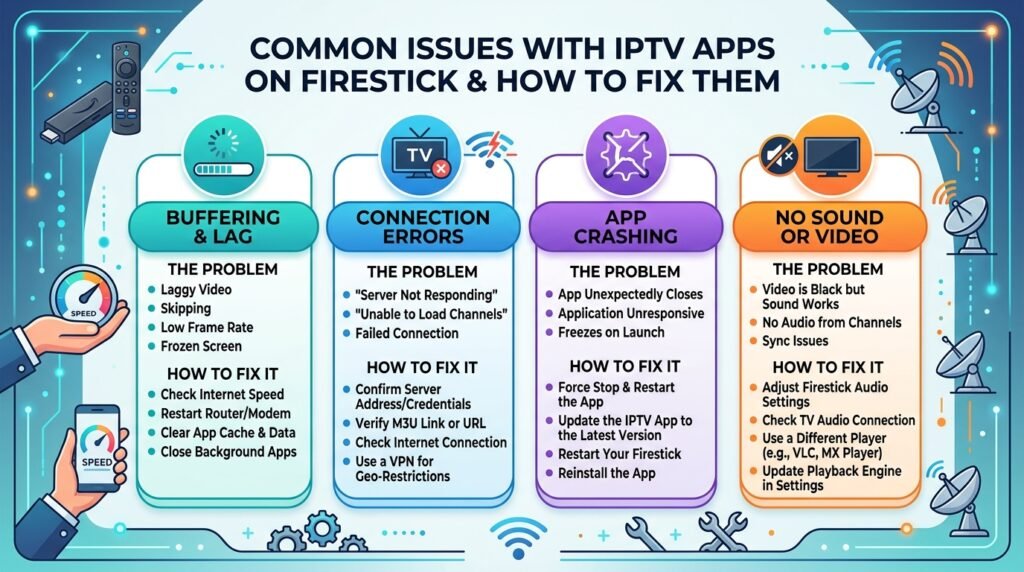
Buffering
The most frequently reported issue. Causes include slow internet, weak Wi-Fi signal, overloaded provider servers, or an app with poor buffering optimisation. Try restarting your router, switching to a 5GHz Wi-Fi band if your router supports it, or adjusting the buffer size within the app settings.
App Crashing
IPTV apps, especially those sideloaded via APK, can sometimes crash, particularly on older Firestick models with limited RAM. Clearing the app cache regularly through Settings, then Applications, then Manage Installed Applications helps. Also make sure you’re running the latest version of the app.
Channels Not Loading
If specific channels fail to load while others work fine, the issue is usually server-side. The provider’s stream for that channel may be down. Contact your provider. If all channels fail to load, double-check your credentials and make sure your subscription hasn’t expired.
EPG Not Updating
EPG data sometimes fails to refresh correctly. Try manually refreshing the EPG within the app settings, or re-entering the EPG URL provided by your supplier.
Poor Picture Quality
If your stream is working but looks blocky or low-resolution, you may be on an SD stream when you expect HD. Check the app’s stream settings and see if there’s a quality selector. Some providers offer multiple quality tiers per channel.
IPTV on Firestick vs Other Devices
The Firestick is a popular choice for IPTV, but it’s worth knowing how it compares to other platforms. Understanding the differences can help you decide whether Firestick is your best option or whether you’d benefit from a different setup.
Compared to a Windows PC, the Firestick is simpler and more TV-friendly with no keyboard needed and sitting neatly behind your TV. However, Windows IPTV players often offer more configuration options and are easier to update. If you’re curious about desktop IPTV viewing, the best IPTV player for Windows options offer a different kind of flexibility.
Compared to Apple TV, the Firestick is generally cheaper and easier to sideload apps onto. Apple TV has its own ecosystem strengths, but sideloading apps requires different methods, and the available player apps differ. The best IPTV app for Apple TV in 2026 is a separate consideration entirely.
Compared to Android TV boxes, the Firestick is more limited in raw processing power and storage, but it’s also more portable, cheaper, and more widely available. Android TV boxes, which run full Android rather than Fire OS, often give you more flexibility with app installation and codec support.
Choosing the Right IPTV Provider for Use with Firestick
Not all IPTV providers are equal when it comes to Firestick compatibility. When evaluating a provider, consider whether they give you M3U, Xtream Codes, or both. Think about server stability, since providers with good infrastructure will have fewer outages and faster channel switching.
If you’re based in the UK, check that the provider carries the channels you care about, including regional variants of major channels. And consider customer support, because when something goes wrong, being able to reach someone matters.
Reading through what separates good from average providers is worth your time before spending any money. Understanding what defines a quality IPTV UK provider helps you ask the right questions before subscribing.
Legal Considerations Around IPTV in the UK
This is a topic that anyone using IPTV in the UK should understand. IPTV technology itself is completely legal. It’s simply a method of delivering video content over the internet. Legal services like BBC iPlayer, ITVX, Netflix, and Disney+ all use IPTV technology.
The legal question arises when the content being streamed hasn’t been properly licensed. Providers who offer hundreds of premium channels including Sky Sports, BT Sport, or Premier League matches at very low prices are typically doing so without the required broadcasting licences. Streaming from such services puts the viewer in a legally grey area that has become increasingly scrutinised in the UK.
Ofcom and the police have increased enforcement against illegal IPTV services in recent years. If you’re choosing a provider, do your due diligence. Legitimate providers will be transparent about what content they’re licensed to carry.
Summary
An IPTV app for Firestick is, at its core, a player. It’s software that reads your subscription data and turns it into a watchable TV experience on your screen. The Firestick’s Android foundation makes it well-suited to running a wide range of IPTV players, and its widespread availability makes it one of the most common IPTV setups in UK households.
Getting everything working requires a few steps: enabling sideloading on your device, installing your chosen player, and entering your provider’s credentials. Once set up, the experience can be genuinely excellent, with a large channel selection, VOD library, and catch-up TV all controlled through a simple remote.
The most important variables in your experience aren’t the app itself. They’re the quality of your internet connection and the reliability of your IPTV provider. Get those two right, and a good Firestick IPTV setup will serve you well.
Frequently Asked Questions
Can I use any IPTV app on a Firestick?
Most IPTV apps that come as Android APK files can be installed on a Firestick through sideloading, since Fire OS is based on Android.
However, not all Android apps are optimised for the Firestick’s remote-based navigation. Apps specifically designed with TV interfaces, like TiviMate or IPTV Smarters Pro, work better on Firestick than apps designed primarily for touchscreens.
Do I need to jailbreak my Firestick to install an IPTV app?
No. You don’t need to jailbreak anything. You simply enable “Apps from Unknown Sources” in the Developer Options section of your Firestick settings, then use a downloader app to install the IPTV player APK.
This is a standard, built-in feature of Fire OS and doesn’t void your warranty or alter the device in any permanent way.
Is it safe to install IPTV apps on my Firestick?
Installing apps from reputable, official sources is safe. The risk comes from downloading APK files from unknown or unofficial websites, which can contain malware. Always download IPTV player APKs from the developer’s official website, and use a recognised downloader tool like the Downloader app from the Amazon Appstore.
Why does my IPTV app keep buffering on Firestick?
Buffering is usually caused by one of three things: a slow or unstable internet connection, a weak Wi-Fi signal reaching the Firestick, or server-side issues with your IPTV provider. Test your internet speed, try moving your router closer or using a Wi-Fi extender, and contact your provider if the issue is specific to certain channels.
How much internet speed do I need for IPTV on Firestick?
For standard definition streaming, around 5 Mbps is sufficient. For HD (720p/1080p), you’ll want at least 10 to 15 Mbps dedicated to the stream. For 4K content, aim for 25 Mbps or more. These are per-stream figures. If multiple devices are online simultaneously, you’ll need additional bandwidth.
Can I watch IPTV on Firestick without a subscription?
The IPTV app itself is just a player. It won’t show any content without valid subscription credentials. Some apps come with a small selection of free, publicly available streams, but for a full channel list you’ll need an active IPTV subscription. Many providers offer short free trials so you can test the service before paying.
Will IPTV work on an older Firestick model?
Yes, but with some limitations. Older Firestick models such as the 1st or 2nd generation have less RAM and slower processors, which can cause apps to run slowly or crash under heavy load. For the best IPTV experience, a Firestick 4K or Firestick 4K Max is recommended, as these have faster processors and more memory.
What is the difference between M3U and Xtream Codes on IPTV apps?
M3U is a playlist format, a file or URL that lists all your channels and streams. Xtream Codes is an API-based connection method that uses a username, password, and server URL to pull channels, VOD, and EPG data in a structured way.
Both deliver the same content. Xtream Codes tends to be more stable and better organised, while M3U is more universally compatible. Many modern IPTV apps support both formats.
Can I use an IPTV app on multiple Firesticks with one subscription?
That depends on how many simultaneous connections your IPTV subscription allows. Most providers offer plans with 1, 2, or more connections.
If your plan allows two connections, you can stream on two Firesticks at the same time. Using one subscription on more devices than your plan allows will typically result in one stream being cut off.
Is IPTV legal in the UK?
The technology behind IPTV is entirely legal. What matters is whether the content being streamed is properly licensed. Legitimate IPTV services that hold the correct broadcasting rights are legal to use.
Services offering premium sports and entertainment channels at unusually low prices without clear licensing are considered illegal in the UK, and streaming from them carries legal risk.

UK-based streaming specialist with years of hands-on experience testing, reviewing, and breaking down the best ways to watch TV online. As the founder of TVXWatch, Allen has helped thousands of UK viewers make the switch away from expensive cable and satellite packages, cutting through the technical jargon to make IPTV accessible for everyone.