
Watching live television on your Windows PC has never been easier, but choosing the best IPTV player for Windows can feel overwhelming. With dozens of apps flooding the Microsoft Store and third-party download sites, how do you separate the genuinely reliable players from the ones that freeze mid-match or crash after ten minutes?
Whether you are a cord-cutter streaming live sports, a movie enthusiast building a personal VOD library, or someone who simply wants a cable-TV replacement on their laptop, the right IPTV player makes all the difference.
In this in-depth guide we review the eight strongest contenders for 2026, break down their features, walk you through setup, and answer every common question so you can start streaming with confidence.
Table of Contents
What Is an IPTV Player and Why Do You Need One?
An IPTV player is a software application designed to receive, decode, and display television content delivered over Internet Protocol networks. Unlike traditional media players that focus on locally stored files, an IPTV player is optimised for handling live streams from remote servers.
It manages M3U or M3U8 playlists, connects through Xtream Codes API, renders Electronic Programme Guides (EPGs), and often includes features such as recording, catch-up TV, and parental controls.
If you already have an IPTV subscription from a provider, you still need a dedicated player to access that content on your Windows desktop or laptop. Think of the subscription as your channel package and the IPTV player as the television set itself.
Picking the wrong player leads to buffering, codec errors, and a frustrating user experience. Picking the right one gives you smooth 4K playback, organised channel lists, and a living-room feel right at your desk.
Key Features to Look for in a Windows IPTV Player
Before diving into the individual reviews, it helps to know what separates a great IPTV player from a mediocre one. The features below should be on your checklist when evaluating any application.
M3U and Xtream Codes API Support. These are the two main methods used by IPTV providers to deliver channel lists. The best players support both, giving you maximum flexibility regardless of which provider you choose.
EPG (Electronic Programme Guide) Integration. A built-in programme guide lets you see what is currently airing and what is coming up next, similar to the guide on a cable box. Good EPG integration auto-syncs with your provider and allows you to search by channel, genre, or time slot.
Catch-Up and Recording (DVR). Missed the start of a game? Catch-up TV rewinds live streams, while a recording function lets you save programmes to watch later. Not every free player offers this, so it is worth checking.
Multi-Format Codec Support. IPTV streams arrive in various formats including MPEG-TS, HLS, MKV, and more. A reliable player handles all of them natively without requiring additional codec packs.
Low Resource Usage. You do not want your IPTV player consuming half your CPU while you multitask. Lightweight apps that perform well even on older hardware score higher in our tests.
User Interface and Customisation. A clean, intuitive interface makes navigating thousands of channels painless. Bonus points for theme customisation, favourites management, and channel grouping.
Top 7 Best IPTV Players for Windows in 2026
Below you will find our carefully tested selection. Each player was evaluated on installation ease, playback stability, feature depth, and overall user experience on Windows 10 and Windows 11 machines.
1. VLC Media Player — Best Free All-Round Option
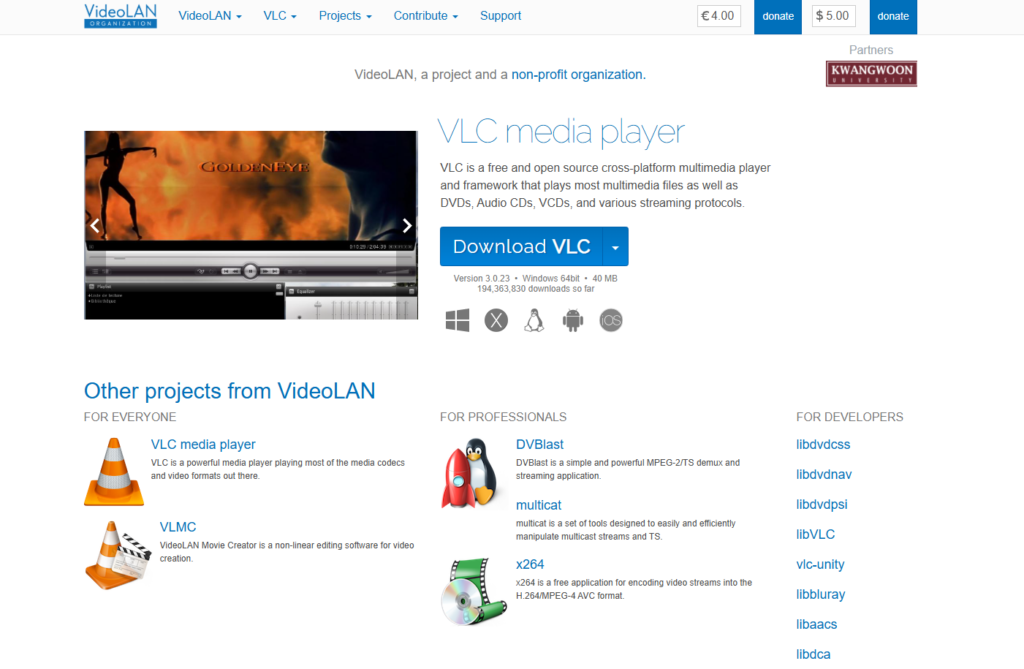
VLC hardly needs an introduction. Developed by VideoLAN, this open-source media player has been a staple on Windows desktops for over two decades. While it was not originally designed as an IPTV application, its robust network-streaming capabilities make it one of the most reliable options available.
To start watching IPTV on VLC, open the application and navigate to Media, then Open Network Stream. Paste your M3U playlist URL and press Play. VLC will load the channel list and begin streaming immediately. Its engine handles MPEG-TS, HLS, MKV, and practically every codec you will encounter, meaning your streams work out of the box without extra plugins.
VLC is completely free, carries no advertisements, and runs on virtually every version of Windows from XP to 11. It is also extremely lightweight, performing well even on older hardware. On the downside, VLC does not have a built-in EPG or a dedicated IPTV interface, so navigating large channel lists can feel clunky compared to purpose-built players. Despite this limitation, its reliability and zero cost make it the go-to choice for users who value simplicity.
2. IPTV Smarters Pro — Best User-Friendly Interface
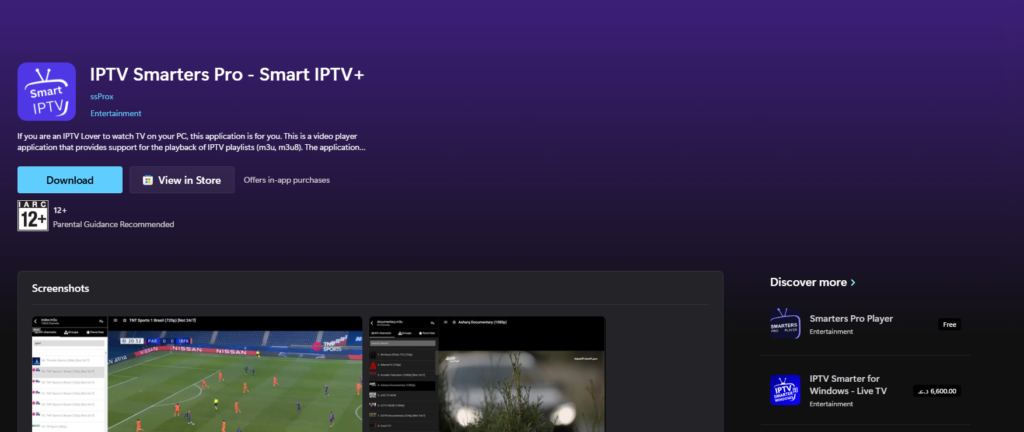
IPTV Smarters Pro is one of the most popular dedicated IPTV players available for Windows, and for good reason. Its modern, sleek interface organises content into clearly labelled sections for Live TV, Movies, and Series, making navigation intuitive even for beginners.
The player supports both M3U playlists and Xtream Codes API login, giving you flexible connection options. Built-in features include EPG integration, catch-up TV, parental controls, and multi-screen viewing that lets you watch several channels simultaneously. It is available on the Microsoft Store, which simplifies installation and updates.
IPTV Smarters Pro offers a free version with essential features and a premium tier that unlocks advanced capabilities. Its cross-platform availability across Windows, Android, iOS, and macOS means you can maintain a consistent experience across all your devices. If you want a polished, purpose-built IPTV experience without spending hours on configuration, Smarters Pro is a top contender.
3. Kodi — Best for Customisation and Power Users
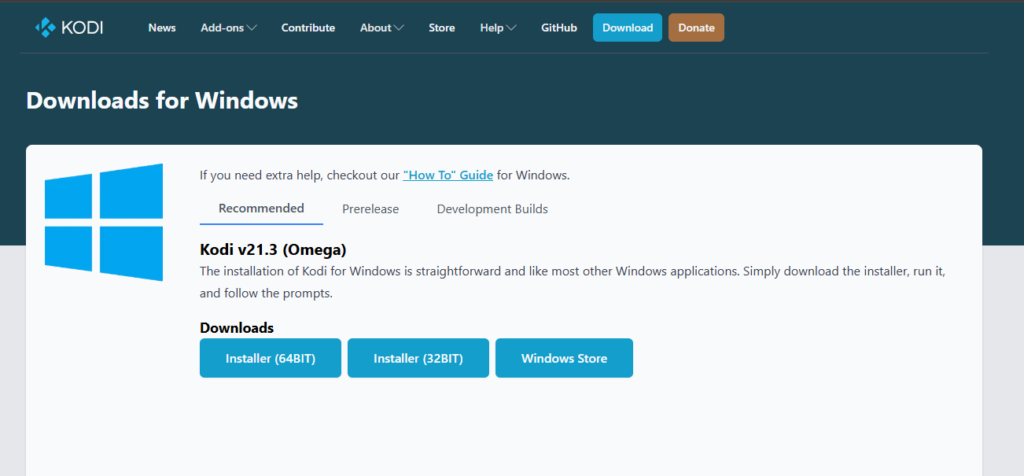
Kodi is not just an IPTV player; it is an entire media centre platform. Developed by the XBMC Foundation, this open-source software transforms your Windows PC into a full-blown entertainment hub capable of handling live TV, on-demand video, music, podcasts, and more.
To use Kodi for IPTV, you install the PVR IPTV Simple Client add-on, point it at your M3U playlist or Xtream Codes details, and configure your EPG source. The initial setup takes more time than a plug-and-play app like Smarters, but the payoff is enormous. Kodi supports virtually every streaming protocol and playlist format through its vast add-on ecosystem. You can completely transform its look and feel with different skins, add weather widgets, integrate subtitle services, and even set up advanced library management.
Kodi is free and works on Windows, macOS, Linux, Android, iOS, and various embedded systems. The trade-off is a steeper learning curve. If you enjoy tinkering with settings and want a media solution that extends far beyond IPTV, Kodi is unmatched. If you just want to paste an M3U link and start watching, you may find it overkill.
4. MyIPTV Player — Best Native Windows Store App
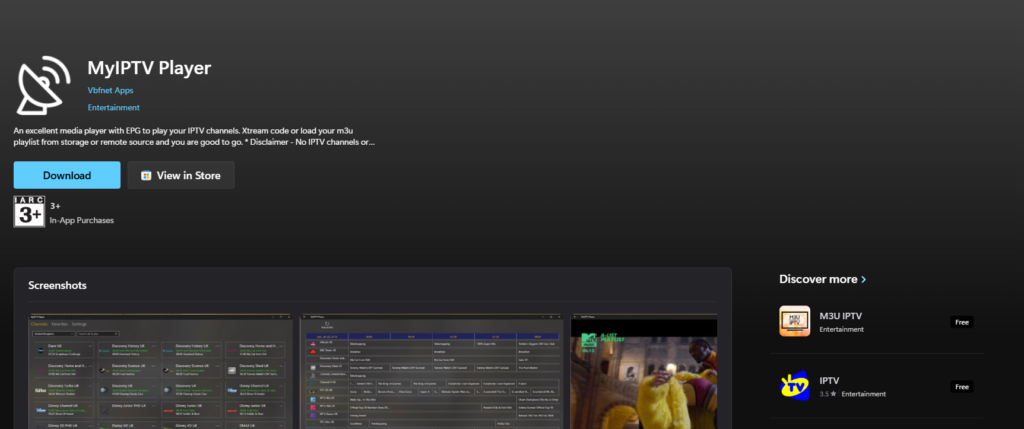
MyIPTV Player is a free IPTV application available directly from the Microsoft Store, designed specifically for Windows 10, Windows 11, and Xbox One. Its clean, familiar interface resembles a standard Windows media player adapted for IPTV use, which makes it approachable for anyone already comfortable with the Windows ecosystem.
The app supports M3U playlists and Xtream Codes login, with built-in EPG support that displays up-to-date programme schedules. Channels are automatically grouped based on playlist metadata, and filtering options help you quickly find content by name, category, or group. A standout feature is the live recording function, which lets you record broadcasts and schedule multiple recordings for later viewing.
MyIPTV Player offers a choice between the built-in Windows media playback engine and VLC library integration, giving you flexibility depending on your codec needs. It also includes a VOD download centre, favourites management, and PIN protection for parental controls. The main drawback is advertising in the free version and occasional sluggishness when handling very large playlists. Still, for a zero-cost Microsoft Store app, it delivers impressive value.
5. PotPlayer — Best for Advanced Playback Controls

PotPlayer, developed by Kakao, is a feature-rich media player for Windows that has earned a loyal following among users who demand granular control over their playback experience. While not exclusively an IPTV app, it handles M3U playlists and network streams with ease.
Where PotPlayer shines is in its advanced playback engine. It supports hardware-accelerated decoding via DXVA, CUDA, and QuickSync, meaning it can handle high-resolution IPTV streams without putting heavy load on your CPU. The player includes customisable audio and video filters, 3D viewing support, subtitle management, and a built-in screen capture tool.
Setup for IPTV involves opening the player, navigating to the browser tab, and loading your M3U playlist file. Channel switching is fast, and long viewing sessions remain stable.
PotPlayer is entirely free and ad-free, though it is only available for Windows. If you are the type of viewer who likes to fine-tune video processing settings and wants a player that can double as your default desktop media player, PotPlayer is an excellent choice.
6. Megacubo — Best for Community-Driven Content Discovery
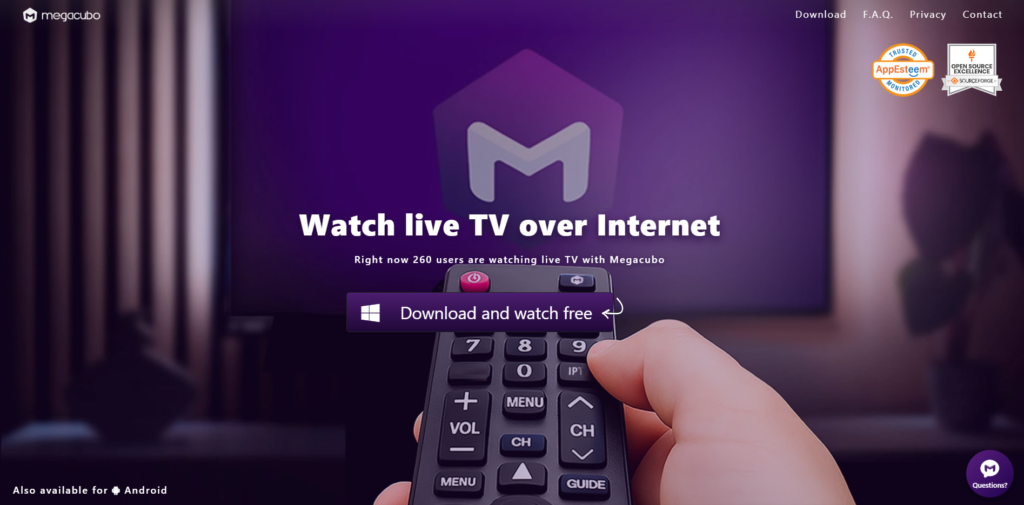
Megacubo is a lesser-known but highly capable IPTV player for Windows that stands out for its community-driven content discovery features. In addition to supporting standard M3U playlists, Megacubo includes a Community Mode that helps you discover new shows, movies, radio stations, and live streams shared by other users.
The player supports over 200 online TV stations and 100 radio channels out of the box, and you can add as many M3U lists as you like. Megacubo processes multiple playlists simultaneously, searching each one to find the desired channel or programme. It also includes automated recording of live streams, letting you build a personal content archive without manual intervention.
Megacubo features a straightforward interface that even IPTV beginners can navigate without difficulty. It is free to download and works on Windows, macOS, and Linux. If you want a player that goes beyond simply loading a playlist and actively helps you find new content to watch, Megacubo offers a refreshingly different approach.
7. Zen IPTV Player — Best for 4K and Modern Features
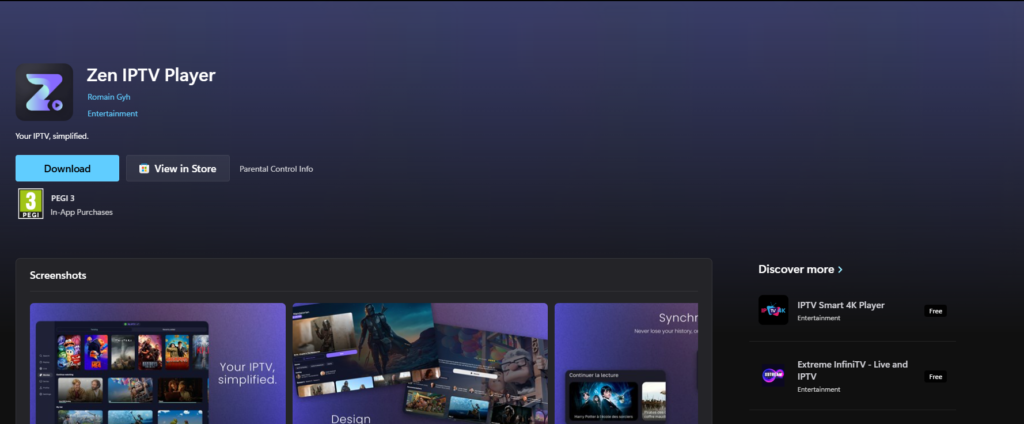
Zen IPTV Player is a newer entry to the Windows IPTV scene that has quickly gained attention for its polished design and modern feature set. Available on the Microsoft Store, it supports streaming up to 4K resolution and includes a built-in EPG, multi-screen support, and parental controls.
The player accepts M3U playlists, Xtream Codes API, and direct URL imports. It includes catch-up and DVR functionality for replaying or recording programmes, along with a favourites management system and customisation options to organise your channels. Its interface is clean and minimalistic, prioritising ease of use without sacrificing functionality.
Zen IPTV Player offers both a free experience and a premium tier with advanced features. For users who want a modern, visually appealing player that feels native to Windows and supports the latest streaming standards, Zen is a strong option to consider.
Quick Comparison: Which IPTV Player Is Right for You?
Choosing among these eight players depends on your priorities. If you want zero cost and maximum reliability for basic streaming, VLC is hard to beat. If a polished interface and IPTV-specific features matter most, IPTV Smarters Pro or Zen IPTV Player are your best bets.
Power users who crave customisation will thrive with Kodi, while those who miss the cable-TV layout should look at Perfect Player. MyIPTV Player offers a great middle ground for Windows-native users, PotPlayer appeals to video enthusiasts, and Megacubo brings community content discovery to the table.
How to Set Up an IPTV Player on Windows: Step-by-Step
Regardless of which player you choose, the basic setup process follows a similar pattern. Here is a general walkthrough that applies to most applications on this list.
Step 1: Download and install the player. Visit the Microsoft Store or the official website of your chosen IPTV player. Download the installer and follow the on-screen prompts. Microsoft Store apps install automatically with a single click.
Step 2: Obtain your IPTV playlist or login credentials. Your IPTV provider will supply either an M3U playlist URL or Xtream Codes API credentials (server URL, username, and password). Keep these details handy.
Step 3: Add your playlist to the player. Open your IPTV player and navigate to the settings or playlist management section. Enter your M3U URL or Xtream Codes details and save. The player will fetch your channel list from the server.
Step 4: Configure your EPG (optional but recommended). If your provider offers an EPG URL, add it in the player settings. This populates the programme guide with schedules, descriptions, and channel logos.
Step 5: Start watching. Navigate to the Channels or Live TV section, select a channel, and enjoy. If you experience buffering, check your internet speed (a minimum of 15 to 25 Mbps is recommended for HD and 4K streams) and consider lowering the stream quality temporarily.
Common IPTV Player Issues and How to Fix Them
Even the best IPTV players occasionally run into problems. Below are the most frequently encountered issues along with practical solutions.
Buffering and freezing are usually caused by an unstable or slow internet connection. Ensure your connection speed is at least 15 to 25 Mbps, restart your router, close bandwidth-heavy applications, and try lowering the stream resolution. If the problem persists, switch to a wired Ethernet connection instead of Wi-Fi.
Black screen with audio typically indicates a codec or rendering issue. Update your IPTV player to the latest version, clear the app cache, and try switching between software and hardware decoding in the player settings. Testing another channel helps determine whether the issue is player-wide or specific to one stream.
Playlist not loading often happens when the M3U URL has expired or the provider server is temporarily down. Verify the URL by pasting it into a web browser. If it downloads a file, the link is valid. Contact your provider if the problem continues.
EPG not displaying can result from an incorrect EPG URL or a mismatch between the guide data format and your player. Double-check the URL, ensure it points to an XMLTV-format file, and refresh the EPG data within the player settings.
Enhance Your IPTV Experience
Getting the most out of IPTV goes beyond simply choosing a player. Pairing your player with a reliable IPTV provider is essential for a smooth, buffer-free experience. You should also consider using a VPN to protect your privacy while streaming, and make sure your internet connection meets the minimum speed requirements for the stream quality you prefer.
[INTERNAL LINKS: Please provide your internal linking instructions and I will insert the relevant anchor text and URLs in this section and throughout the article.]
Frequently Asked Questions (FAQ)
What is the best free IPTV player for Windows?
VLC Media Player is widely regarded as the best free IPTV player for Windows because it is open source, completely ad-free, and supports virtually every streaming protocol and codec.
For a more IPTV-focused free option with EPG support and recording features, MyIPTV Player from the Microsoft Store is an excellent alternative.
Can I use an IPTV player on Windows without a subscription?
Yes, IPTV players themselves are just software applications. However, to watch live TV channels, you will need either a paid IPTV subscription that provides an M3U playlist or Xtream Codes credentials, or you can use freely available legal IPTV playlists found on platforms like GitHub. The player does not include channels by default.
Is IPTV legal on Windows?
Using an IPTV player on Windows is completely legal. The legality depends on the content you access. Streaming from licensed, legitimate IPTV providers is lawful.
Accessing pirated or unauthorised streams may violate copyright laws in your country. Always choose a reputable IPTV provider that holds the proper broadcasting licences.
Which IPTV player has the best EPG support on Windows?
IPTV Smarters Pro and MyIPTV Player both offer excellent EPG integration with automatic schedule updates, channel logos, and programme descriptions. Kodi also provides outstanding EPG functionality through the PVR IPTV Simple Client add-on, though it requires more manual configuration.
How do I fix buffering on my Windows IPTV player?
Start by testing your internet speed to ensure it meets the minimum requirement of 15 to 25 Mbps for HD content. Close other bandwidth-consuming applications, restart your router, and switch to a wired Ethernet connection if possible.
Within your IPTV player, try lowering the stream quality or increasing the network cache buffer size. If issues persist, the problem may lie with your IPTV provider’s server.
Can I record live TV with an IPTV player on Windows?
Several IPTV players for Windows include recording features. MyIPTV Player offers a built-in recording function and scheduled recording capability.
Kodi supports recording through its PVR backend, and VLC can record streams manually. IPTV Smarters Pro also includes catch-up and DVR features depending on your provider’s support.
Do IPTV players for Windows support 4K streaming?
Yes, many modern IPTV players support 4K playback on Windows, provided your IPTV provider delivers 4K streams and your internet connection is fast enough (typically 25 Mbps or higher). Zen IPTV Player, VLC, PotPlayer, and Kodi all handle 4K content effectively with hardware-accelerated decoding.
What is the difference between M3U and Xtream Codes API?
An M3U playlist is a simple text file containing URLs for each channel or stream. Xtream Codes API is a more advanced connection method that uses a server address, username, and password to access a structured content library including live TV, VOD, and series.
Xtream Codes generally provides better organisation and additional features like catch-up TV, but not all providers support both methods.
Is IPTV Smarters Pro free for Windows?
IPTV Smarters Pro offers a free version with core features that is available on the Microsoft Store. A premium version is also available that unlocks additional capabilities such as multi-screen viewing and advanced settings. The free version is sufficient for most casual users.
Can I use Kodi as an IPTV player on Windows 11?
Absolutely. Kodi runs natively on Windows 11 and works seamlessly as an IPTV player when paired with the PVR IPTV Simple Client add-on. Install Kodi from the Microsoft Store or the official Kodi website, enable the add-on, enter your M3U or Xtream Codes details, and configure your EPG source to start watching live TV.
Final Thoughts
Finding the best IPTV player for Windows comes down to matching the application to your personal streaming habits. VLC offers unbeatable reliability at zero cost.
IPTV Smarters Pro delivers a polished, feature-rich experience for both beginners and seasoned streamers.
Kodi remains the king of customisation. MyIPTV Player provides a solid native Windows experience. PotPlayer satisfies video enthusiasts. Perfect Player recreates the cable-TV feel.
Megacubo brings community-powered discovery. And Zen IPTV Player pushes modern features like 4K and multi-screen support forward. No matter which player you choose, make sure your internet connection is stable, your IPTV provider is legitimate, and your playlist details are correctly configured.
With the right setup, your Windows PC becomes a powerful, versatile television that rivals any smart TV or streaming device on the market.

UK-based streaming specialist with years of hands-on experience testing, reviewing, and breaking down the best ways to watch TV online. As the founder of TVXWatch, Allen has helped thousands of UK viewers make the switch away from expensive cable and satellite packages, cutting through the technical jargon to make IPTV accessible for everyone.