To install IPTV Smarters Pro, you sideload the APK on Firestick and Android, download Smarters Player Lite from the App Store on iPhone and iPad, or run the official Windows and Mac installer on a computer. Once installed, sign in with the Xtream Codes or M3U details from your UK IPTV provider and the app loads your channels, films and series. The whole setup takes under ten minutes on any device.
IPTV Smarters Pro is the most widely used IPTV player on Android and Fire TV, with a familiar layout, Xtream Codes support, EPG, recording and multi-user profiles. The player itself contains no channels; it only plays what your IPTV subscription supplies. This guide covers installation on five device types — Amazon Fire TV Stick, Android TV box or phone, iPhone and iPad, Windows and Mac, and Samsung or LG Smart TV — then walks through sign-in, EPG setup, and the usual fixes for sign-in errors and buffering. On iOS the official app is published under the name Smarters Player Lite by WHMCS Smarters; everything else works the same.
What you need before you install IPTV Smarters Pro
IPTV Smarters Pro is only the player. Everything else comes from your IPTV subscription, so have the following ready before you install IPTV Smarters Pro:
- Your device: Amazon Fire TV Stick, Android TV / phone / tablet, iPhone or iPad, Windows PC or Mac, or a Samsung / LG Smart TV paired with a streaming stick.
- Your IPTV login details: Xtream Codes (server URL with port, username and password) or an M3U playlist link, usually sent by email or WhatsApp after your order.
- An EPG link if your provider supplies the programme guide separately from the playlist.
- A stable internet connection, preferably Ethernet for 4K streams and Wi-Fi 5 or faster for everything else. The IPTV setup guide covers the broader checklist.
Everything below assumes you already have an active subscription. If you don’t, request a free trial to test IPTV Smarters Pro on your device before you commit.
Step 1: Install IPTV Smarters Pro on Fire TV Stick
IPTV Smarters Pro is not in the Amazon Appstore in most regions, so you install it via sideload. This only works on Fire OS sticks, not on the Vega OS Fire TV Stick 4K Select or the Vega OS Fire TV Stick HD (2026) — those block APK sideloading entirely.
1.1. Open Fire TV settings by selecting the gear icon on the home screen.
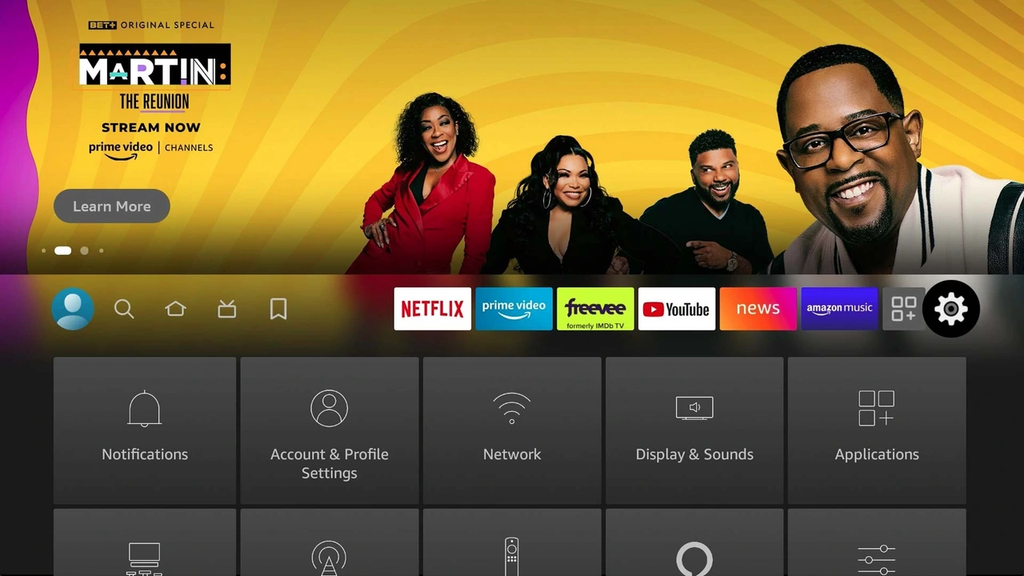
1.2. Go to My Fire TV > Developer options. If Developer options is missing, open About > Fire TV Stick and press the Select button seven times.
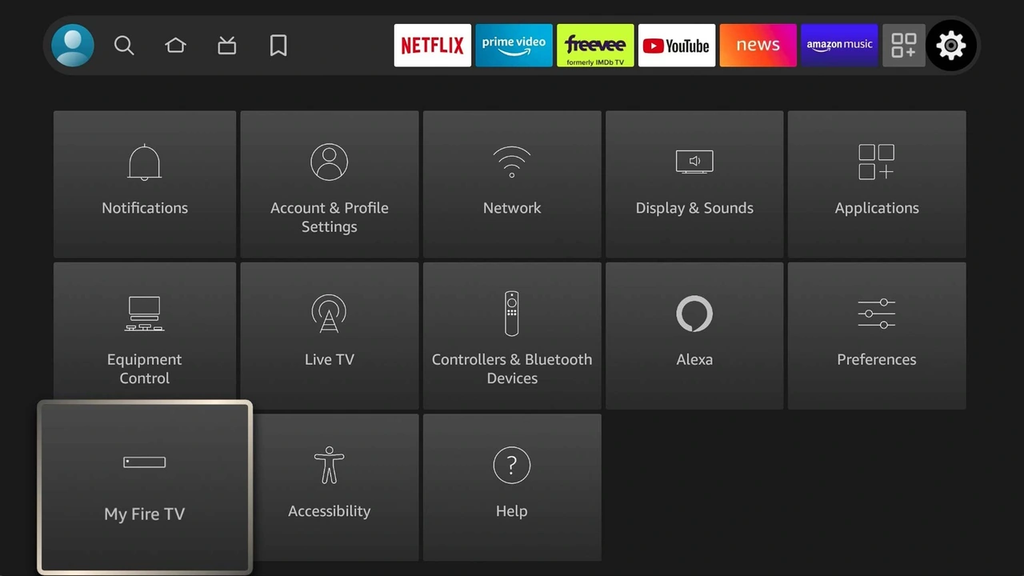
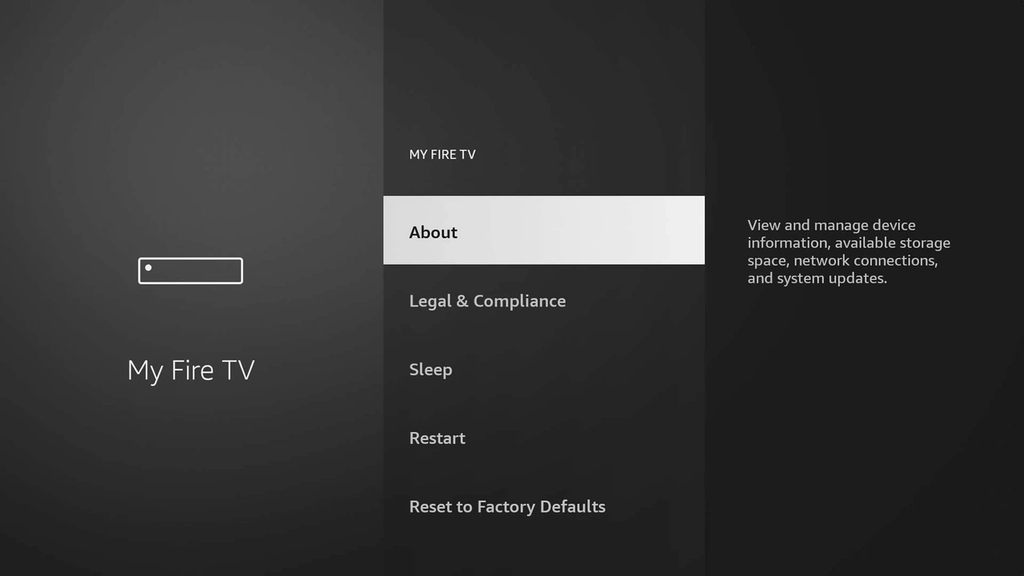
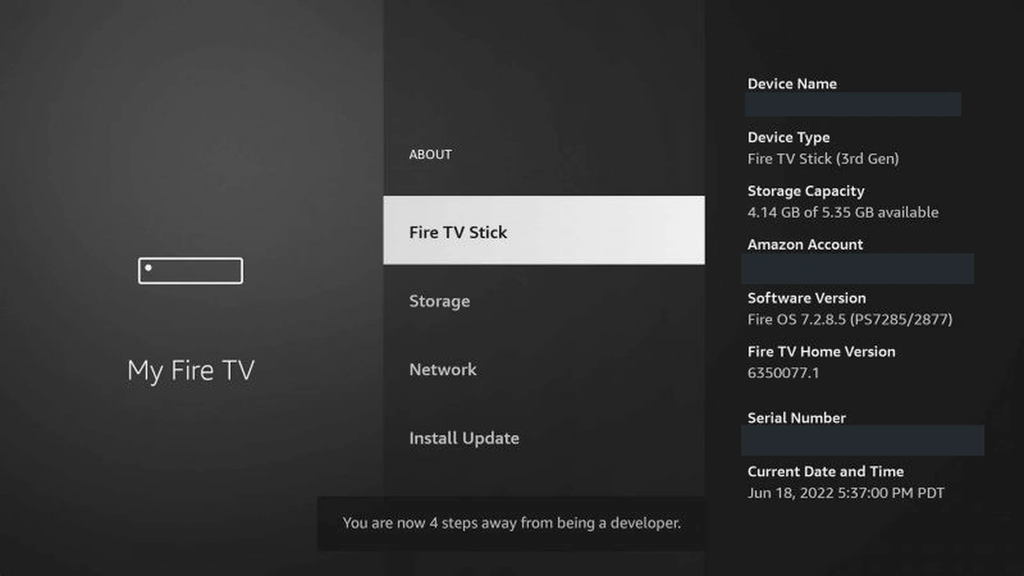
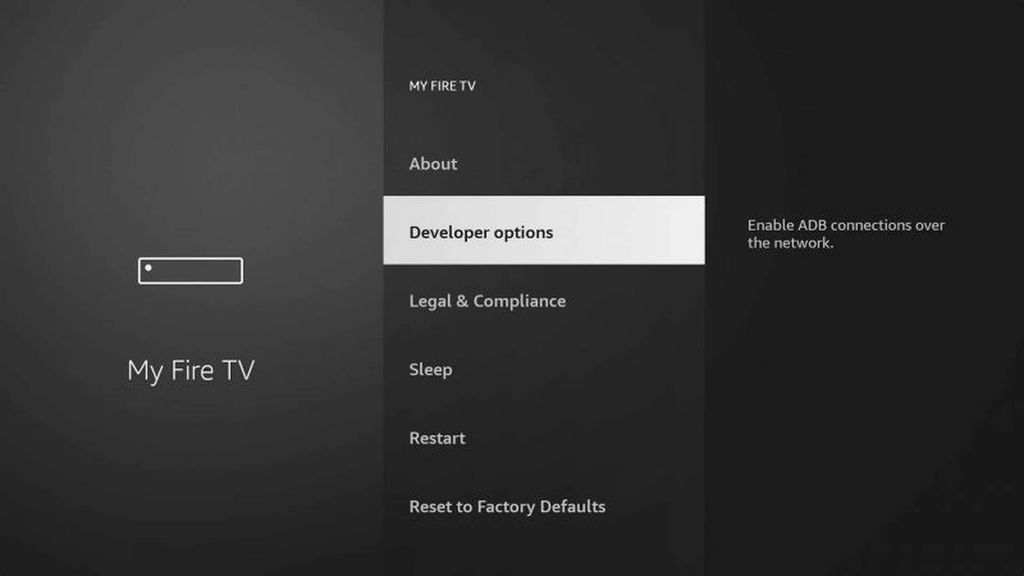
1.3. Open “Install unknown apps”, scroll to Downloader and switch it to On. You only authorise Downloader, not the whole system.
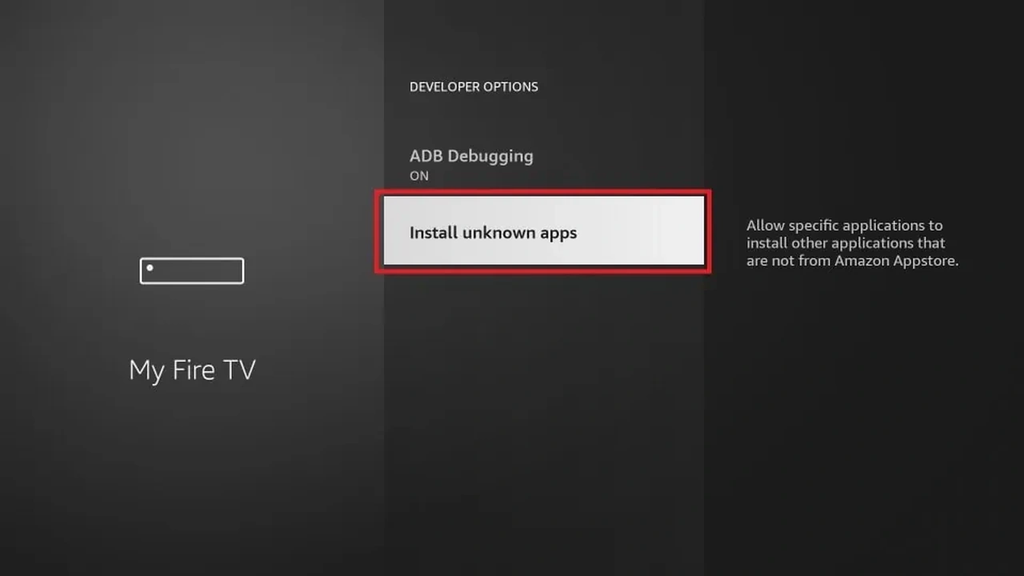
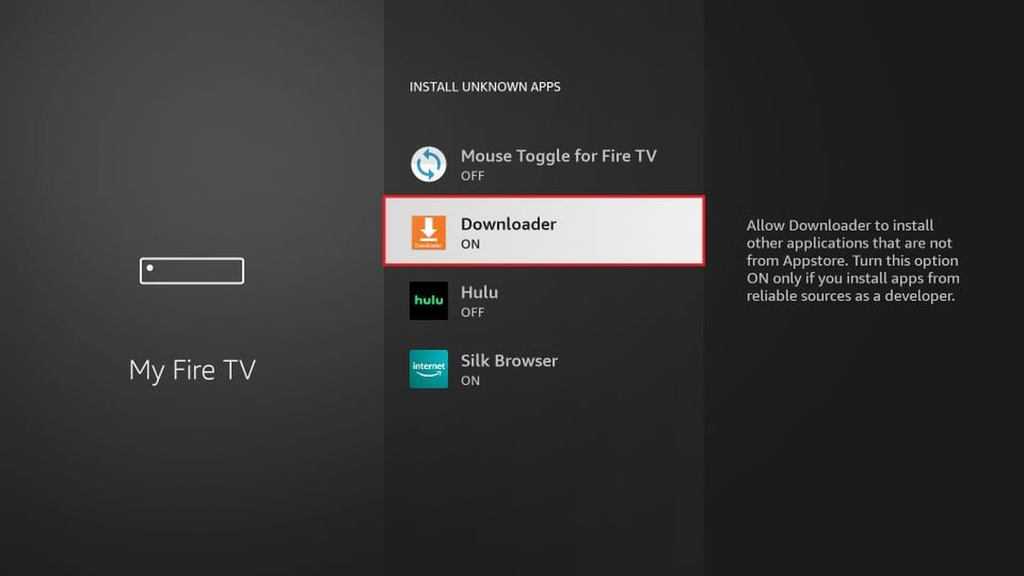
1.4. Install Downloader by AFTVnews from the Amazon Appstore if it is not already on your stick.
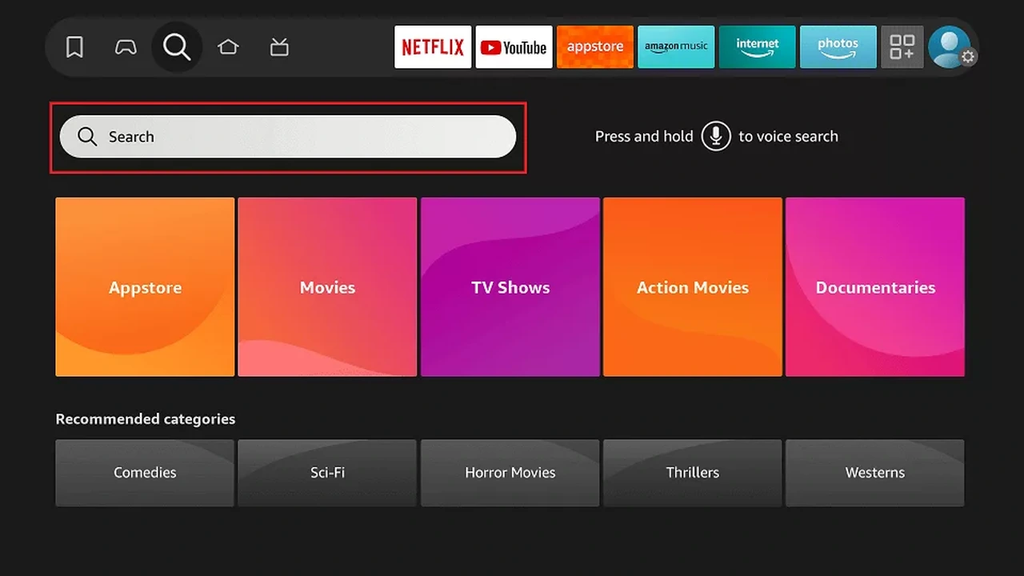
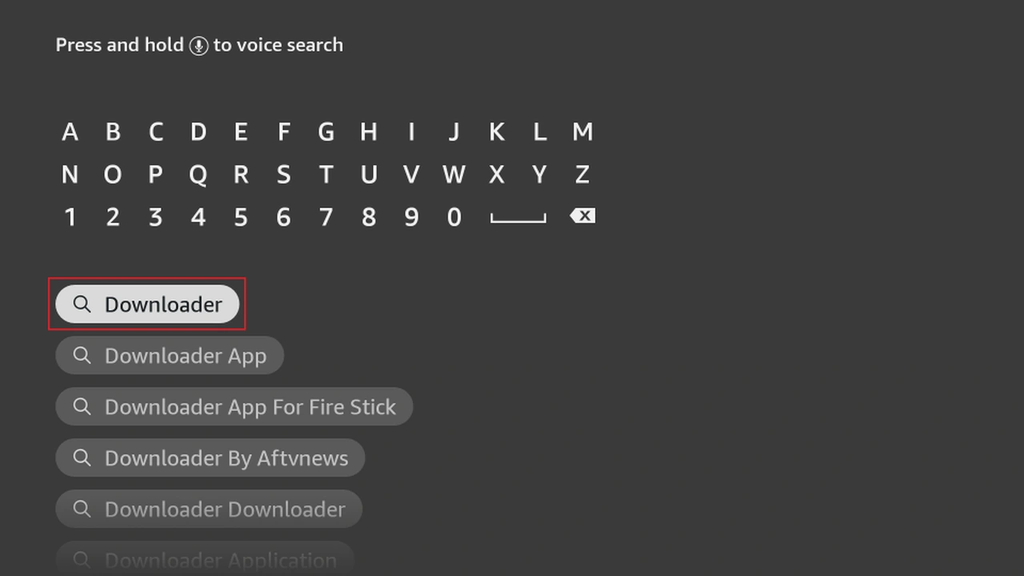
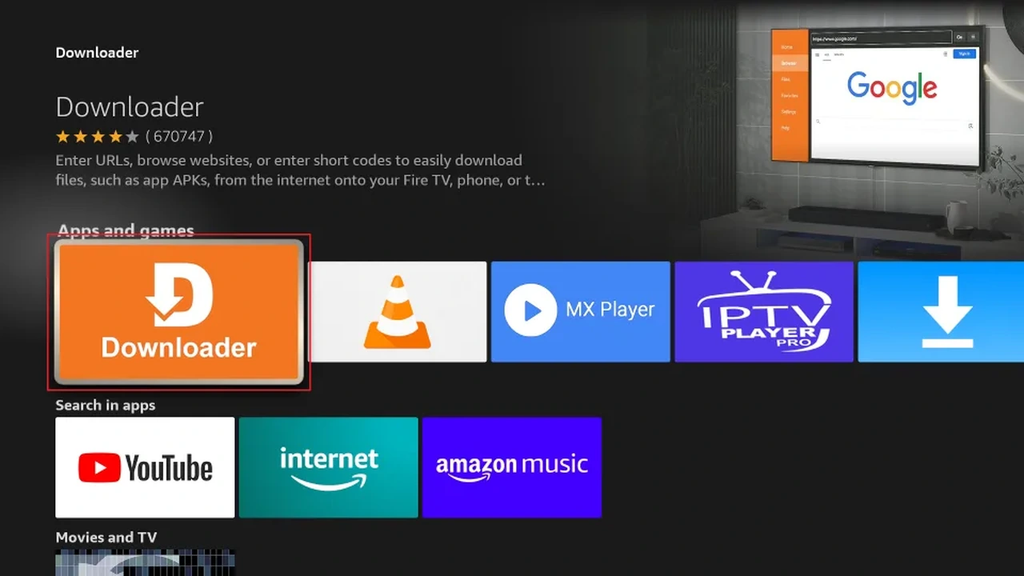
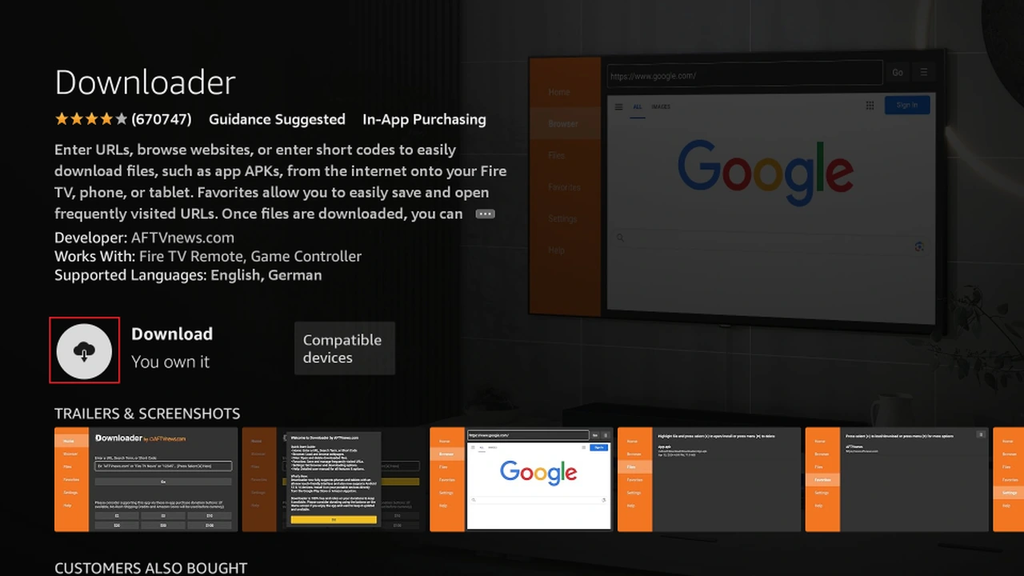
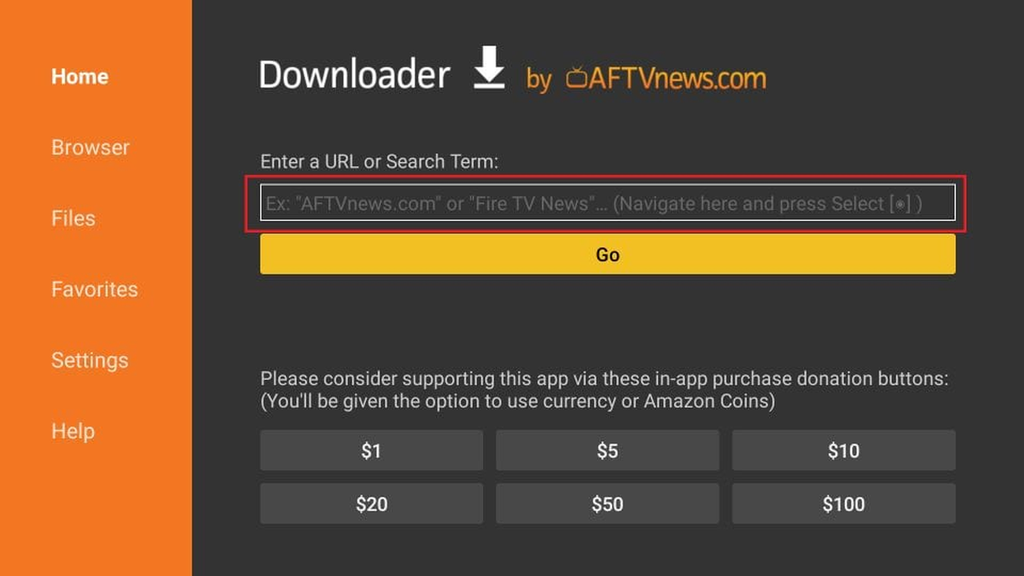
1.5. Open Downloader, select the URL field and type the official APK address as published on iptvsmarters.com.
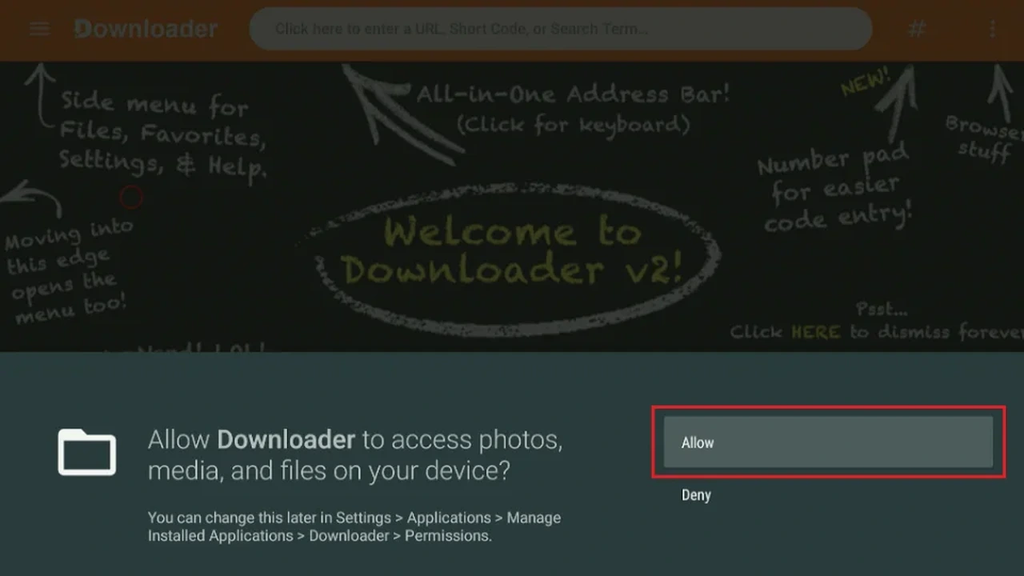
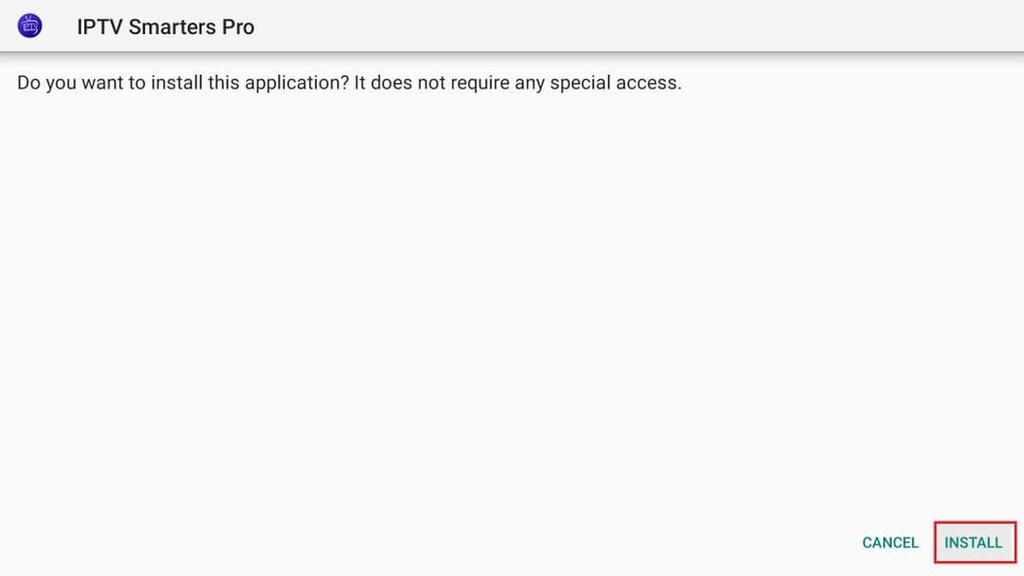
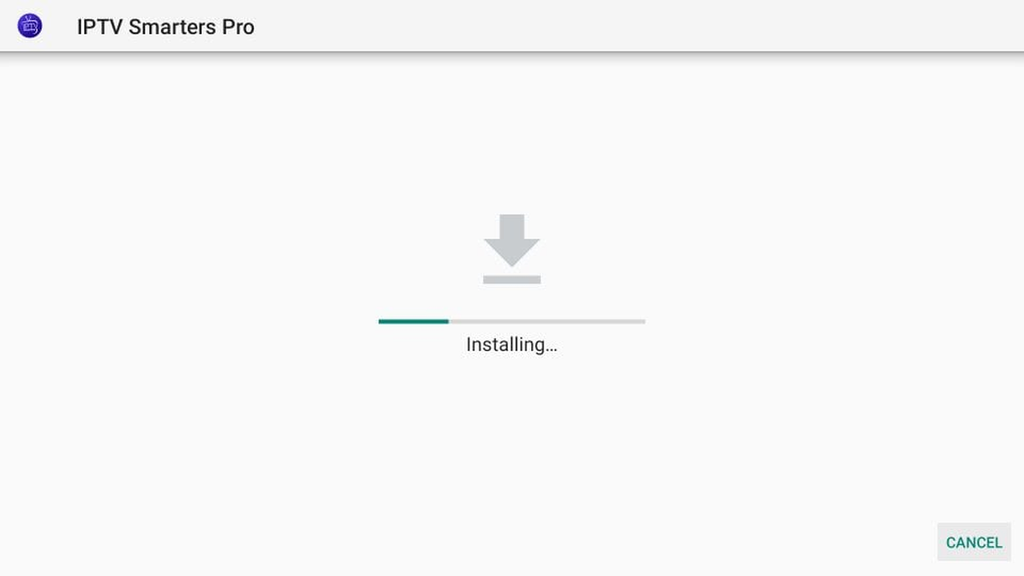
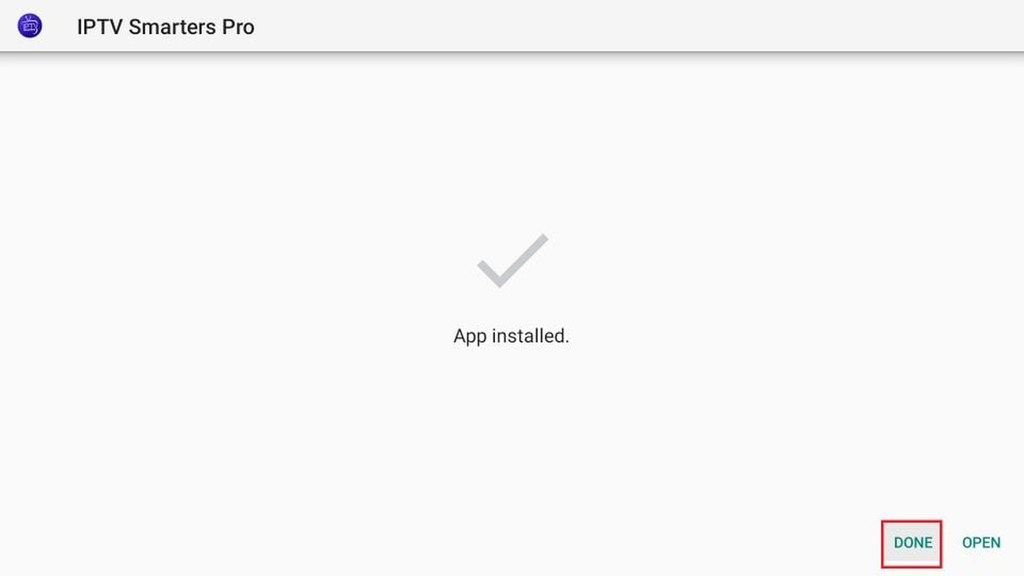
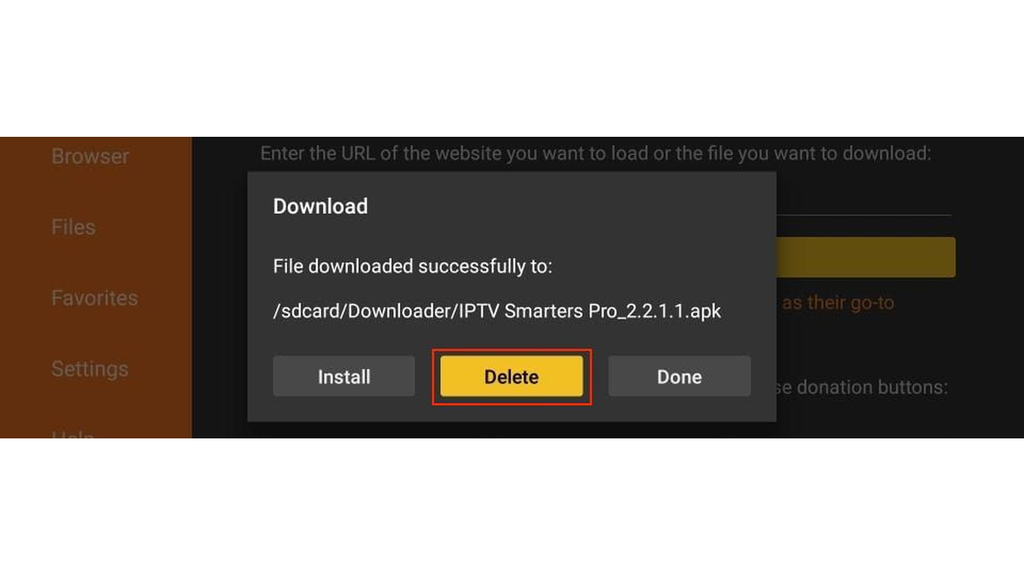
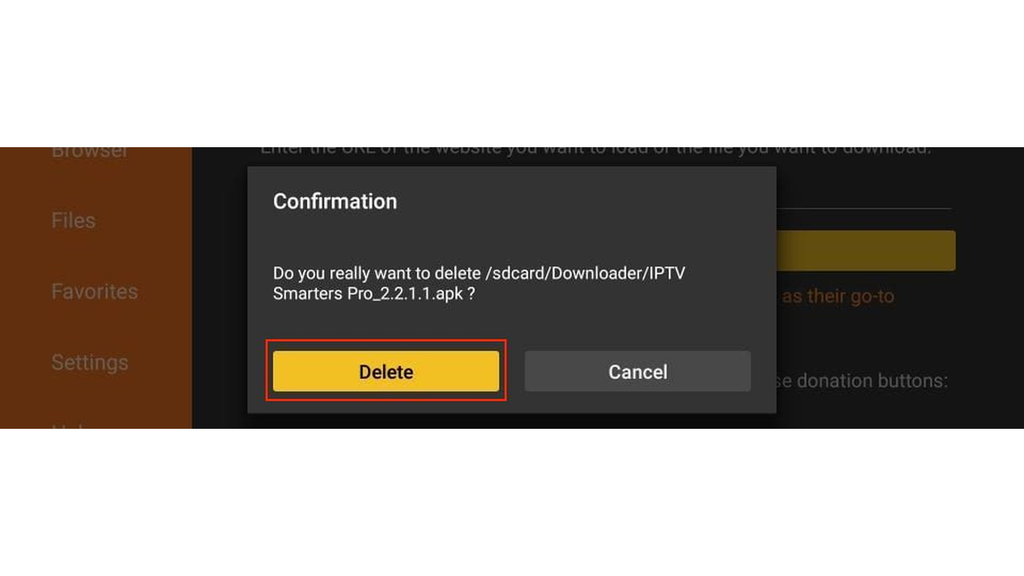
1.6. Choose Install when the Android dialog appears, then Done. You can safely delete the APK file afterwards to free space.
Step 2: Install on Android (phone, tablet, Android TV box)
On Android devices, IPTV Smarters Pro is distributed as an APK) from iptvsmarters.com. You enable installs from unknown sources, download the APK with your browser or a file manager, and install it. Google removed the Play Store listing in 2019, so there is no official Play Store version to search for.
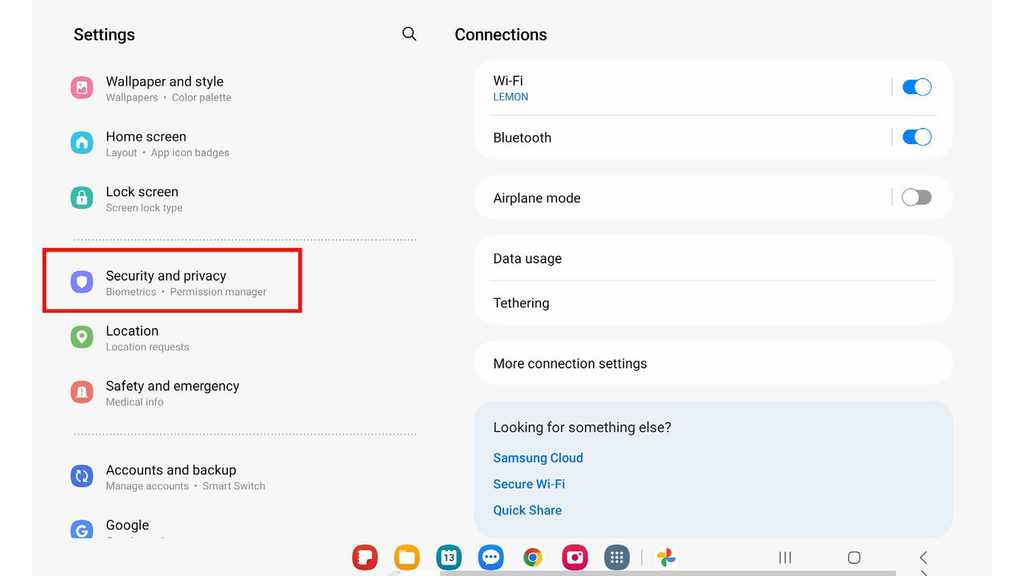
2.1. Open Android Settings and go to Security & privacy > More security settings (or Apps > Install unknown apps, depending on the Android version).

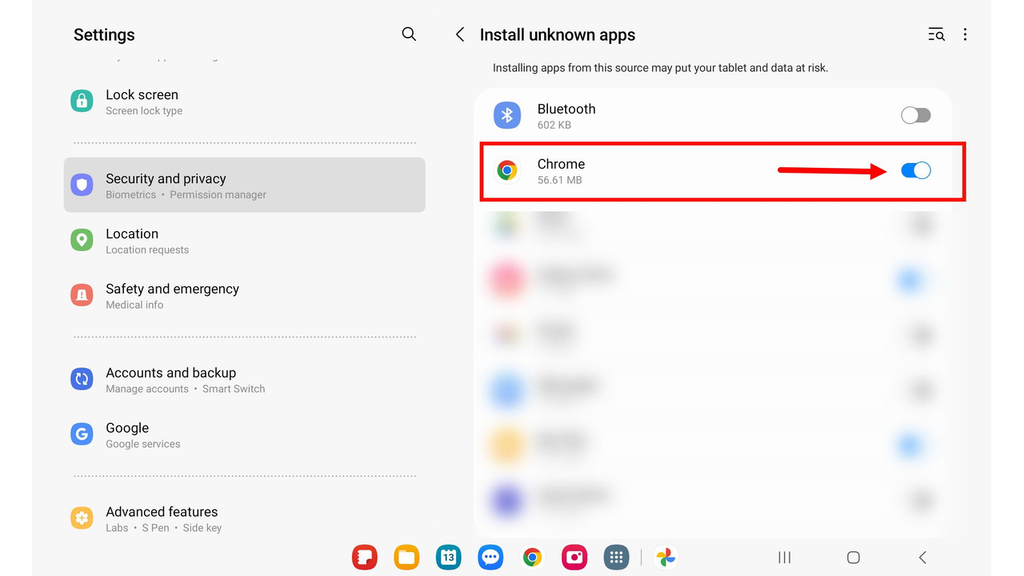
2.2. Switch on install permission for the browser or file manager you will use. Chrome is the safest choice because the APK comes directly from the official source.
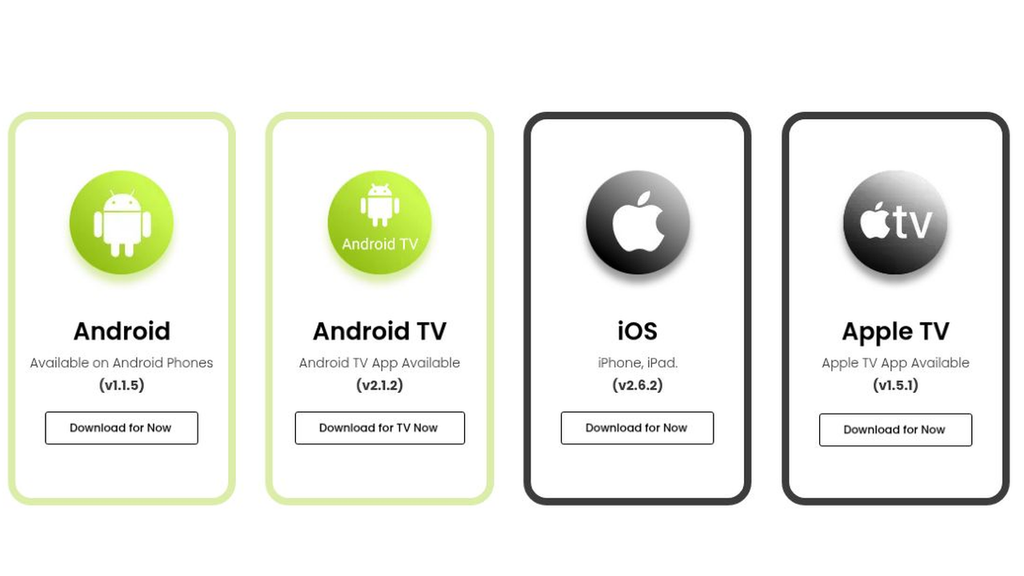
2.3. Open Chrome on your device, go to iptvsmarters.com** and tap the Android download link to fetch the APK.
2.4. Tap the downloaded file in the notifications tray, choose Install and open the app when the installation finishes.
Step 3: Install Smarters Player Lite on iPhone and iPad
On iOS, the official app is published under the name Smarters Player Lite by WHMCS Smarters. Apple does not allow APK sideloading, so the App Store is the only route. Several copycat apps use similar names; the correct developer is WHMCS Smarters.
3.1. Open the App Store on your iPhone or iPad and tap the search icon.
3.2. Search for “Smarters Player Lite” and check that the developer name reads WHMCS Smarters. Do not install an app from another developer that uses a similar name.
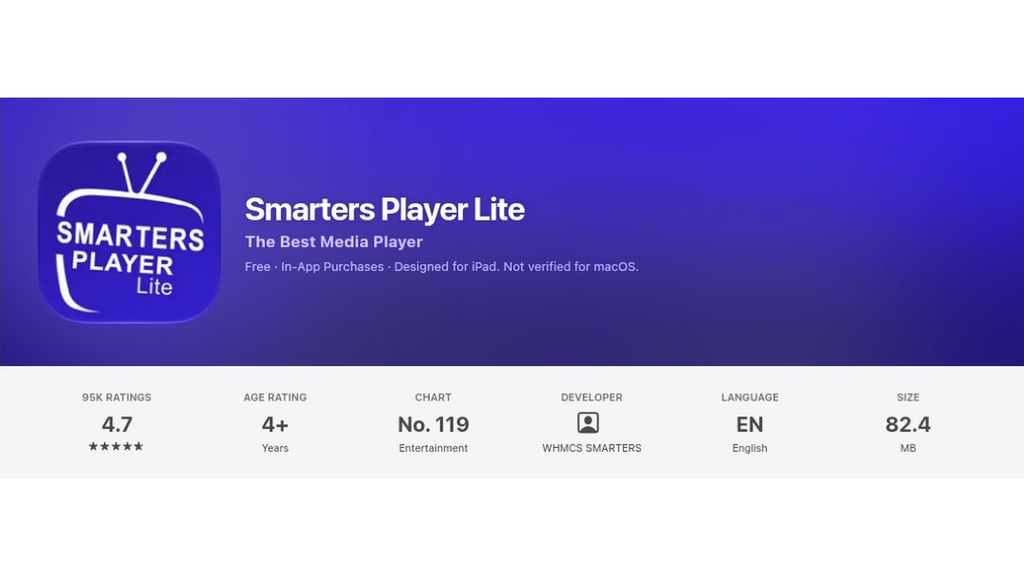
3.3. Tap Get and confirm with Face ID, Touch ID or your Apple ID password. The download size is small; this takes about a minute on Wi-Fi.
3.4. Open Smarters Player Lite from the home screen. The sign-in process is identical to the Android app.
Step 4: Install IPTV Smarters Pro on Windows or Mac
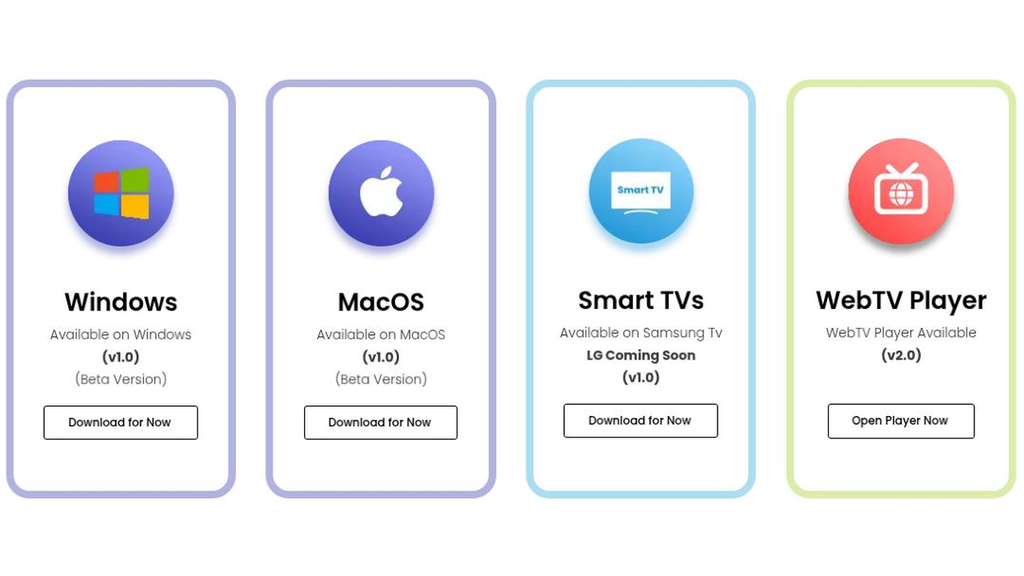
A desktop version is available for both Windows and macOS, directly from iptvsmarters.com. Windows SmartScreen may warn you when you first run the installer because the app is not Microsoft-store-certified; the warning is expected and the file is safe when downloaded from the official site.
4.1. Open iptvsmarters.com in your browser and click Downloads** at the top of the page.
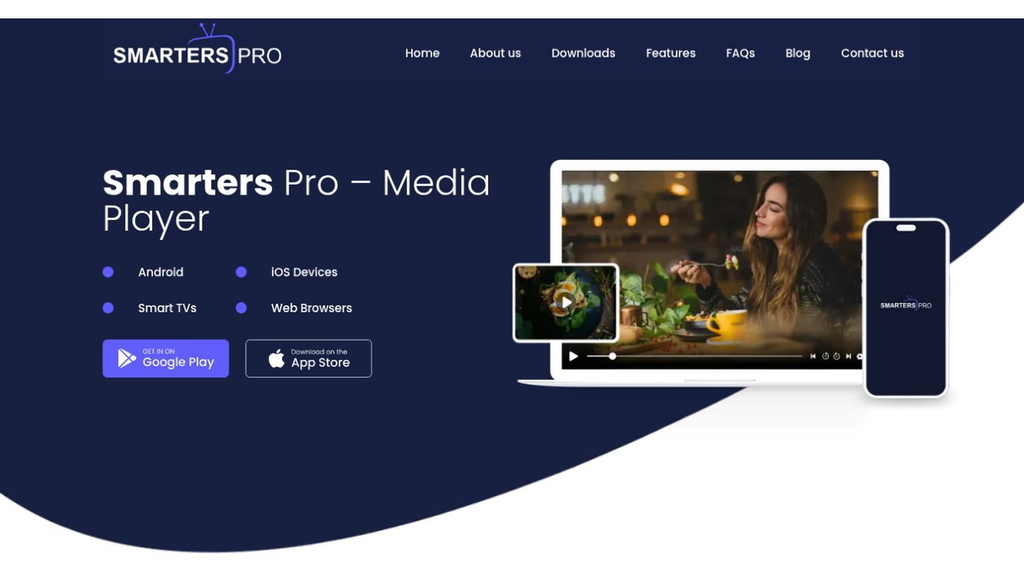
4.2. Choose your operating system: Download for Windows (.exe) or Download for Mac (.dmg).
4.3. On Windows, if you see a SmartScreen warning, click More info > Run anyway. On macOS, right-click the .dmg and choose Open if Gatekeeper blocks it.
4.4. Follow the installer prompts with the default options; the installation finishes in under a minute on most computers.
4.5. Launch the app from the Start menu or the Applications folder and continue to the sign-in step below.
Step 5: Install IPTV Smarters Pro on Samsung and LG Smart TVs
The app is not available in the Samsung Tizen Store or the LG Content Store. On these TVs, the stable route is to plug a Fire TV Stick, Chromecast with Google TV or Android TV box into a free HDMI port and install IPTV Smarters Pro there. The TV then becomes a passive display, and all setup happens on the stick.
5.1. Plug a Fire TV Stick, Chromecast or Android TV box into a free HDMI port on your Samsung or LG TV, then connect it to power.
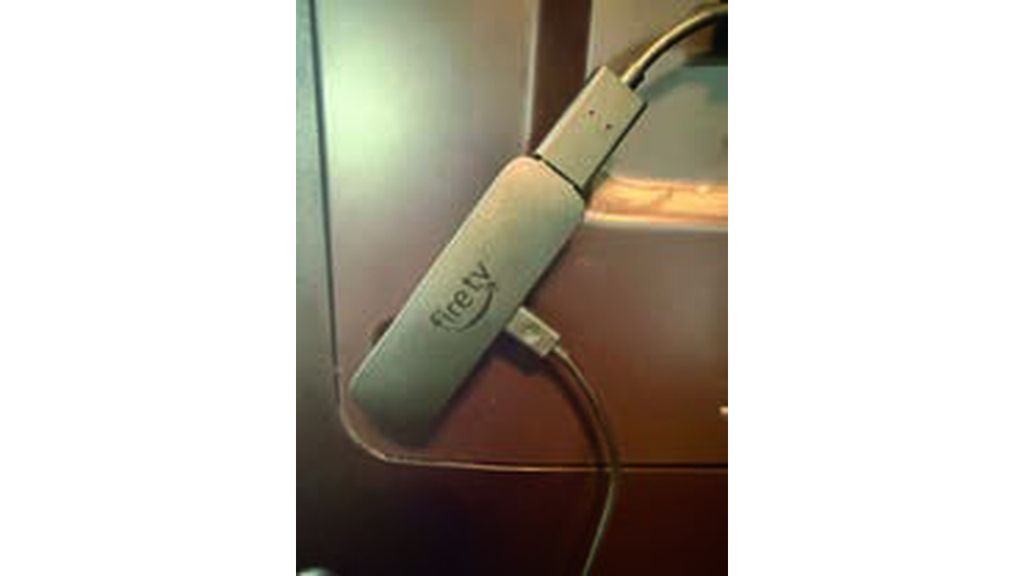
5.2. Switch the TV source to the HDMI port where the stick is plugged in, using your TV remote’s Source or Input button.
5.3. Follow Step 1 of this guide to install the app on the stick. The TV only displays what the stick plays, which is the stable approach for Smart TVs without IPTV Smarters Pro in their native store.
Step 6: Sign in with Xtream Codes or M3U
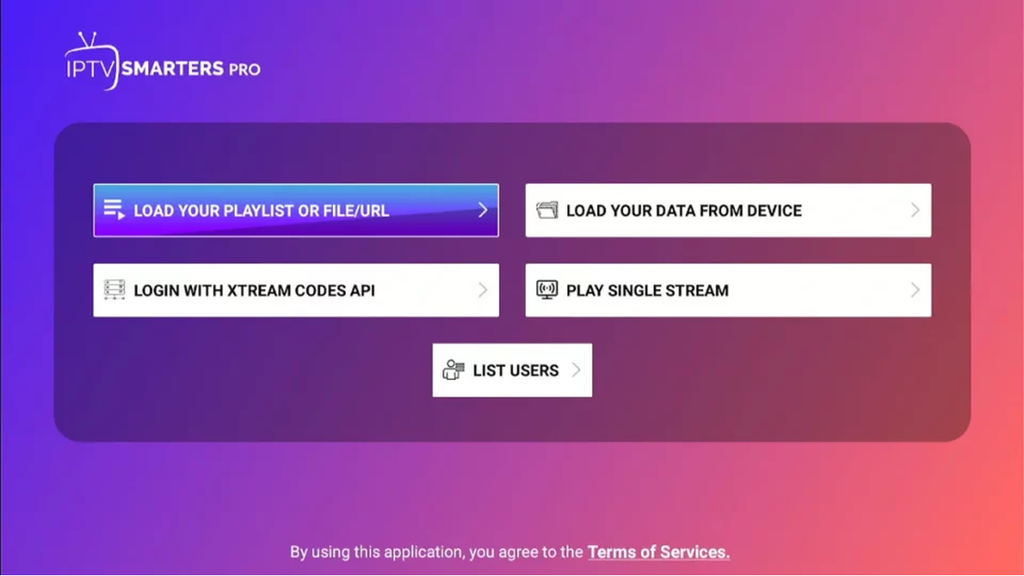
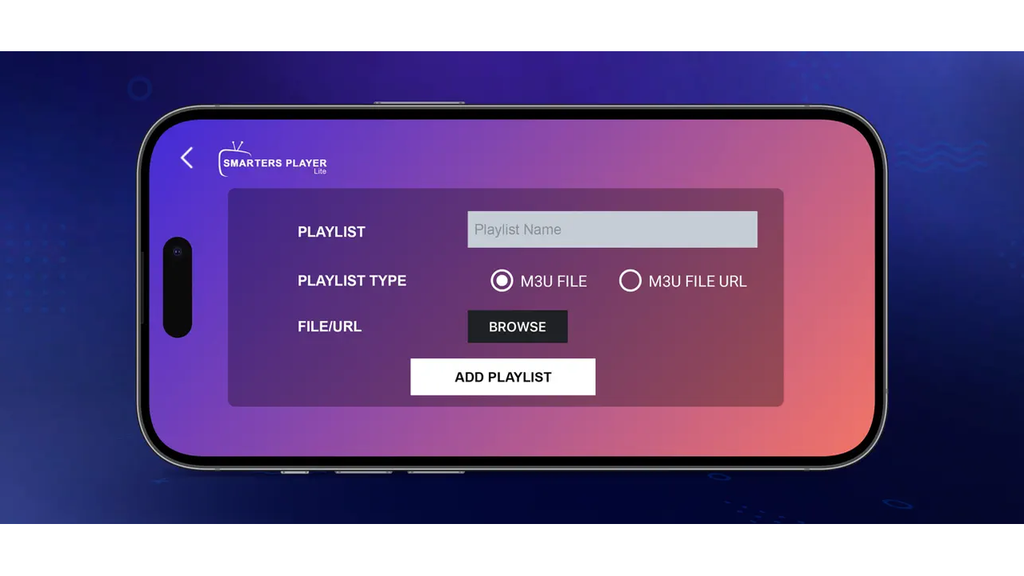
The sign-in screen is identical across every device the app supports: Firestick, Android, iPhone, Windows and Mac. You choose between Xtream Codes and M3U, enter your details, and IPTV Smarters Pro loads your channels.
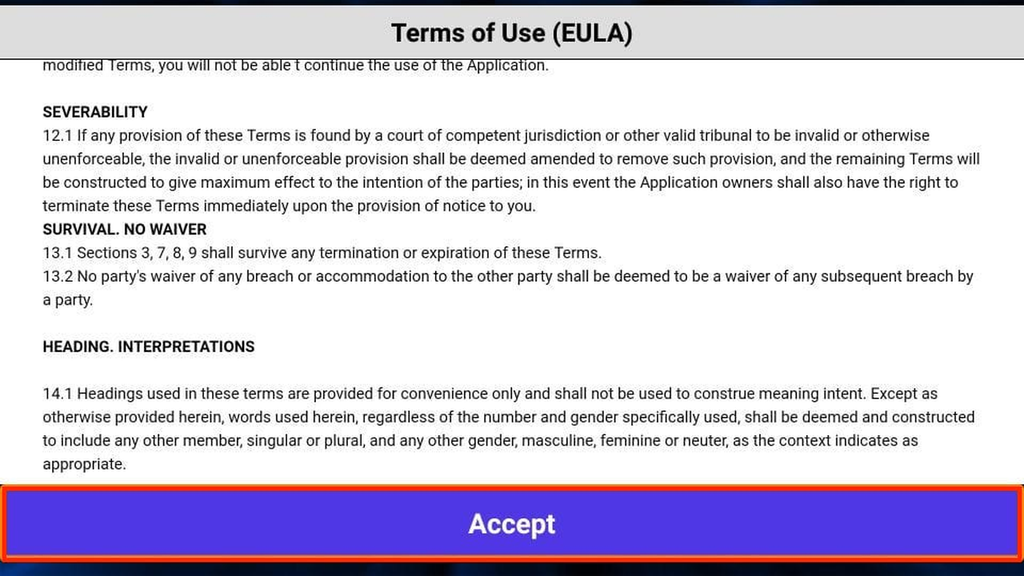
6.1. Open the app and accept the terms of service on first launch.
6.2. Choose Add New User, then Login with Xtream Codes API if you have server URL + username + password, or Load Your Playlist or File/URL if you only have an M3U link.
6.3. Enter your details exactly as supplied by your provider. The server URL for Xtream Codes includes the port (for example http://server.example:8080); the M3U link usually starts with http:// or https://.
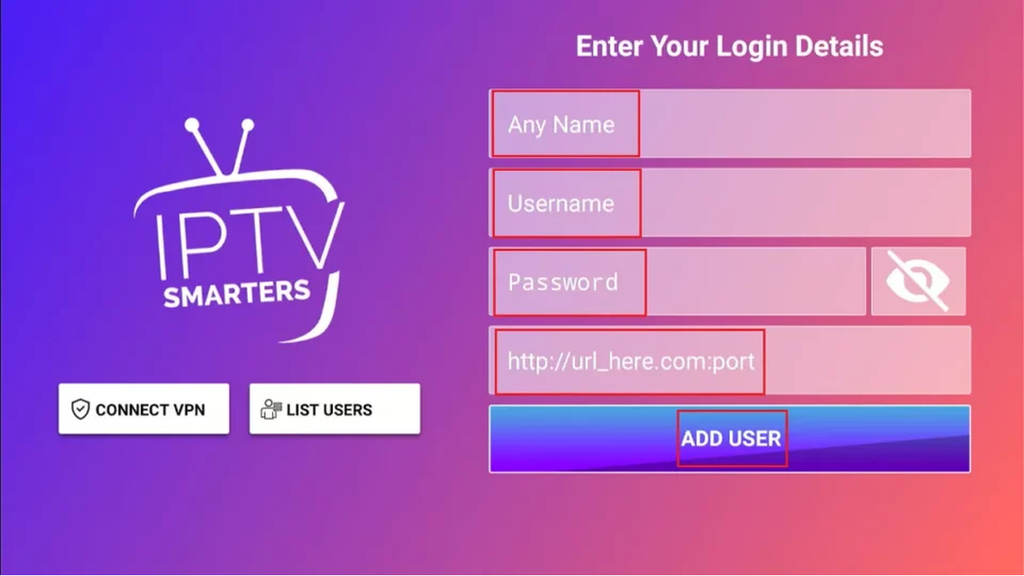
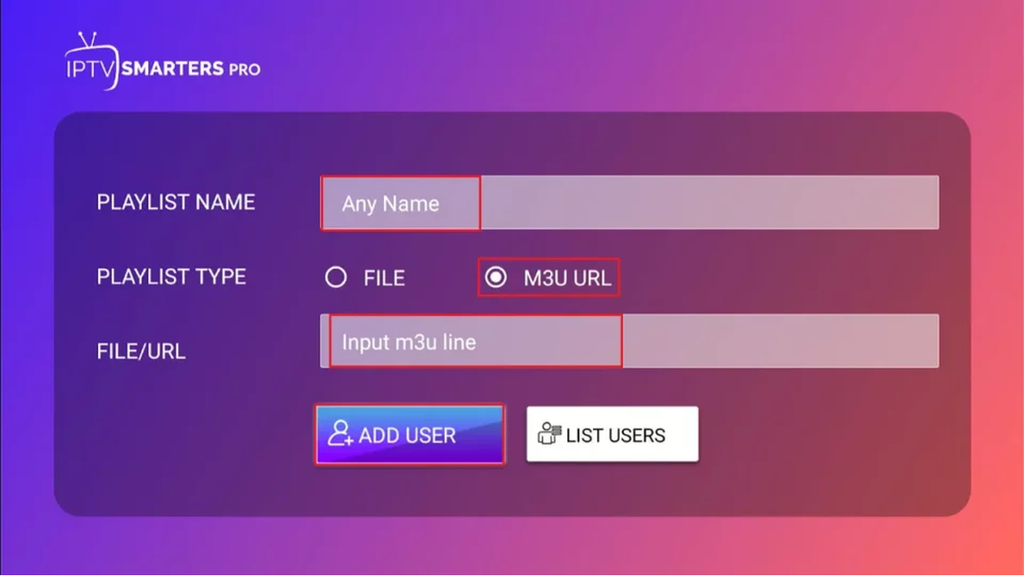
6.4. Tap Add User or Save, then wait while the app downloads your channel list, films and series. On a large playlist this can take up to a minute.
Image coverage: The Add User control is visible in the step 6.3 forms. A verified channel/movie/series loading screen was not obtained.
Step 7: Set up the EPG and tweak playback
The app usually loads the programme guide automatically when you sign in with Xtream Codes. With an M3U playlist, you often need to add the EPG link manually. Switching the player and decoder is the first thing to try if a channel plays with sound but no picture.
7.1. Open the settings via the gear icon or the side menu.
Image unavailable: No verified settings menu for the target legacy build was available. Located OPENBOX source images were inaccessible.
7.2. Go to EPG > Add EPG via XMLTV URL and paste the EPG link supplied by your provider. Refresh the guide once the field is saved.
Image unavailable: No verified XMLTV URL entry screen for this version was obtained; no interface or credential field has been invented.
7.3. Open Player Settings and switch between the three built-in players (Native, ExoPlayer, VLC) if the picture stutters or audio drifts.
Image unavailable: No verified Native / ExoPlayer / VLC selection screen for this build was obtained. The stated three built-in players need editorial verification.
7.4. Switch between Hardware and Software decoding if sound plays but the picture stays black. Hardware is lighter on the processor; software plays unusual stream formats.
Image unavailable: No verified decoder screen for the exact app build was obtained. A similarly named third-party app listing was rejected because its publisher was not WHMCS Smarters.
Check that everything works correctly
A quick five-minute check after setup saves time later. The things to confirm:
- Channels from three different categories (sport, news, films) all start and play without interruption for at least one minute.
- The programme guide shows the current programme on each channel with the correct time.
- Films and series listed in the Movies and Series tabs load their posters and descriptions.
- A channel that supports catch-up offers you a programme from yesterday without errors.
Troubleshooting IPTV Smarters Pro
| Problem | Likely cause | Fix |
|---|---|---|
| Sign-in fails with “Authorization failed” | Wrong port, typo or expired subscription | Check the server URL includes the port, verify your subscription is active and retype your username and password |
| The app installs but the channel list is empty | Playlist slow to load or wrong line type | Wait up to a minute; if it stays empty, delete the user and sign in again with Xtream Codes if available |
| Programme guide stays blank | No EPG URL set on an M3U account | Add the EPG URL in Settings > EPG and refresh |
| Picture buffers or stutters | Weak connection or wrong decoder | Switch to Wi-Fi 5 GHz or Ethernet; try hardware vs software decoding. See the Firestick VPN and buffering guide |
| Sound plays but the screen stays black | Decoder incompatible with the stream | In Player Settings, switch the decoder from Hardware to Software (or vice versa) |
| Fire TV remote not responding during install | Remote pairing issue | See the Firestick remote not working guide |
| The app crashes on launch | Corrupt cache or old version | Clear the app cache in Android settings or reinstall; see Firestick restart and update guide |
Frequently asked questions about IPTV Smarters Pro
Is IPTV Smarters Pro free?
Yes. IPTV Smarters Pro itself is free on every platform; you only pay for your IPTV subscription. There are no premium tiers in the app and no in-app purchases.
Is IPTV Smarters Pro safe to install?
IPTV Smarters Pro is safe when downloaded from the official source (iptvsmarters.com for Android, Windows and Mac, the App Store for iOS). The usual safety advice applies: avoid random mirror sites that bundle modified APKs, and verify the developer name on iOS is WHMCS Smarters.
What is the difference between IPTV Smarters, IPTV Smarters Pro and Smarters Player Lite?
IPTV Smarters was the original Android app, now discontinued. IPTV Smarters Pro is the current flagship on Android, Fire OS, Windows and Mac. Smarters Player Lite is the iOS equivalent on iPhone, iPad and Apple TV, published under a different name because the App Store required it. The functionality is the same across all three current apps.
Why is IPTV Smarters Pro not on the Google Play Store?
Google removed IPTV Smarters Pro from the Play Store in 2019 along with several other IPTV players. It is still a legitimate app, distributed as an APK by the developer; the Play Store status has not changed since.
Does IPTV Smarters Pro work on Samsung and LG Smart TVs directly?
No. The Tizen (Samsung) and webOS (LG) stores do not carry IPTV Smarters Pro. The stable solution is to plug a Fire TV Stick or Android TV box into the TV and run the app there, as described in Step 5.
Can I use IPTV Smarters Pro on several devices at once?
Yes, up to the number of simultaneous connections in your IPTV subscription. IPTV Smarters Pro itself has no device limit; your subscription does. Check with your provider if you plan to stream to several screens at once.
Does IPTV Smarters Pro record live TV?
Yes, where the stream permits. On Android, recordings save to internal storage or a USB drive; the EPG lets you schedule future recordings. Not every channel allows recording; this depends on how the stream is encoded.
Still deciding whether IPTV Smarters Pro fits your setup? Request a free trial and test it on your device before you commit.
Related guides
- Best IPTV app for Firestick
- How to install IPTV on an Android TV box
- Best IPTV player for Windows
- How to set up IPTV: a general guide
