
Knowing how to restart Firestick devices, clear an app’s cache and install updates usually fixes freezing, buffering and app crashes in a couple of minutes. These four jobs sound similar, but each one does something different, and picking the wrong one can wipe settings you wanted to keep. Here’s when to use each, with Amazon’s official menu paths and remote shortcuts.
The steps below work on Amazon Fire TV Sticks sold in the UK, although menu wording can vary slightly between models and software versions. On Fire TV smart TVs and some newer devices, for example, the My Fire TV menu is called Device & Software instead. If you’ve only just unboxed your stick, start with our Firestick beginner’s guide.
Restart, reset, update or clear cache: which one do you need?
A restart fixes temporary glitches, clearing the cache fixes one misbehaving app, an update fixes known bugs, and a factory reset wipes everything as a last resort. Always start with the gentlest option and only move on if the problem comes back.
- Restart (reboot): reloads the software. Nothing is deleted, so try it first.
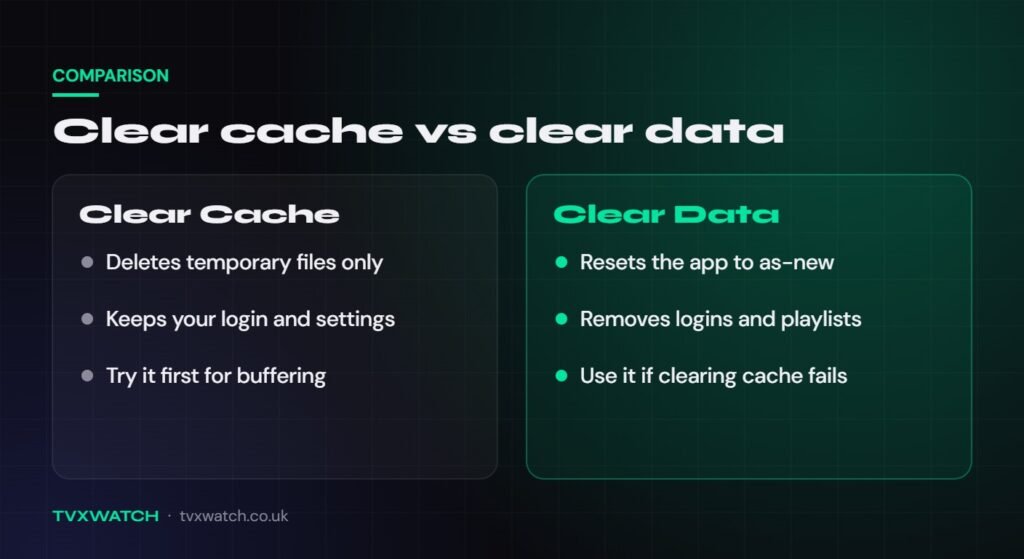
- Clear cache: deletes one app’s temporary files; logins and settings stay.
- Clear data: resets one app to as-new, logins and playlists included.
- Update: installs the latest Fire OS bug fixes and security patches.
- Factory reset: wipes the whole stick. Last resort only, or before selling it.
If you only learn one fix, learn how to restart Firestick devices properly, because a restart is safe and clears most temporary faults. Resetting is a different matter: on a Firestick it normally means a full factory reset, and that can’t be undone.
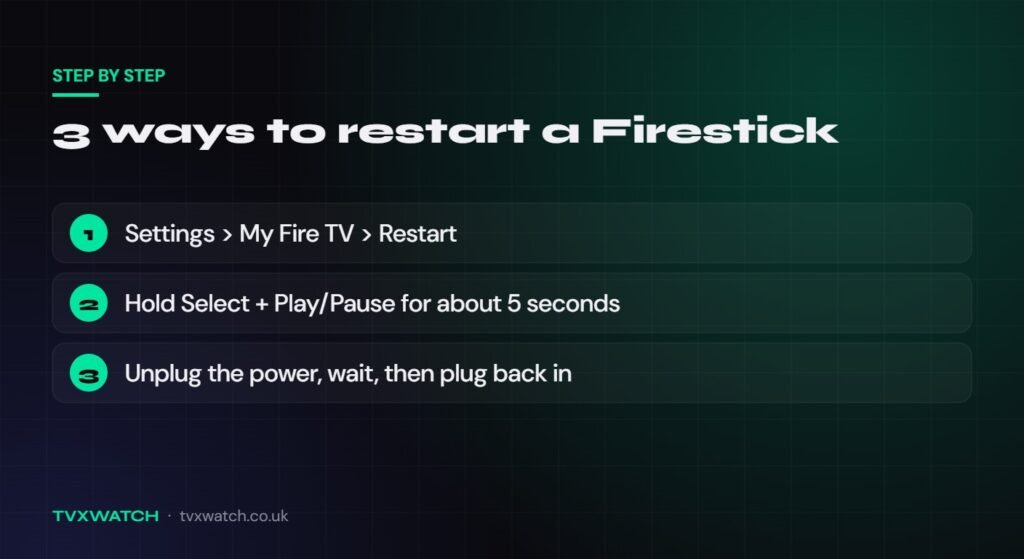
How to restart Firestick devices: three methods
You can restart a Firestick from the Settings menu, with a remote button shortcut, or by unplugging the power, and all three are safe to use. Rebooting means the same thing, so if you’re wondering how to reboot Firestick models, these are the steps. Use the menu when the stick is responding and the other two when it’s frozen.
Restart from the Settings menu
- Press Home on your remote and open Settings (the gear icon).
- Select My Fire TV (or Device & Software on some models).
- Select Restart and confirm if you’re asked.
Restart with the remote shortcut
Press and hold the Select button (the centre of the navigation circle) and Play/Pause together for about five seconds to force a restart. Amazon recommends this shortcut when the screen is frozen and the menus won’t respond. If the remote doesn’t respond at all, see our guide to fixing a Firestick remote that’s not working.
Restart by unplugging the power
Unplugging the power cable, waiting, then plugging it back in performs a hard restart that works even when the remote doesn’t. Amazon says a few seconds is enough for a normal restart, but suggests waiting 60 seconds if the screen is frozen. Avoid doing this while a software update is installing.
How to clear cache on Firestick apps (and when to clear data)
Clearing an app’s cache removes its temporary files, which often fixes an app that buffers, freezes or won’t open, without signing you out. Here is how to clear cache on Firestick apps one at a time:
- Open Settings and select Applications.
- Select Manage Installed Applications.
- Choose the app that’s playing up, such as your IPTV player.
- Select Force Stop, then Clear Cache.
- Press Home, reopen the app and test it.
Depending on your software version, Manage Installed Applications may also offer a Clear all Application Caches option that empties every app’s cache at once. Amazon also says Fire TV automatically clears the cache of apps you haven’t used for more than 30 days when storage is running low.
Clear cache vs clear data
Clear cache only deletes temporary files, while Clear data resets the app completely and removes your login, playlists, favourites and settings. After clearing the cache, the only difference you’ll notice is that the first launch may be a little slower. Clear data is the next step if that didn’t help, but have your provider’s login details or playlist URL to hand first. Our TiviMate setup guide and IPTV Smarters Pro guide show how to add your details again.
How to free up storage on your Firestick
Low storage slows a Firestick down, makes apps crash and can stop system updates from downloading, so it’s worth checking how much space is left. Fire TV support guidance says you need at least 500 MB free before an update will download. To check, go to Settings, then My Fire TV, then About, then Storage.
The quickest way to free space is to uninstall apps you no longer use and clear the cache of the large streaming apps you keep. Go to Settings, Applications, Manage Installed Applications, choose an app and select Uninstall. Start with apps you haven’t opened for months.
How to update Firestick software (Fire OS)
Firesticks receive Fire OS updates automatically when they’re connected to the internet, but you can check for one manually at any time. Here’s how:
- Open Settings from the home screen.
- Select My Fire TV (or Device & Software).
- Select About.
- Select Check for System Update, then follow the on-screen prompt to install any update it finds.
Keep the Firestick plugged in and leave the remote alone while an update installs, because interrupting it can leave the stick stuck on the logo screen. The stick restarts by itself when the update has finished. If the check fails, free up some storage as described above and test your connection under Settings, then Network.
Updating your apps
Apps from the Amazon Appstore normally update automatically, and you can check the setting under Settings, Applications, Appstore, Automatic Updates. Sideloaded apps need updating from inside the app or by reinstalling them. Newer Vega OS models such as the Fire TV Stick 4K Select can’t sideload Android apps at all, as only Appstore apps are available on them.
How to reset Firestick to factory settings
A factory reset returns your Firestick to the state it was in out of the box, removing your Amazon account details, apps, downloaded content and settings. Use it when nothing else has worked, or before you sell the stick. There’s no undo, so write down your app logins first.
Factory reset from the Settings menu
The simplest way to factory reset Firestick devices is through the Settings menu, as long as the stick is still responding to the remote. Leave it plugged in until the reset has completely finished.
- Open Settings.
- Select My Fire TV (or Device & Software).
- Select Reset to Factory Defaults.
- Choose to continue on the confirmation screen.
Factory reset with the remote shortcut
To reset with the remote, press and hold the Back button and the right side of the navigation circle together for 10 seconds. A prompt then appears letting you continue or cancel, and if you do nothing the reset goes ahead automatically after a few seconds. If you’ve connected USB storage, eject it safely before you start. Amazon’s factory reset help page lists the same steps if your menus look different.
What to do after a factory reset
After the reset, your Firestick shows instructions to pair the remote, then asks you to connect to Wi-Fi and sign in to Amazon, just like a new device. You then need to reinstall your apps and sign back in to each one. Our step-by-step guide on how to set up IPTV on a Firestick covers the whole process, and our overview of choosing an IPTV app for Firestick helps you pick a player.
Any sideloaded apps have to be installed again the same way you added them originally, including re-enabling the setting that allows apps from unknown sources. That only applies to sticks running Fire OS, because Vega OS models such as the Fire TV Stick 4K Select only install apps from the Amazon Appstore.
Firestick keeps restarting? Causes and fixes
A Firestick that restarts on its own is usually short of power, overheating or struggling with an update that didn’t install properly. Work through the checks below in order, starting with the power supply because it’s the easiest to rule out.
Use the official adapter and a wall socket
Plug your Firestick into a wall socket using the cable and power adapter that came in the box, rather than a USB port on your TV. Amazon says the included accessories make sure the device gets enough power, and recommends Amazon-branded replacements if you lose them. TV USB ports often can’t supply steady power and may switch off when the TV goes into standby, which can trigger random restarts.
The 2026 Fire TV Stick HD is the exception, because Amazon designed it to draw power from a TV’s USB port. If that model keeps restarting, try a different USB port on the TV or power it from a wall adapter using the supplied USB-C cable.
Check for overheating
A Firestick that gets too hot may restart or freeze, especially when it’s squeezed behind a wall-mounted TV or shut inside a cabinet. If your stick came with an HDMI extender, use it to move the stick away from the TV’s warm back panel. If it feels very hot, unplug it and let it cool down.
Fix failed or interrupted updates
An update that was interrupted or couldn’t finish can leave a Firestick restarting in a loop or stuck on the Fire TV logo. Leave it switched on for about 25 minutes, as Amazon suggests for a frozen screen, then unplug it for 60 seconds and try again. If the loop continues, try a factory reset or contact Amazon customer service.
Quick troubleshooting order for buffering or freezing IPTV apps
When an IPTV app buffers or freezes, work from the quickest fix to the most drastic so you don’t wipe settings unnecessarily. Test the app again after each step.
- Try another app, such as BBC iPlayer. If it plays smoothly, the IPTV app or service is the likely cause.
- Restart the Firestick from the menu or with the Select + Play/Pause shortcut.
- Restart your router and wait for it to reconnect.
- Test your connection in Settings > Network: highlight your network and press Play/Pause. You need at least 25 Mbps for HD and 50 Mbps for 4K; if Wi-Fi is weak, move the router closer or use an Ethernet adapter.
- Force stop the IPTV app, clear its cache and reopen it.
- Check for Fire OS and app updates.
- If you use a VPN, switch to a closer server or turn it off briefly to see whether it’s the cause.
- Clear the app’s data or reinstall it, then add your login or playlist again.
- Factory reset only as a last resort.
If buffering only happens at busy times, such as during big football matches, your broadband provider or the IPTV service itself may be the bottleneck. Our guide on whether you need a VPN for IPTV on a Firestick explains ISP throttling and blocking, and how to set one up. It’s also worth making sure your service is a licensed one, as some IPTV services are unlicensed and illegal in the UK.
FAQ
Does restarting a Firestick delete anything?
No, restarting a Firestick doesn’t delete any apps, settings, logins or downloads; it simply closes everything and reloads the software. Only a factory reset or clearing an app’s data removes information.
How do you update the Firestick?
Go to Settings, My Fire TV (or Device & Software), About, then Check for System Update to install the latest Fire OS version. Firesticks also update automatically when they’re online, so a manual check is only needed if you think an update is missing.
How often should I clear the cache on my Firestick?
There’s no need to clear the cache on a schedule; do it when a particular app starts buffering, crashing or refusing to load. Fire TV already clears the cache of apps you haven’t used for more than 30 days when storage runs low.
Will a factory reset remove my IPTV subscription?
A factory reset doesn’t cancel your IPTV subscription, but it does delete the app along with the login or playlist details saved in it. Keep the username, password or playlist URL from your provider somewhere safe so you can add them again afterwards.
Can I reset my Firestick without the remote?
You can restart a Firestick without a remote by unplugging it, but a factory reset needs the remote or a phone app to reach the Settings menu. Amazon’s free Fire TV app for Android and iPhone works as a remote when your phone is on the same Wi-Fi network as the stick.
Once you know how to restart Firestick devices, clear an app’s cache and check for updates, most everyday problems take minutes rather than hours to fix. Just save the factory reset for when nothing else works.
