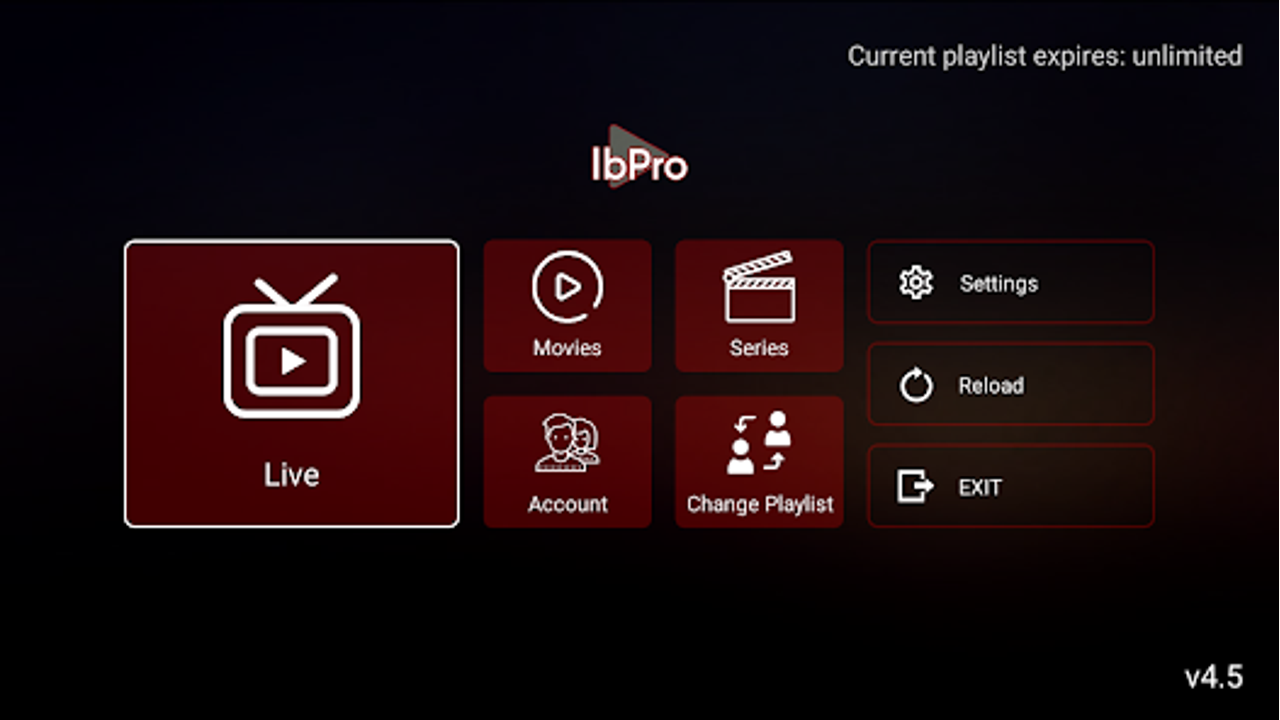
IBO Player Pro is one of the most reliable IPTV players available in 2026, compatible with Android, Firestick, Smart TV, Windows, Chromecast, and iOS. This complete IBO Player Pro setup guide covers every platform from downloading the app to fine-tuning your settings so you can start watching live TV in minutes. For a compatible UK IPTV service, visit TVXWatch.
Requirements and Compatible Devices
Check your device is supported before downloading. IBO Player Pro runs on the platforms listed below. The app itself is free to download; you must supply a separate, active IPTV subscription to access any content.
| Device | Minimum OS | Install Method |
|---|---|---|
| Android Phone / Tablet | Android 5.0+ | Google Play Store or APK sideload |
| Amazon Firestick / Fire TV | Fire OS 5+ | Sideload via Downloader app |
| Samsung Smart TV (Tizen) | Tizen 4+ | Tizen Studio sideload |
| LG Smart TV (webOS) | webOS 4+ | webOS Studio sideload |
| iPhone / iPad | iOS 14+ | App Store (IBO Player) |
| Windows PC | Windows 10/11 | WSA, emulator, or native build |
| Chromecast / Google TV | Google TV or cast from Android/iOS | Google TV app or Cast button |
| Android TV Box | Android 7+ | Google Play Store or APK sideload |
Note: IBO Player Pro is a media player, not an IPTV provider. You need a separate subscription to use it. Visit tvxwatch.co.uk/best-iptv-uk-provider for a reviewed list of UK-compatible services.
Step 1: Setting Up IBO Player Pro on Android
Android offers the simplest installation route IBO Player Pro is available directly from the Google Play Store. The steps below apply to Android phones, tablets, and most Android TV boxes. For dedicated Android TV boxes, the process is identical but you may be navigating with a remote rather than a touchscreen.
- 1.1 Install from the Play Store. Open the Google Play Store, search for ‘IBO Player Pro’, and tap Install. The download is typically under 30 MB and takes under a minute on a standard broadband connection.
- 1.2 Open the app and accept permissions. Tap Open or launch the app from your home screen. When prompted, allow network access and any storage permissions the app requests these are required for playlist caching and EPG downloads.
- 1.3 Choose your connection method. On the IBO Player Pro home screen, tap ‘Add Playlist’. Choose ‘M3U URL’ if your provider gave you a playlist link, or ‘Xtream Codes’ if you received a server address, username, and password.
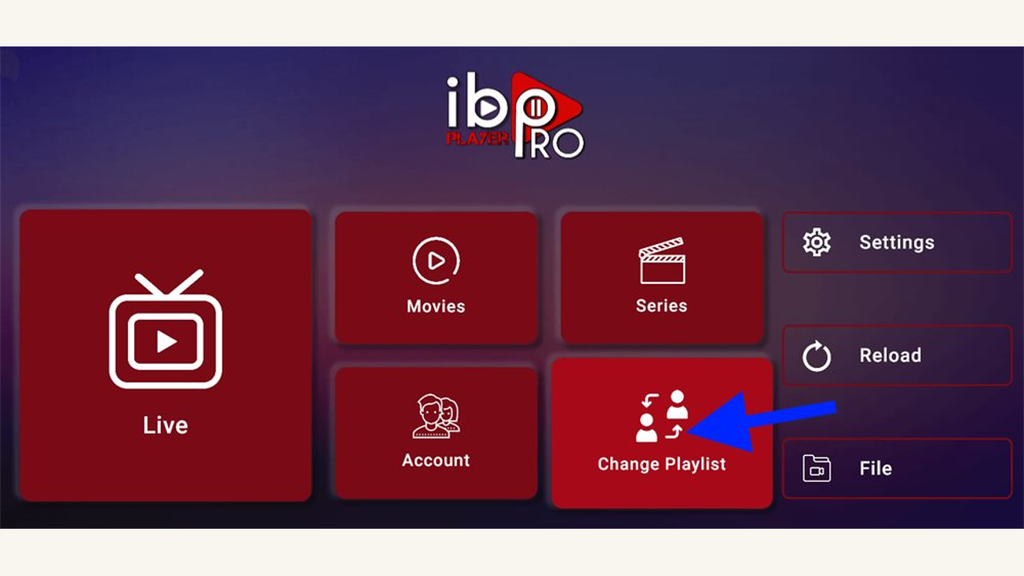
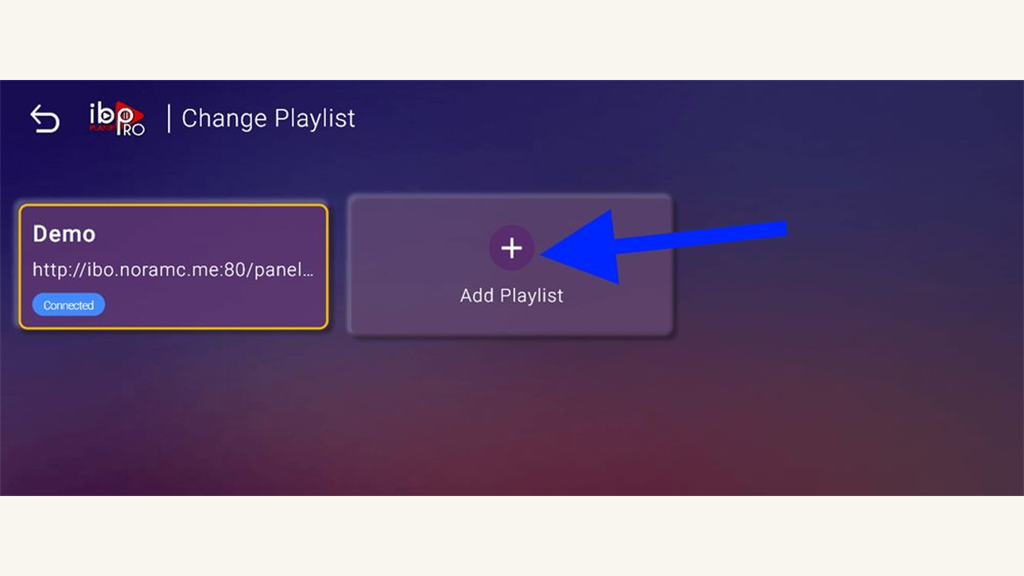
- 1.4 Enter your playlist details. For M3U: paste the full URL into the field and give the playlist a name (for example, ‘My IPTV’). For Xtream Codes: enter the server URL (including the port, if specified), your username, and your password exactly as provided these fields are case-sensitive.
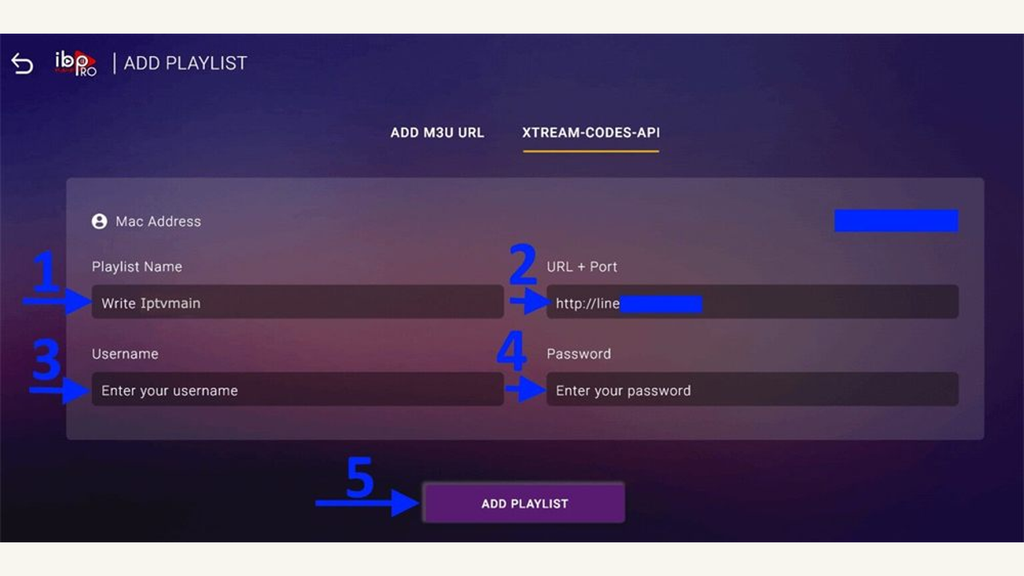
- 1.5 Load the playlist. Tap ‘Add’ or ‘Connect’. IBO Player Pro will contact your provider’s server and download the channel list. On a large playlist (10,000+ channels), this may take up to two minutes.
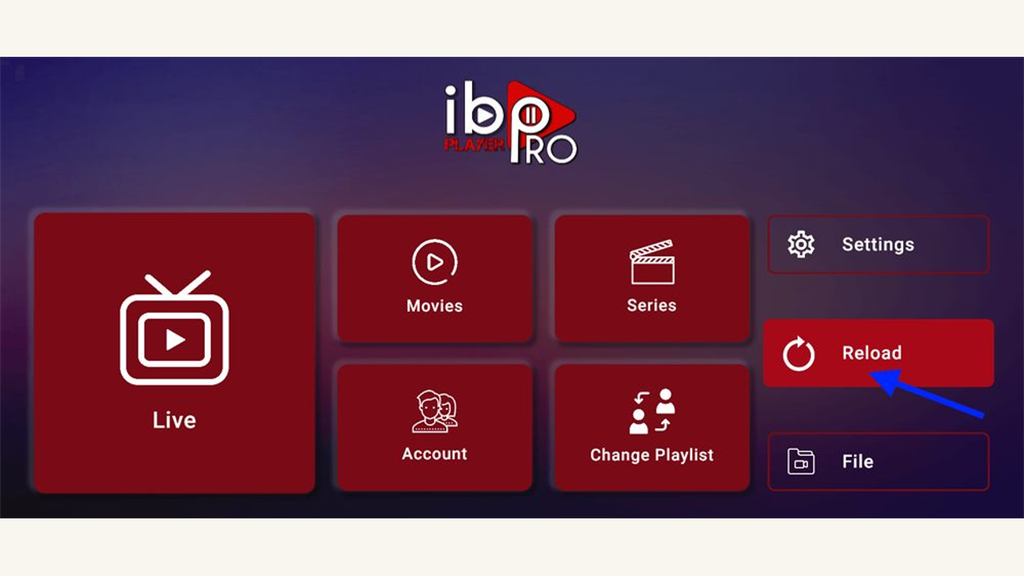
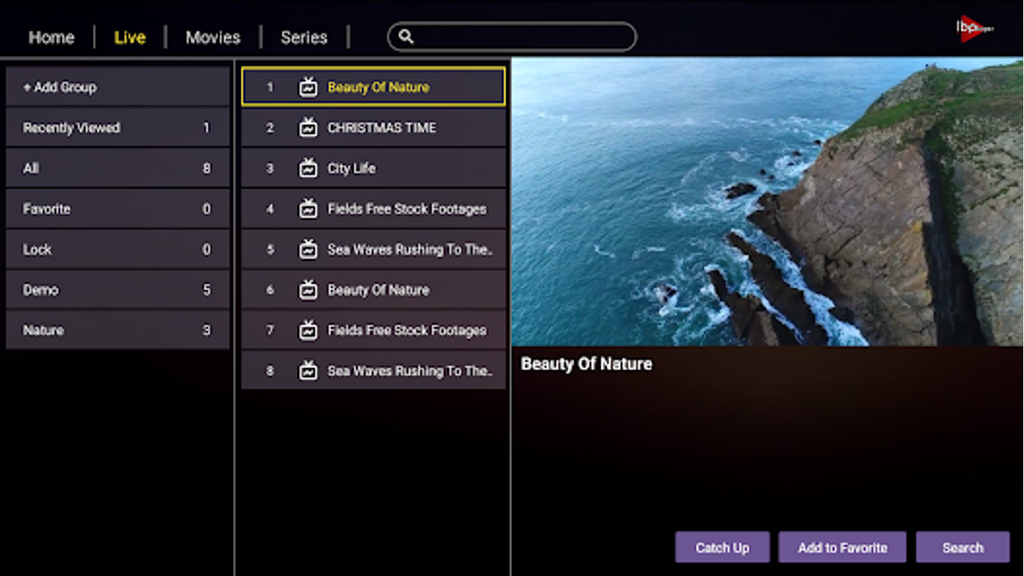
- 1.6 Browse your channels. Once loaded, the main menu shows Live TV, Movies, and Series tabs. Tap any title to begin playback. Use the search icon to find a specific channel by name.
Step 2: Setting Up IBO Player Pro on Amazon Firestick
IBO Player Pro is not listed in the Amazon Appstore, so Firestick users must sideload it using the Downloader app. Sideloading takes about five minutes and only needs to be done once. The app updates manually rather than automatically, so check for new versions periodically.
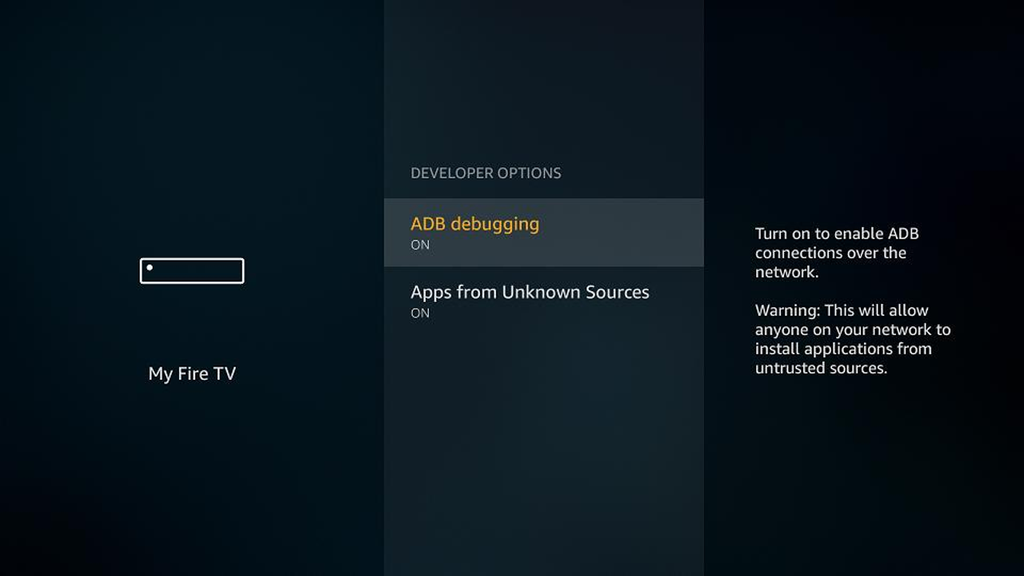
Enable Apps from Unknown Sources
- 2.1 Open Developer Options. From the Firestick home screen, go to Settings → My Fire TV → Developer Options.

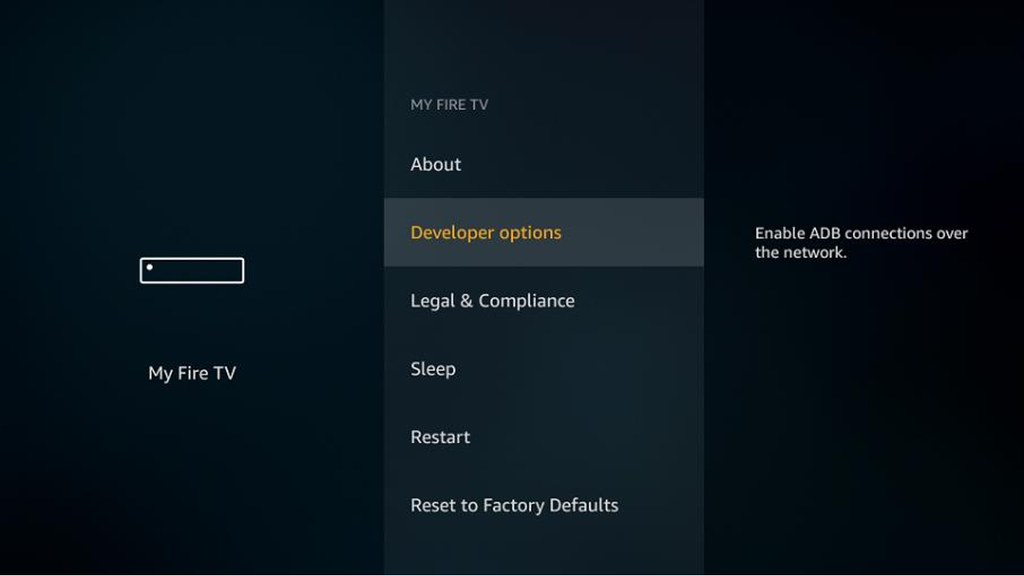
- 2.2 Enable ‘Apps from Unknown Sources’. Toggle the setting to On. Confirm the warning dialogue by selecting ‘Turn On’. This allows installation of apps not listed in the Amazon Appstore.
Download and Install via Downloader
- 2.3 Install the Downloader app. Search for ‘Downloader’ in the Amazon Appstore and install it. This is Amazon’s own sideloading utility and does not require developer mode itself.

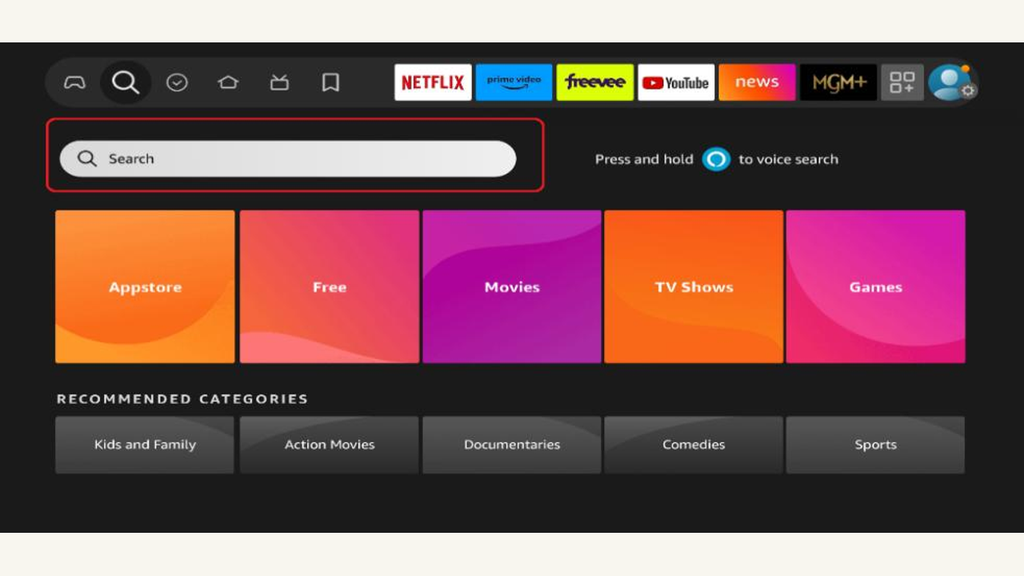
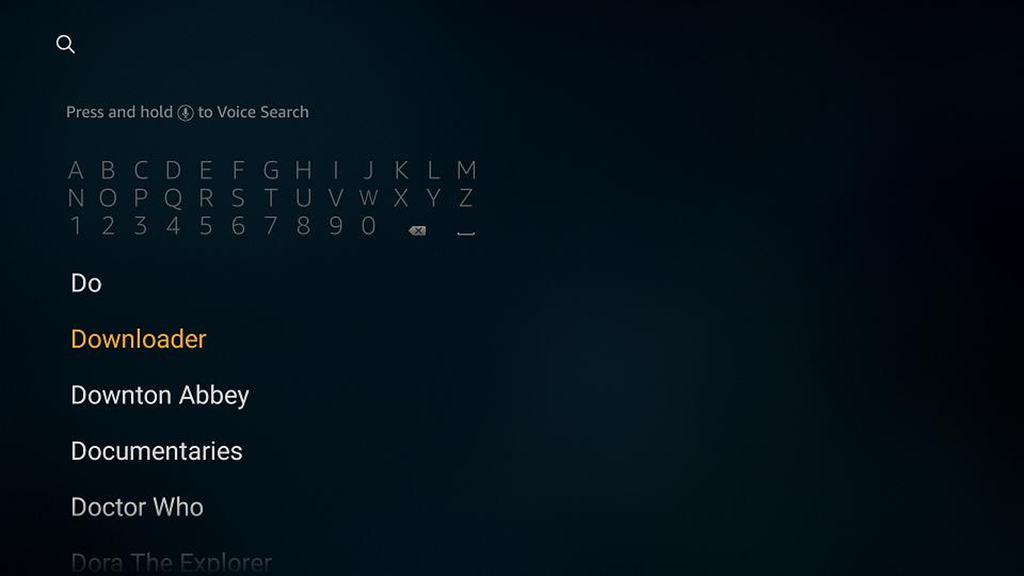
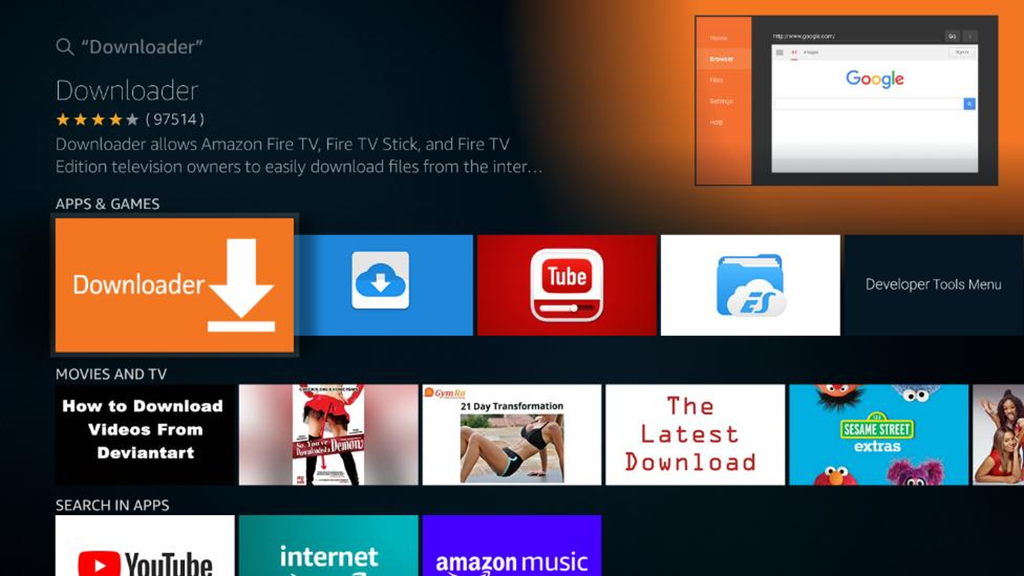
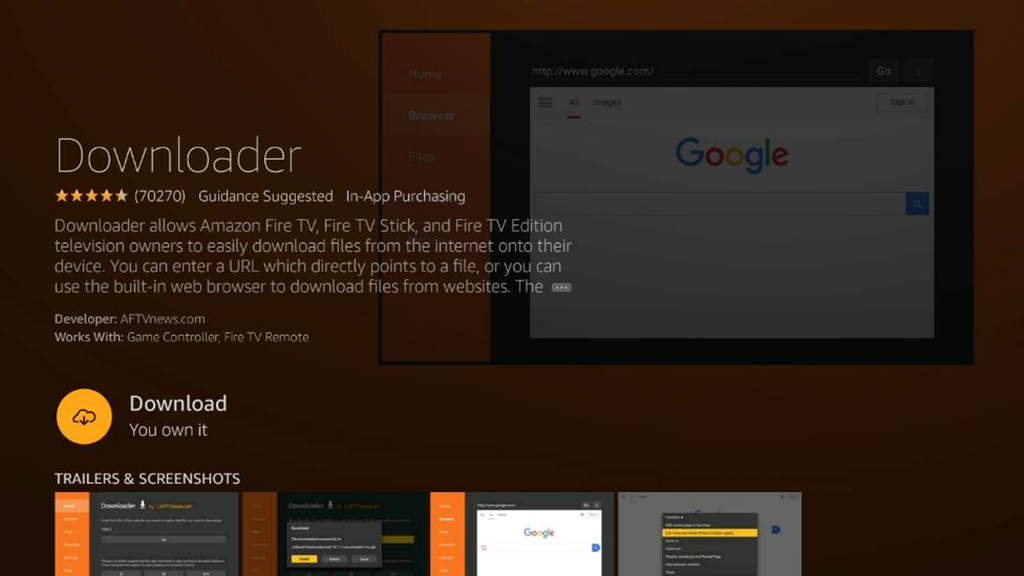
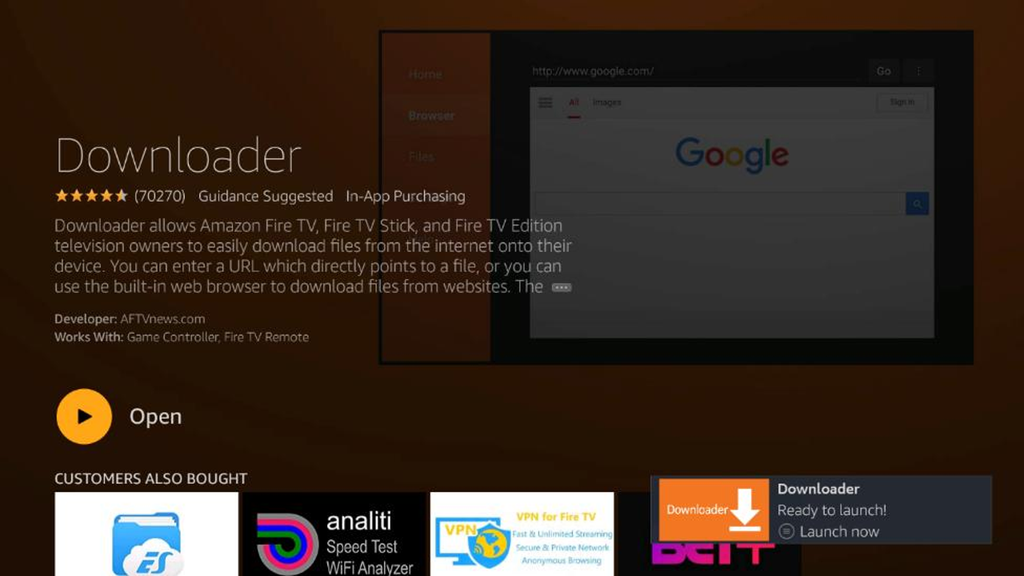
- 2.4 Open Downloader and grant file access. Launch Downloader. When prompted, allow it to access files and storage on your device.
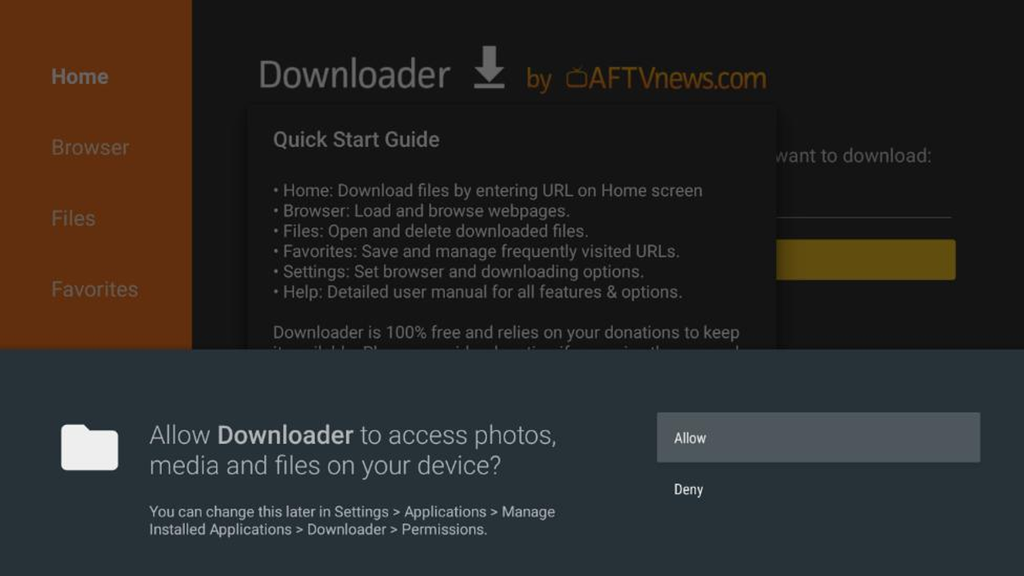
- 2.5 Enter the IBO Player Pro APK URL. In the Downloader URL bar, enter the direct APK download link for IBO Player Pro. Your IPTV provider may supply this link; alternatively, check tvxwatch.co.uk for the current verified source.
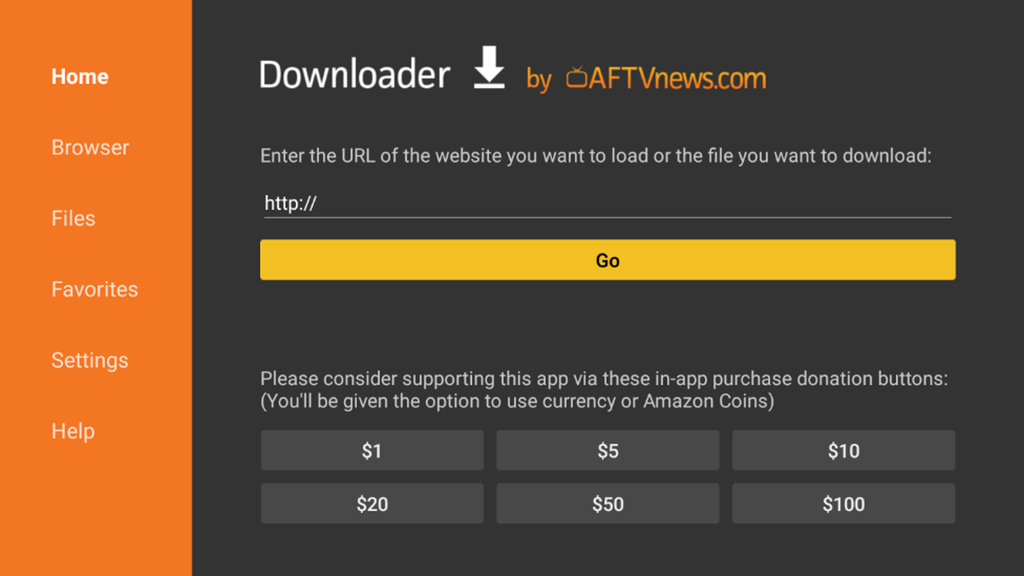
- 2.6 Download and install the APK. Tap Go. Downloader will download the file and present an Install prompt. Tap Install and wait for the process to complete. Tap Done when finished (not Open you will configure the app separately).
- 2.7 Delete the APK file. Downloader will offer to delete the installation file after install tap Delete to free up storage.
- 2.8 Find and launch IBO Player Pro. From the Firestick home screen, go to Your Apps & Channels → See All. IBO Player Pro appears in the list. Press the Menu button and select ‘Move to front’ for quicker access.
- 2.9 Add your playlist. Follow steps 1.3 to 1.6 above to load your M3U or Xtream Codes playlist.
For a full guide to IPTV on Firestick, including VPN setup and recommended companion apps, see the IPTV app for Firestick guide on TVXWatch.
Step 3: Setting Up IBO Player Pro on Samsung and LG Smart TVs
Smart TV installation requires a sideloading workflow, as IBO Player Pro is not listed in the Tizen or webOS app stores. Both methods require a Windows or Mac computer and a few minutes of setup. If you find this process too involved, connecting an Amazon Firestick or Android TV box to your TV’s HDMI port is a simpler alternative.
Samsung Tizen TV (Tizen 4+)
- 3.1 Enable Developer Mode on the TV. Press the Home button, select Apps, then type ‘12345’ on the remote control. A Developer Mode dialogue appears. Switch it to On and enter the IP address of your PC. Restart the TV when prompted.
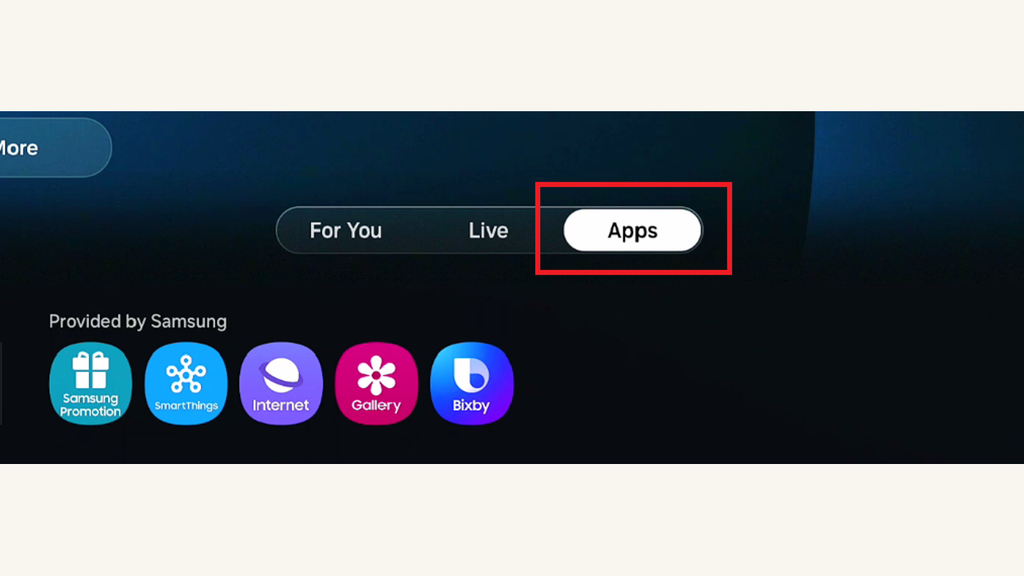
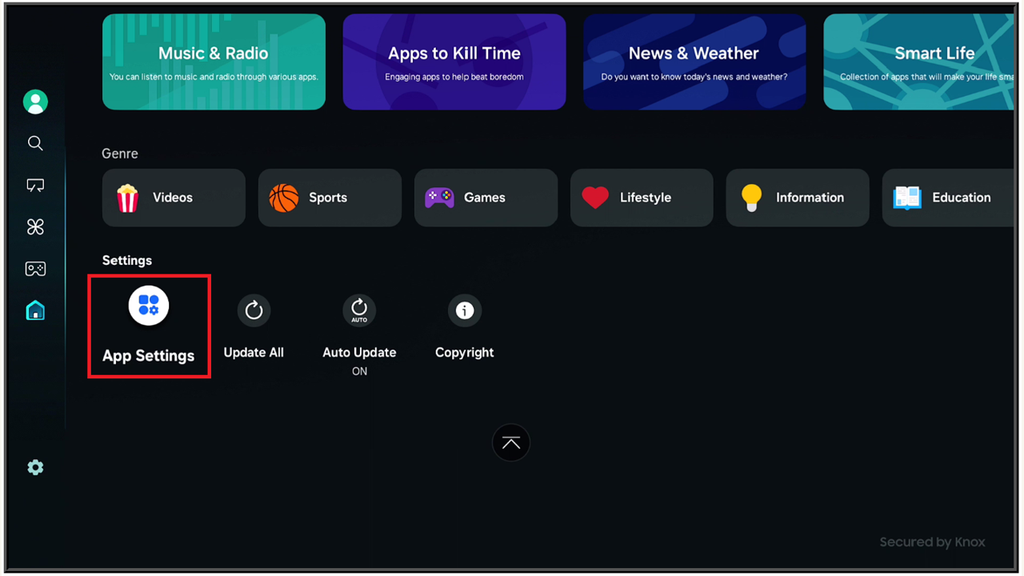
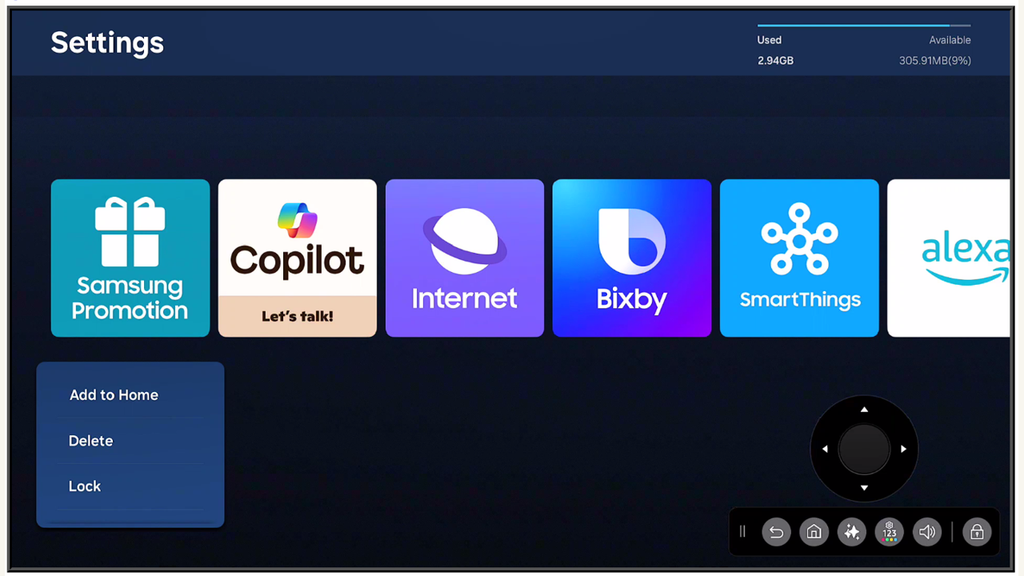
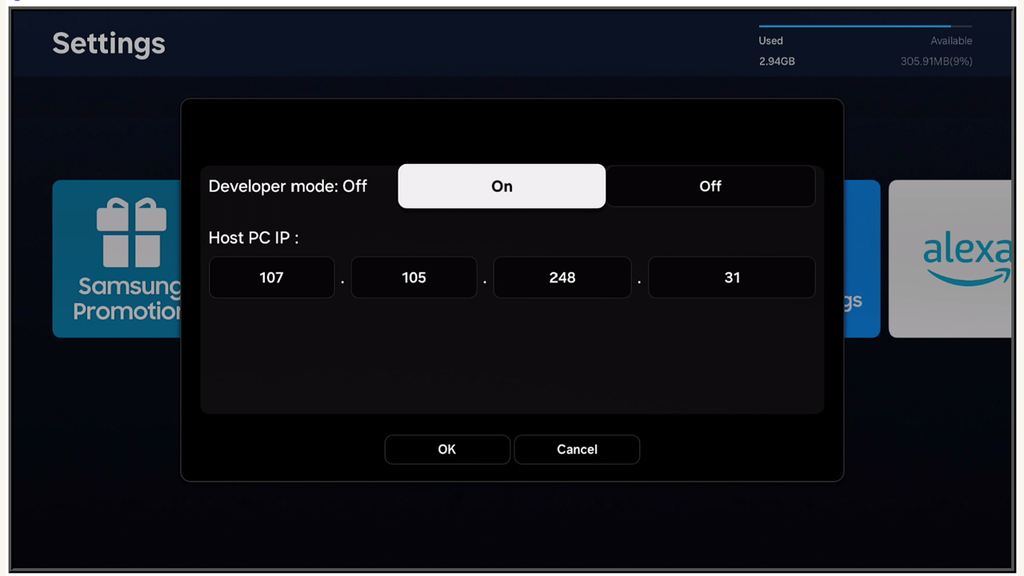
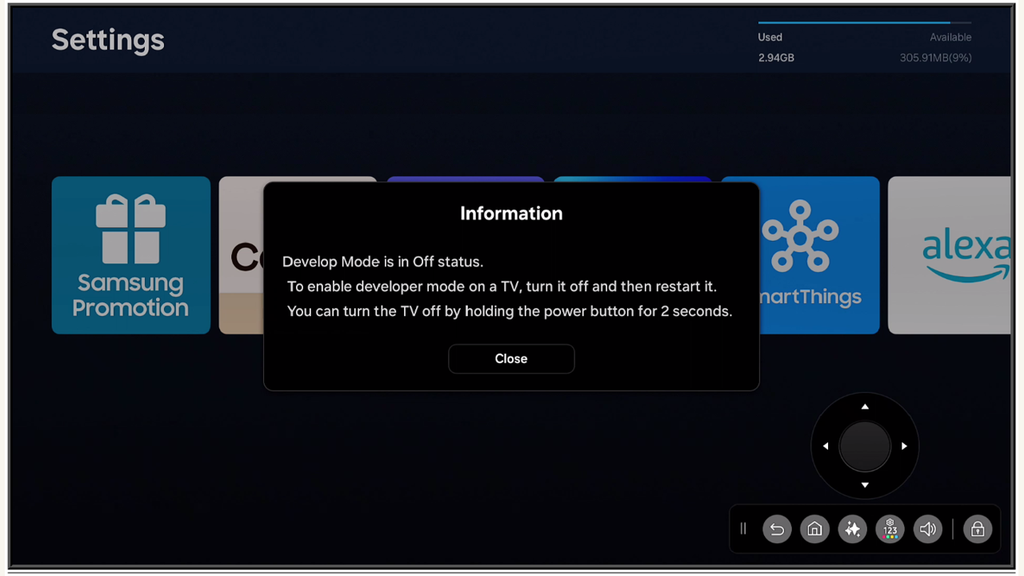
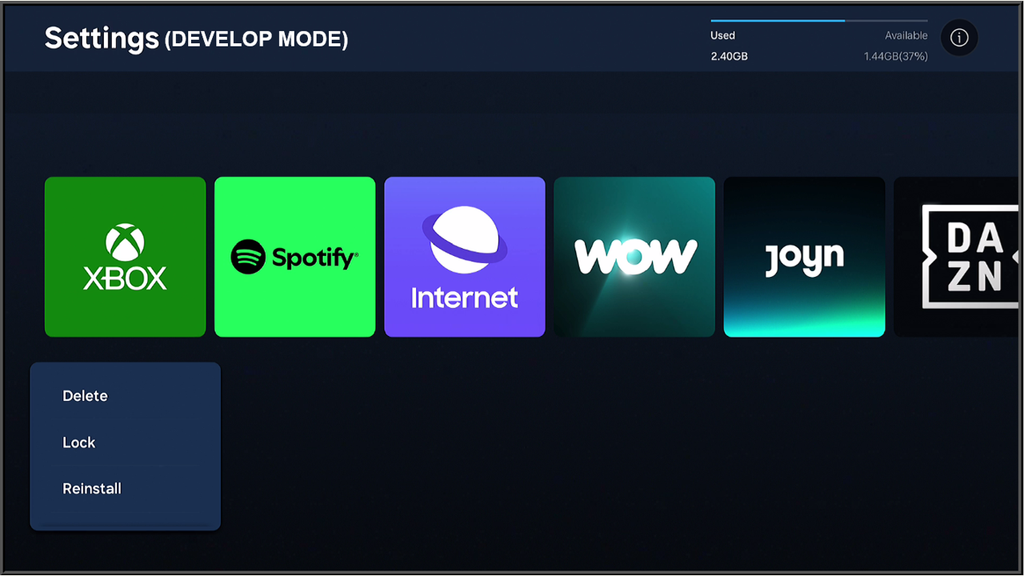
- 3.2 Install Tizen Studio on your PC. Download Tizen Studio from the official Samsung developer site. During installation, use the Package Manager to add the TV Extension and Certificate Manager packages.
- 3.3 Connect Tizen Studio to your TV. Open Tizen Studio, go to Device Manager, and add your TV using its IP address. The TV should appear as a connected device in the list.
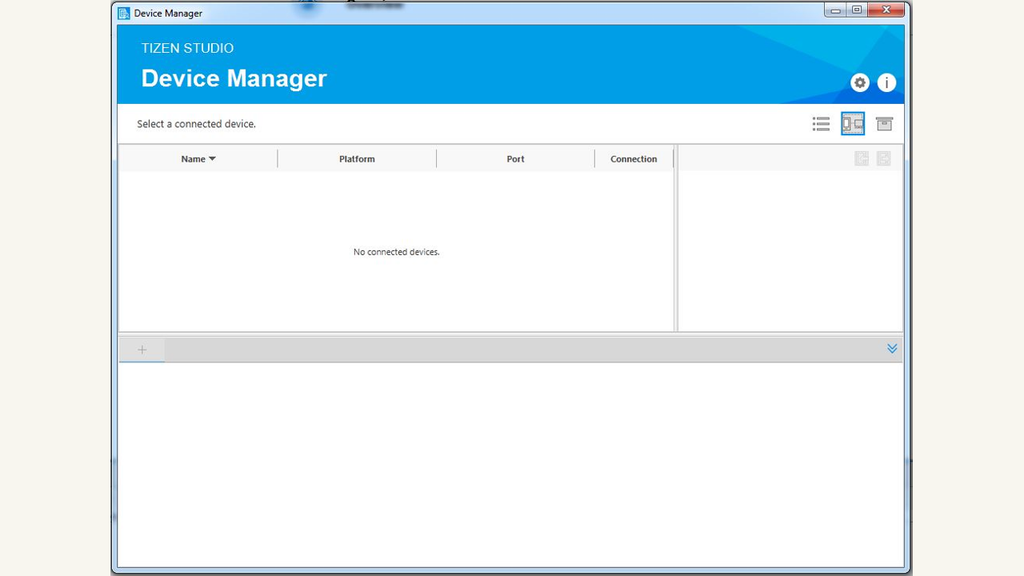
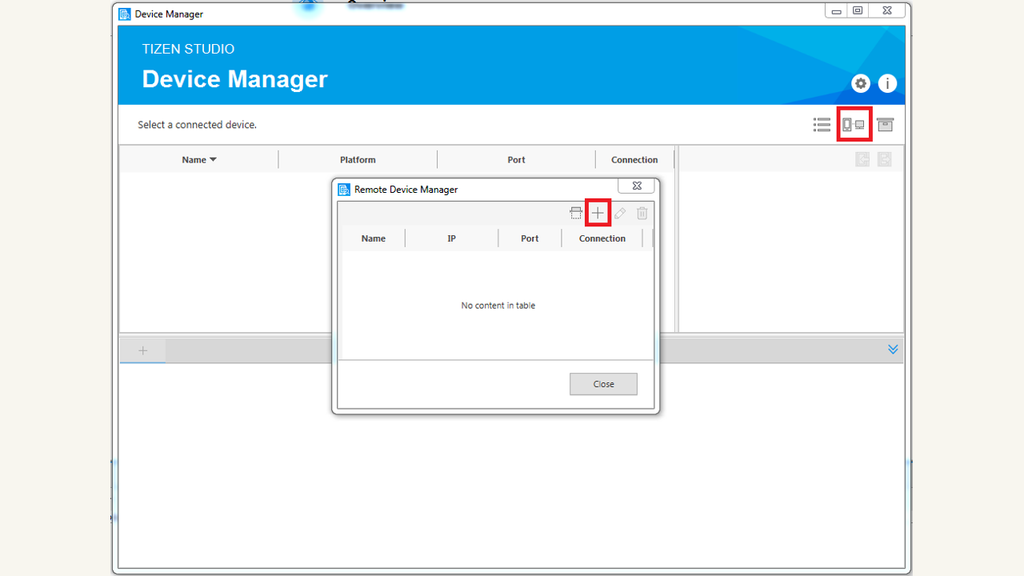
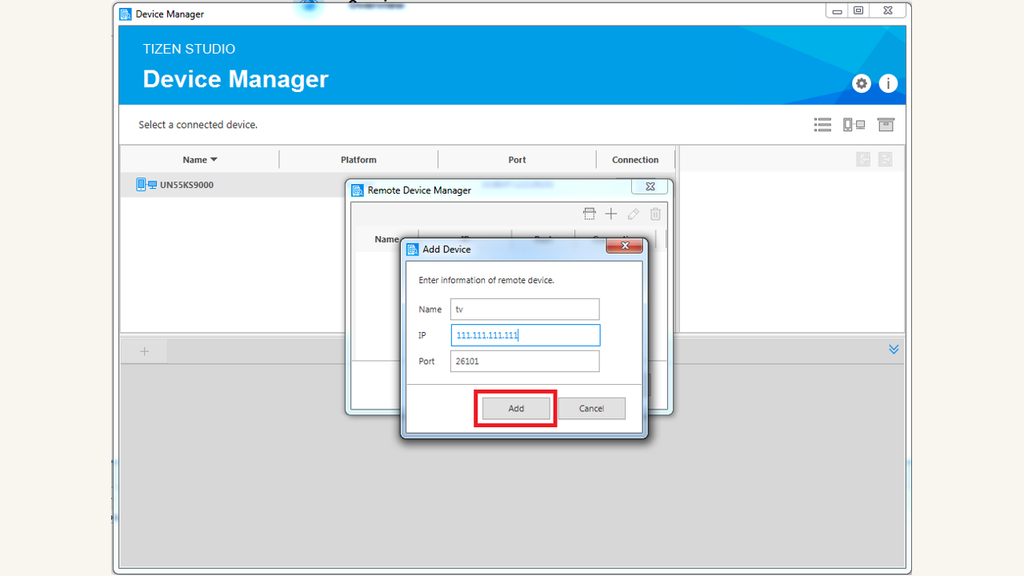
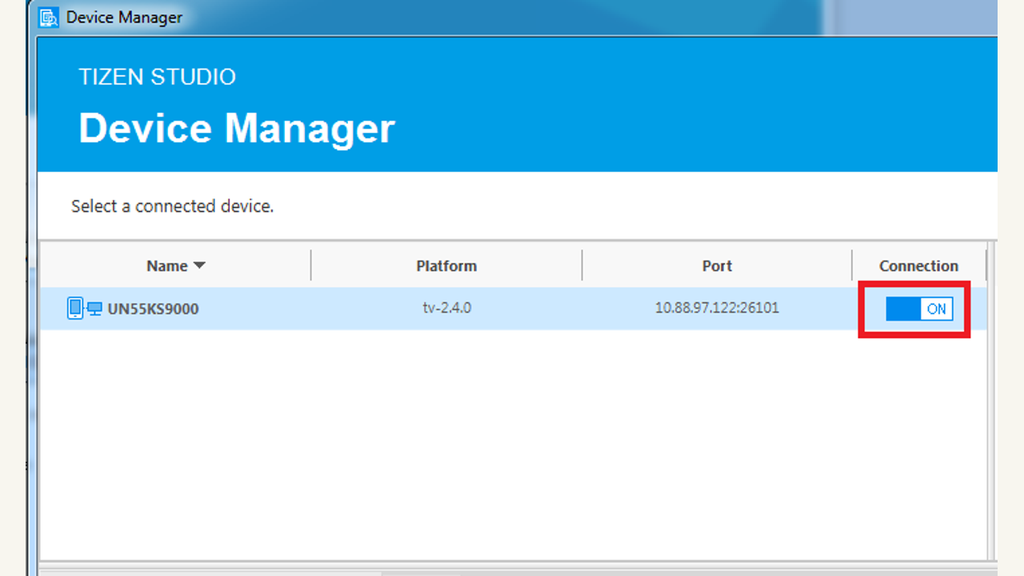
- 3.4 Deploy the IBO Player Pro widget. Download the IBO Player Pro .wgt file for Tizen. In Tizen Studio, right-click the project and choose ‘Run As → Tizen Web Application’. The app installs onto the TV.
- 3.5 Launch and configure. Open IBO Player Pro from Smart Hub and enter your playlist details following steps 1.3 to 1.5.
LG webOS TV (webOS 4+)
- 3.6 Install the Developer Mode app on the TV. Open the LG Content Store on your TV and install the ‘Developer Mode’ app. Sign in with your LG account to activate it.
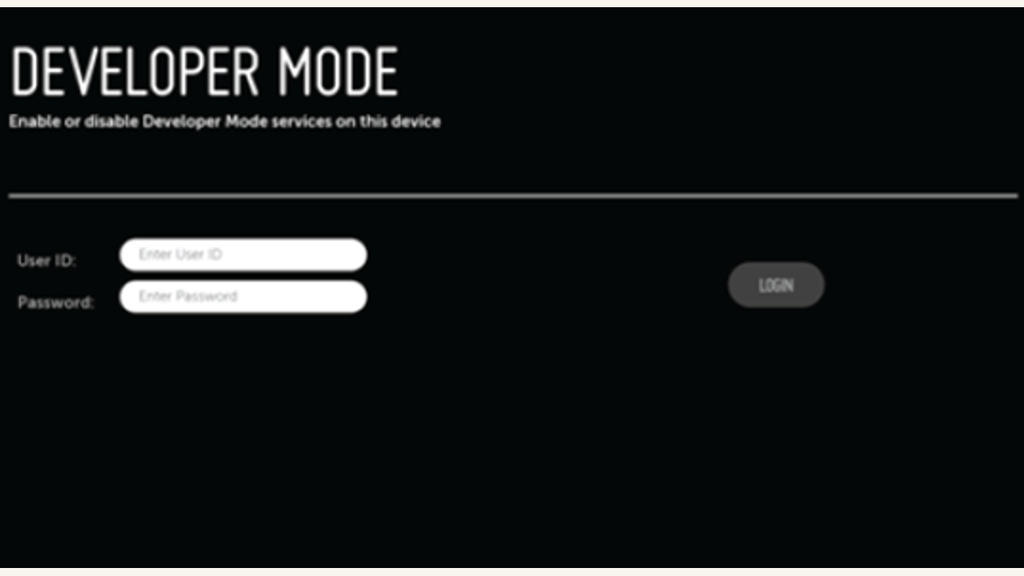
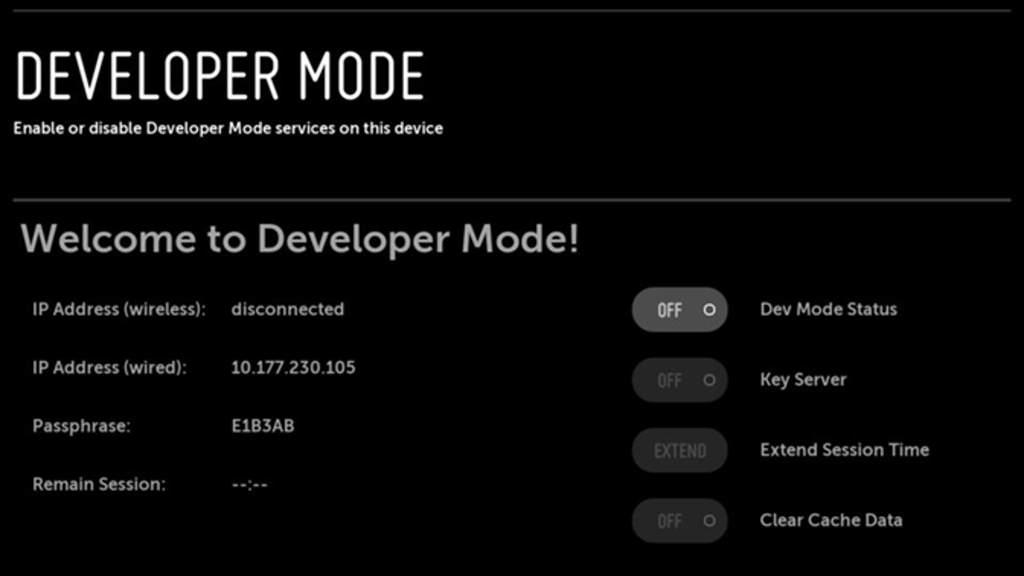
- 3.7 Set up webOS Studio on your PC. Download webOS Studio from the LG developer portal. Connect it to your TV using the IP address shown in the Developer Mode app.
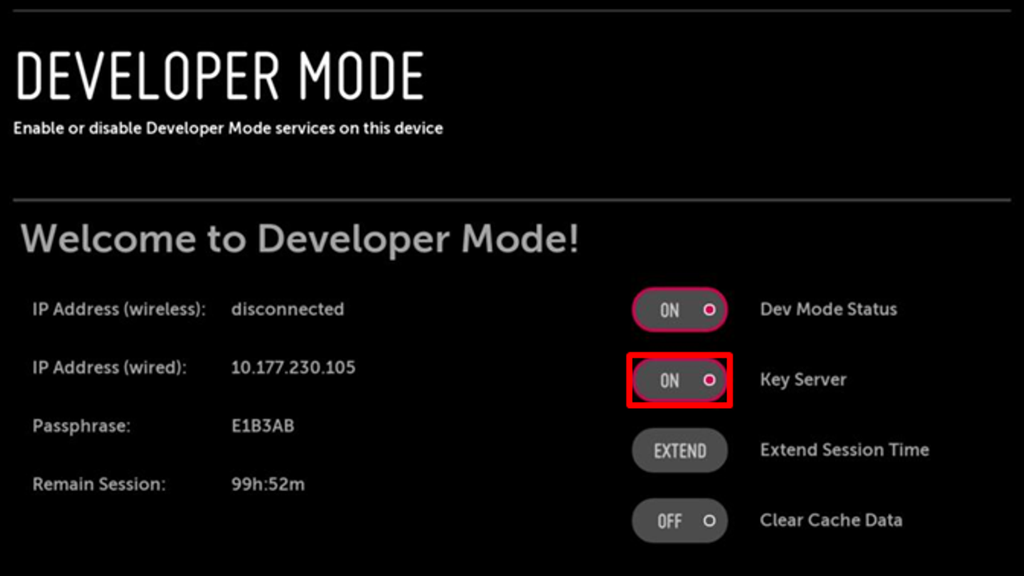
- 3.8 Install the IBO Player Pro .ipk file. Download the IBO Player Pro .ipk for webOS and deploy it through webOS Studio using the standard app installation flow.
- 3.9 Launch and add your playlist. Find IBO Player Pro in your TV’s app list and open it. Enter your M3U or Xtream Codes details to load your channels.
For additional Smart TV IPTV methods, including casting and HDMI alternatives, see the IPTV on Smart TV guide.
Step 4: Setting Up IBO Player Pro on iPhone and iPad
IBO Player is available on the Apple App Store for iPhone and iPad. The iOS version uses the same M3U and Xtream Codes connection methods as Android, though some advanced settings menus are positioned differently in the interface.
- 4.1 Download from the App Store. Open the App Store, search for ‘IBO Player’, and tap Get. Confirm with Face ID, Touch ID, or your Apple ID password.
- 4.2 Open the app. Launch IBO Player from your home screen. Grant local network access when prompted this is required for stream discovery on your local network.
- 4.3 Add your playlist. Tap the ‘+’ button or ‘Add Source’. Select M3U URL or Xtream Codes. Enter your playlist URL or server credentials, then tap Save.
- 4.4 Load your channels. The app fetches your channel list and organises it into Live, VOD, and Series sections. On a large playlist, allow up to two minutes for the initial load to complete.
- 4.5 Play a channel. Tap any item in the Live, VOD, or Series tabs to begin playback. Swipe down from the player to return to the channel list without stopping the stream.
- 4.6 Add EPG. For programme guide data, go to Settings → EPG and add your provider’s XMLTV URL. Tap ‘Refresh EPG’ to download the data.
Step 5: Setting Up IBO Player Pro on Windows PC
Windows users have three options for running IBO Player Pro: the Windows Subsystem for Android (WSA), an Android emulator, or a native Windows IPTV player. WSA is the most seamless option on Windows 11. If you are on Windows 10, an emulator such as BlueStacks is the recommended approach.
Option A: Windows Subsystem for Android (Windows 11)
- 5.1 Enable WSA. Open the Microsoft Store and search for ‘Windows Subsystem for Android’. Install it. WSA requires Windows 11 22H2 or later and virtualisation enabled in your PC’s BIOS.
- 5.2 Enable Developer Mode in WSA. Open the WSA Settings app (search ‘Windows Subsystem for Android’ in the Start menu). Under the Developer tab, enable ‘Developer Mode’ and note the ADB connection address.
- 5.3 Connect via ADB. Open Command Prompt and run: adb connect 127.0.0.1:58526 (use the port shown in WSA settings). Then run: adb install IBO_Player_Pro.apk using the path to the APK file you downloaded.
- 5.4 Launch from the Start menu. IBO Player Pro appears in your Windows Start menu like any other app. Open it and add your playlist following steps 1.3 to 1.6.
Option B: Android Emulator (Windows 10 or 11)
- 5.5 Install BlueStacks. Download and install BlueStacks from bluestacks.com. During setup, sign in with a Google account to access the Play Store.
- 5.6 Install IBO Player Pro. Open the Play Store inside BlueStacks and search for ‘IBO Player Pro’. Install it as you would on a standard Android device.
- 5.7 Configure and use. Open IBO Player Pro inside BlueStacks and add your playlist details. The interface is identical to the Android version.
Step 6: Setting Up IBO Player Pro on Chromecast and Google TV
Chromecast with Google TV runs Android TV and supports IBO Player Pro natively. Older Chromecast devices (without Google TV) do not run apps, but you can cast streams from an Android phone or tablet using the Cast button inside IBO Player Pro.
Chromecast with Google TV (4K or HD)
- 6.1 Open the Google Play Store on Chromecast. From the Google TV home screen, navigate to the Google Play Store. Search for ‘IBO Player Pro’ and install it.
- 6.2 Launch and configure. Open IBO Player Pro. Use the Chromecast remote to navigate the on-screen keyboard. Enter your M3U URL or Xtream Codes credentials, following steps 1.3 to 1.5.
- 6.3 Use a phone as a keyboard. If entering a long M3U URL is difficult with the remote, open the Google TV Remote app on your Android phone it includes a keyboard shortcut for text input.
Older Chromecast (casting from phone or tablet)
- 6.4 Connect Chromecast and phone to the same Wi-Fi network. Casting requires both devices on the same network. Check your router settings if the cast button does not appear.
- 6.5 Open IBO Player Pro on your Android device. Start playing a channel or VOD title.
- 6.6 Tap the Cast icon. In the IBO Player Pro playback controls, tap the Cast icon (the screen with Wi-Fi waves). Select your Chromecast from the list. The stream transfers to your TV.
For a detailed walkthrough of casting IPTV to a Chromecast, see the IPTV on Chromecast guide.
Step 7: Configuring IBO Player Pro for Best Performance
Spending a few minutes on settings after installation makes a significant difference to stream quality and reliability. The options below are available on Android, Firestick, and Google TV; iOS menus are similar but may use slightly different labels.
Video Decoder
- Hardware decoding (recommended): Offloads video processing to your device’s GPU, enabling smooth playback of FHD and 4K streams. Go to Settings → Player → Decoder and select Hardware. This is the default on most devices.
- Software decoding: Falls back to CPU-based processing. Use this if hardware decoding causes black screens, tearing, or app crashes on older or lower-powered devices.
EPG (Electronic Programme Guide)
- Add EPG source: Go to Settings → EPG → Add EPG Source. Paste the XMLTV URL provided by your IPTV service. Most providers include this URL alongside the M3U link.
- Refresh interval: Set EPG to update every 24 hours. Longer intervals reduce data usage; shorter intervals keep guide data more accurate for rapidly updated channels.
- EPG time offset: If programme start times appear one or two hours off, adjust the EPG offset to match your timezone. UK viewers should use GMT (0) or BST (+1) depending on the time of year.
Buffer and Stream Quality
- In Settings → Player → Buffer, increase the buffer size to 5–10 seconds for live TV if you experience frequent short interruptions. A larger buffer adds a small delay to live streams but dramatically reduces drops.
- For VOD content, the default buffer settings are usually sufficient. Reduce buffer size if you notice long loading times before VOD titles begin playing.
Parental Controls
- Set a PIN under Settings → Parental Controls. Once enabled, a PIN is required to access adult content categories. This PIN also protects the settings menu if you choose that option.
Maintenance and Updates
- Clearing the cache: If IBO Player Pro becomes slow or channels stop loading, go to your device’s App Settings, find IBO Player Pro, and tap ‘Clear Cache’. This removes temporary data without deleting your playlist configuration.
- Updating the app: On Android and Google TV, check the Play Store periodically for updates. On Firestick, you must manually download and reinstall a new APK when updates are released your provider or the official source will announce new versions.
- Re-importing a playlist: If your provider updates their server or URL, go to Settings → Playlists, delete the old playlist, and add the new URL. All other settings (EPG, decoder, parental controls) are preserved.
Step 8: Verifying Your Setup
Run through this checklist before settling in to watch.
- Channels load and are grouped into Live TV, Movies, and Series.
- EPG shows programme titles and times beside channels in the guide view.
- A live channel plays for at least 60 seconds without buffering or dropping.
- VOD titles load from the beginning without a long initial delay.

- Video quality is sharp if the picture is blurry, check Settings → Player → Quality.
- The app does not crash when switching between multiple channels quickly.
- Parental PIN is tested and confirmed if you set one up.
IBO Player Pro vs Other IPTV Players
IBO Player Pro competes with TiviMate, IPTV Smarters, and GSE IPTV the four most widely used IPTV players in the UK. The table below compares key features to help you decide whether IBO Player Pro is the right choice for your setup.
| Feature | IBO Player Pro | TiviMate | IPTV Smarters | GSE IPTV |
|---|---|---|---|---|
| Platforms | Android, iOS, TV, PC | Android / Android TV | Android, iOS, PC | Android, iOS, Mac, PC |
| M3U support | ✓ | ✓ | ✓ | ✓ |
| Xtream Codes | ✓ | ✓ | ✓ | ✓ |
| EPG support | ✓ XMLTV | ✓ XMLTV | ✓ XMLTV | ✓ XMLTV |
| Multi-screen | ✓ (paid) | ✓ (paid) | ✓ | ✓ |
| Free tier | ✓ | Limited trial | ✓ | ✓ |
| UI quality | Clean, fast | Excellent | Good | Functional |
| Best for | Multi-device | Android TV | Beginners | iOS users |
IBO Player Pro stands out for its broad cross-platform support particularly for users who watch on a mix of Android phones, Firestick, and Smart TVs. TiviMate is generally considered the best option if you primarily use an Android TV box or Firestick and want the most polished interface. For Windows-specific alternatives, see the best IPTV player for Windows guide.
Troubleshooting
Most IBO Player Pro issues are caused by the IPTV subscription rather than the player itself. Work through the table below to identify and fix the most common problems. If an issue persists after trying the fix, contact your IPTV provider they can confirm whether the problem is on their server.
| Problem | Likely Cause | Fix |
|---|---|---|
| Buffering or freezing | Weak internet or server load | Test connection speed (25 Mbps+ for FHD). Switch to a nearby server. Enable hardware decoding in Settings → Player → Decoder. |
| Stream won’t load | Incorrect playlist URL or expired sub | Re-enter your M3U URL. Verify your subscription is active with your provider. |
| EPG not showing | EPG URL missing or wrong | Add your XMLTV EPG URL in Settings → EPG. Tap ‘Update EPG’ and allow the download to complete. |
| App crashes on launch | Outdated app version or corrupt install | Uninstall, clear cache, then reinstall IBO Player Pro. Update to the latest version. |
| Black screen on stream | DRM or codec issue | Toggle between hardware and software decoding in playback settings. Try a different stream quality. |
| Activation code error | Code entered incorrectly or expired | Re-generate your code in your provider portal. Check for trailing spaces when entering. |
| Missing channels | Group-title tags absent from M3U | Contact your provider to request a properly tagged M3U. Check group filters inside IBO Player Pro settings. |
| Cast not working | Phone and Chromecast on different network | Ensure both devices are on the same Wi-Fi network. Restart IBO Player Pro and retry casting. |
Persistent buffering on multiple streams usually indicates ISP throttling of IPTV traffic. A VPN can bypass this see the VPN for IPTV Firestick guide for tested options.
Frequently Asked Questions
Is IBO Player Pro free?
IBO Player Pro has a free tier and a paid licence. The free version covers core playback. The paid version adds multi-screen support, advanced EPG features, and priority stream handling. Neither tier includes IPTV content you supply that through your own subscription.
Does IBO Player Pro work with any IPTV service?
Yes any service that provides an M3U playlist URL or Xtream Codes credentials is compatible. Most UK providers support both formats. If yours only offers a proprietary app, ask them for an M3U link.
Can I use IBO Player Pro on multiple devices at once?
The app itself places no limit on the number of devices, but your IPTV subscription may restrict simultaneous streams. Check your plan most single-connection subscriptions allow one stream at a time, while multi-room plans support two or more.
Why is my EPG not loading?
EPG requires a correctly formatted XMLTV URL in Settings → EPG. If your provider did not supply one, contact them to request it. Large EPG files (covering thousands of channels) can take several minutes to download on first load.
Is IBO Player Pro available on Apple TV?
There is no native Apple TV app for IBO Player Pro. You can use AirPlay to mirror from an iPhone or iPad, or explore alternatives listed in the best IPTV app for Apple TV guide.
What internet speed do I need?
A minimum of 10 Mbps handles HD streams; FHD and 4K require 25 Mbps or more. For stable live TV, a wired Ethernet connection is preferred over Wi-Fi particularly on Firestick and Android TV boxes where Wi-Fi interference is common.
Can I try an IPTV service before committing?
Most reputable UK providers offer a short free trial. See the free trial IPTV UK guide for services offering tested trial periods with no long-term commitment.
Related Guides
- How to Set Up IPTV
- Best IPTV App for Firestick
- How to Set Up IPTV on Smart TV
- How to Install IPTV on Android TV Box
