
If you’ve been thinking about cutting the cord and switching to IPTV, you’re not alone. Millions of people across the UK are ditching expensive Sky and Virgin Media packages in favour of flexible, affordable streaming through IPTV services.
Whether you’re in London, Manchester, Birmingham or Glasgow, setting up IPTV is a lot simpler than most people expect — whether you’re using an Amazon Firestick, a Smart TV, or an Android device.
In this guide, we’re going to walk you through exactly how to set up IPTV on each of those devices, step by step, without any of the technical jargon. We’ll also cover what to look for in a good IPTV player and service, so you’re not left fumbling around after installation.
What Is IPTV and Why Are UK Viewers Making the Switch?
IPTV stands for Internet Protocol Television. Rather than receiving TV signals through a satellite dish or cable line, content is delivered directly over your broadband connection. This means you can access thousands of live TV channels, on-demand content, and even pay-per-view events — all from one subscription.
For UK viewers, the appeal is obvious. Sky TV packages regularly cost upwards of £50–£80 per month, and that’s before you add on sports or cinema bundles.
A quality IPTV subscription, by contrast, can give you access to all your favourite UK channels — BBC One, ITV, Channel 4, Sky Sports, BT Sport, and hundreds more — at a fraction of that price.
Before diving into setup, though, it’s worth making sure you’ve chosen a solid provider. If you haven’t committed to one yet, take a look at our breakdown of the best IPTV UK providers to help you make the right call. And if you’re on a budget, there are some genuinely decent options covered in our guide to the best cheap IPTV subscriptions in the UK.
How to Set Up IPTV on a Firestick (UK Guide)
The Amazon Firestick is one of the most popular devices for IPTV in the UK — it’s affordable, easy to pick up from Amazon.co.uk, and plugs straight into any TV with an HDMI port. Here’s how to get it up and running.
Step 1: Enable Apps from Unknown Sources
Amazon locks down the Firestick by default, so the first thing you need to do is allow installations from outside the Amazon app store.
- Go to Settings from the home screen
- Select My Fire TV (or Device on older models)
- Tap Developer Options
- Toggle on Apps from Unknown Sources
This is essential because most IPTV apps aren’t available directly through the official Amazon store.
Step 2: Install the Downloader App
The Downloader app is a free tool that lets you sideload any app onto your Firestick using a URL.
- Go to the search bar on your Firestick home screen
- Search for “Downloader” by AFTVnews
- Install it (it’s completely free)
Once installed, open it and you’ll be presented with a simple browser and URL bar.
Step 3: Download Your Preferred IPTV Player
There are several good IPTV players that work well on Firestick. Popular choices among UK users include TiviMate, IPTV Smarters Pro, and GSE Smart IPTV. Type the download URL for your chosen app into the Downloader browser and follow the on-screen instructions to install it.
If you’re not sure which player to go for, we’ve put together a detailed guide on the best IPTV player for Windows — and many of the same apps have Firestick-compatible APK versions you can sideload.
Step 4: Enter Your IPTV Subscription Details
Once your IPTV player is installed, open it and you’ll usually be prompted to add a playlist. Your UK IPTV provider will send you one of the following:
- An M3U URL (a direct link to your channel list)
- Xtream Codes (a server URL, username, and password)
Enter whichever login method your provider uses, give the playlist a name, and let it load. Within a minute or two, your full UK channel list should populate — including regional BBC and ITV variants if your provider supports them.
Step 5: Start Watching
That’s genuinely it. From here you can browse channels, set up an EPG (electronic programme guide) if your app supports it, and start watching. Most UK providers include an EPG feed, so you’ll have a proper TV guide with programme information, just like Freeview or Sky.
How to Set Up IPTV on a Smart TV (UK)
Smart TVs vary quite a bit depending on the brand and operating system — Samsung, LG, Sony, Hisense, and others all use slightly different platforms. The good news is that IPTV setup is broadly similar across them, and all of these brands are widely available from UK retailers like Currys, John Lewis, and Argos.
Option 1: Use a Built-in App Store
Some smart TVs have IPTV apps available directly in their app store. Samsung’s Tizen OS and LG’s webOS both have app stores where you might find apps like IPTV Smarters or Smart IPTV.
- Navigate to your TV’s app store
- Search for your preferred IPTV app
- Download and install
- Open the app and enter your M3U URL or Xtream Codes details
If the app is available this way, it’s the cleanest and easiest option. No sideloading required.
Option 2: Use a USB Drive to Sideload (Android TV-Based Smart TVs)
If your Smart TV runs on Android TV — common in Sony Bravia models and many Hisense sets sold in the UK — you can sideload APK files via USB or the built-in browser.
- Download the APK file for your IPTV player on a PC or laptop
- Transfer it to a USB drive
- Plug the USB into your Smart TV
- Use your TV’s file manager to locate and install the APK
Some Android TV-based sets let you install directly from a browser or using apps like Downloader, similar to the Firestick process above.
Option 3: Use a Dedicated Android TV Box
If your Smart TV doesn’t support IPTV apps natively and sideloading feels too fiddly, connecting a separate Android TV box is a solid alternative. It plugs in via HDMI and gives you full Android TV functionality on any screen.
This is a particularly popular option among UK cord-cutters who want a clean, dedicated IPTV setup. Our guide to installing IPTV on an Android TV box covers this in full detail.
How to Set Up IPTV on Android in the UK
Android is arguably the most flexible platform for IPTV. Whether you’re using a Samsung Galaxy, a Google Pixel, an Android tablet, or a dedicated Android TV box, the process is largely the same.
Step 1: Download an IPTV App
Android gives you two routes here:
From the Google Play Store: Search for apps like IPTV Smarters Pro, TiviMate, or GSE Smart IPTV. Some are free, others require a one-time purchase.
Via APK Sideloading: If your preferred app isn’t on the Play Store, enable “Install from Unknown Sources” in your Android settings, then download the APK directly from the developer’s website.
For Android TV boxes specifically, we have a dedicated step-by-step guide on how to install IPTV on an Android TV box which covers the entire process in more detail.
Step 2: Add Your UK Playlist
Open your installed IPTV app and look for an option to add a playlist or source. You’ll need either your M3U URL or Xtream Codes details from your UK IPTV provider. Paste in the details, hit load, and your channel list — including all major UK free-to-air and premium channels — will appear.
Step 3: Configure the EPG
Most good IPTV apps let you add an EPG (Electronic Programme Guide) URL so you can see what’s on and when — similar to the TV guide you’d get on Freeview or Sky. Your UK IPTV provider will usually supply an EPG URL in your account dashboard. Adding it takes 30 seconds and makes the whole experience far more polished.
Step 4: Optimise Your Settings
A few quick tweaks can make a noticeable difference, especially on UK broadband:
- Buffer size: Increase this if you’re experiencing freezing on live channels — particularly useful during peak evening hours when UK broadband networks get congested
- Preferred player: Some apps let you choose between an internal player and external ones like VLC or MX Player — try both to see which performs better on your device
- Connection type: If possible, connect your Android device via ethernet rather than Wi-Fi for a more stable stream
Choosing the Right UK IPTV App
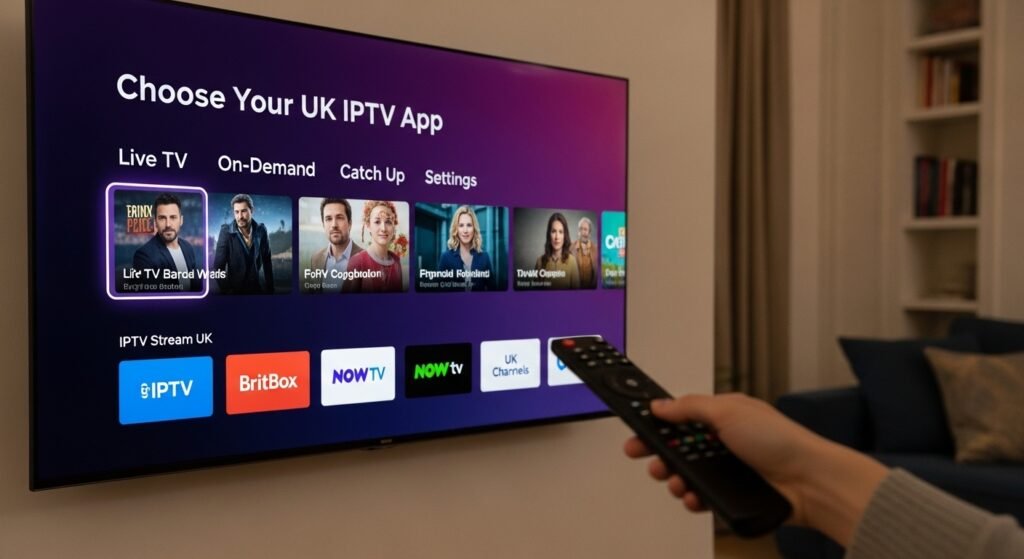
The app you use matters as much as the subscription itself. A poor player can make even a high-quality UK IPTV service feel laggy and frustrating, while a good one makes everything smooth and intuitive.
For Firestick, TiviMate and IPTV Smarters Pro are the top picks among UK users. TiviMate in particular has a very clean interface that feels genuinely TV-native, with great EPG support and multi-playlist management.
For Smart TVs, Smart IPTV and IPTV Smarters are widely used and well-supported across Samsung and LG platforms popular in the UK.
For Android phones and tablets, GSE Smart IPTV handles M3U playlists well and offers plenty of customisation.
If you’re an Apple TV user, we’ve covered the best options in our guide to the best IPTV app for Apple TV in 2026.
Picking the Right UK IPTV Subscription
All the setup in the world won’t help if your underlying subscription is poor quality. Buffering, channel dropouts, and outdated EPGs are usually signs of a low-quality provider — not a problem with your device or app.
When evaluating UK IPTV providers, look for:
- UK channel coverage — BBC One, BBC Two, ITV, Channel 4, Channel 5, Sky Sports, TNT Sports, Sky Cinema, and regional variants
- Stable uptime — 99%+ is the benchmark for reliable services, especially during major live events like Premier League matches or Coronation Street
- VOD content — a solid catch-up and on-demand library that mirrors what you’d expect from the BBC iPlayer or ITVX era of streaming
- Responsive UK customer support — ideally live chat or a fast ticket system
- Trial options — any reputable provider should let you test before committing
If you want to test things before paying, check out our guide to free IPTV trials in the UK to see which providers currently offer a proper trial period.
Troubleshooting Common IPTV Issues in the UK
Even with a solid setup, you might run into occasional hiccups. Here are the most common problems UK users report and how to fix them:
Buffering or freezing: UK broadband speeds vary significantly — especially if you’re on standard ADSL or in a rural area. IPTV generally requires at least 25 Mbps for HD streams and 50+ Mbps for 4K. Run a speed test and consider switching from Wi-Fi to a wired connection if possible.
Channels not loading during live events: UK IPTV servers can get hammered during major events like the Champions League, Grand National, or a big boxing match. Try restarting the app or switching to a backup server if your provider offers one.
EPG not showing correct UK times: Make sure your IPTV app is set to the correct timezone (GMT or BST depending on the time of year). Some apps default to UTC, which can throw your programme guide off by an hour during British Summer Time.
App crashing: Clear the app cache on your device (Settings > Apps > [Your IPTV App] > Clear Cache) and restart. If it continues, try reinstalling.
Channels missing from your list: Your M3U URL may need refreshing. Log into your provider’s dashboard and re-copy the URL — it sometimes changes, particularly after provider updates.
Final Thoughts
Getting IPTV set up on a Firestick, Smart TV, or Android device in the UK is something most people can do in under 15 minutes once they have the right app and a working subscription. The hardest part is usually choosing between the many providers available — which is why a little research upfront is always worth it.
Start with a free UK trial if you can, pick a player that suits your device, and follow the steps in this guide. Once it’s running, with your BBC channels, Sky Sports, and everything else loading cleanly, you’ll wonder why you stuck with overpriced cable TV for so long.
Frequently Asked Questions
What is the best IPTV app for Firestick in the UK?
TiviMate is widely considered the best IPTV app for UK Firestick users, thanks to its clean interface, smooth EPG integration, and support for multiple playlists. IPTV Smarters Pro is a strong free alternative if you’d rather not pay for a premium player.
Can I use IPTV on my Smart TV without a Firestick?
Yes — many Smart TVs, especially those running Android TV (like Sony Bravia or Hisense models common in the UK), can run IPTV apps directly.
Samsung and LG TVs have their own app stores where some IPTV apps are available. If your TV doesn’t support them natively, plugging in an Android TV box via HDMI is an easy fix.
Do I need fast broadband for IPTV in the UK?
For standard HD streams, you’ll want at least 25 Mbps. For 4K content, 50 Mbps or more is recommended. If you’re on slower broadband — common in some parts of rural Britain — you may experience more buffering.
A wired ethernet connection is always preferable to Wi-Fi for a stable IPTV stream.
Is IPTV legal in the UK?
Watching IPTV itself is not illegal. However, accessing premium subscription channels — such as Sky Sports or TNT Sports — through an unofficial provider without paying the rights holder does breach UK copyright law. Always use licensed IPTV providers to stay compliant.
What UK channels should a good IPTV subscription include?
A quality UK IPTV subscription should include all major free-to-air channels (BBC One, BBC Two, ITV, Channel 4, Channel 5 and their HD variants), regional channels, and premium options like Sky Sports, TNT Sports, Sky Cinema, and Sky Atlantic. Regional BBC and ITV variants for Scotland, Wales, and Northern Ireland are a bonus worth looking for.
Can I try a UK IPTV service before paying?
Yes — many reputable UK IPTV providers offer free trials ranging from 24 hours to a full week. Check out our guide to free IPTV trials in the UK to find providers currently offering them.
Why does my IPTV buffer during Premier League matches?
High-traffic live events put extra load on IPTV servers. If your provider doesn’t have robust infrastructure, you’ll notice it most during peak times.
The fix is either a better provider, a faster broadband connection, or switching to a wired ethernet connection. Some UK providers also offer dedicated sports servers for exactly this reason.
What is the difference between M3U and Xtream Codes for UK IPTV?
M3U is a simple playlist URL format that works with virtually every IPTV app. Xtream Codes is a more advanced login system using a server URL, username, and password — it supports extra features like catch-up TV, VOD, and better EPG management.
Most UK IPTV providers support both, so either will work depending on your preferred app.

UK-based streaming specialist with years of hands-on experience testing, reviewing, and breaking down the best ways to watch TV online. As the founder of TVXWatch, Allen has helped thousands of UK viewers make the switch away from expensive cable and satellite packages, cutting through the technical jargon to make IPTV accessible for everyone.