
A Firestick remote not working can often be fixed in minutes with fresh batteries, a re-pair using the Home button or Amazon’s official reset sequence. This guide covers each fix in order, from quick checks to buying a replacement. Every button combination and menu path below comes from Amazon’s Fire TV help pages.
Most remote problems come down to batteries, pairing or a settings mismatch, so work through the steps before you buy anything new. New to the device? Our Firestick beginner’s guide covers the basics.
Firestick remote not working? Start with these quick checks
Start with the batteries, because a fresh pair is the fastest fix and Amazon recommends AAA alkaline batteries for the best performance. Fit a matching new pair rather than mixing old and new, and check the contacts for corrosion. If the remote drains batteries quickly, Amazon suggests removing them for 30 seconds, refitting them and holding Home.
Distance matters too, because Amazon advises keeping the remote within about 10 feet (3 m) of the Fire TV while it pairs. The remote talks to the stick over Bluetooth, so you do not need to aim it at the stick to use the menus. Volume and power use infrared, so point the remote at your TV for those.
Restarting the Fire TV clears many temporary glitches, and you can do it without a working remote by unplugging the power for about a minute. If the remote still partly responds, hold Select and Play/Pause together for about five seconds, or go to Settings > My Fire TV > Restart. On Fire TV smart TVs the menu may be called Device & Software.

Use the remote’s built-in troubleshooting mode
Many newer Fire TV remotes have a troubleshooting mode that uses the colour of the LED to show what is wrong. Press the Alexa Voice button: if the light at the top flashes, your remote supports it. Hold Rewind and Right for three seconds, press Menu (the LED turns green), then press any button and note the colour.
- Red, blinking slowly: low batteries, so fit new AAA alkalines.
- Red, blinking fast: a problem with the remote, so reset it.
- Orange: not paired, so restart the Fire TV and hold Home for 10 seconds.
- White or blue: check the Fire TV is on, then restart it (blue means the remote has no fault).
To leave troubleshooting mode, hold Play/Pause and Up for three seconds, press Menu, then take the batteries out and put them back. If the result points to the Fire TV, skip to the device section below.
How to pair a Firestick remote (or re-pair it)
A Fire TV remote normally pairs on its own as soon as you insert the batteries and switch the TV on. If it does not pair, or you see “Pairing failed”, follow Amazon’s steps in order.
- Move to within 10 feet (3 m) of the Fire TV.
- Hold Home for about 10 seconds, until a prompt asks you to press Play/Pause to start.
- If nothing happens, remove the batteries for 30 seconds, refit them and hold Home again.
- Try a new pair of alkaline batteries, then reset the remote (next section) if it still fails.
- Finally, unplug the Fire TV for five seconds, plug it back in and try again.
On remotes with an LED, a blinking blue light after pressing Home means the remote has paired and is ready to use. If you keep having trouble with a Firestick remote that pairs and then stops responding, repeat the battery and restart checks before a full reset.
How to reset a Firestick remote with Amazon’s official sequence
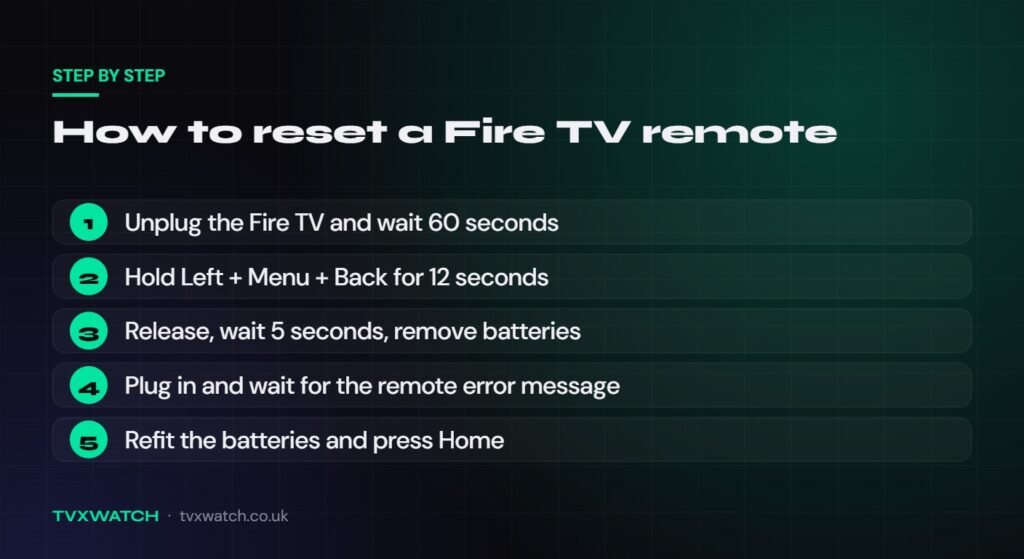
A reset is the next step when re-pairing fails, and Amazon’s sequence for most Fire TV remotes uses the Left, Menu and Back buttons together. The timing matters, so count the seconds rather than guessing.
- Unplug the Fire TV from its power supply and wait 60 seconds.
- Press and hold Left, Menu and Back together for 12 seconds.
- Release the buttons, wait five seconds, then remove the batteries.
- Plug the Fire TV back in and wait for the message saying it cannot detect your remote.
- Put the batteries back in and press Home.
If the remote does not pair straight after the reset, press and hold Home for 10 seconds while staying close to the Fire TV. Older remotes use different combinations: the first-generation Alexa Voice Remote uses only Left and Menu for 12 seconds, and the Basic Edition Remote has its own sequence on Amazon’s Fire TV remote reset page.
How to connect a new or second Firestick remote
You can add a new or second remote through the Fire TV settings while your current remote still works. Amazon allows up to seven paired controllers, so if you already have seven, remove one first.
- Open Settings and select Controllers & Bluetooth Devices.
- Select Amazon Fire TV Remotes, then Add New Remote.
- Insert batteries in the new remote. If it does not appear in the list, hold Home for 10 seconds.
Without a working remote, you can still pair a new one by restarting the Fire TV and letting it look for a remote as it starts up. Unplug the Fire TV, plug it back in and wait for the message saying no remote is detected. Then insert the batteries in the new remote, and hold Home for 10 seconds if it does not pair automatically.
Volume or power buttons not working on the Fire TV remote
When the menus work but volume, mute or power do nothing, Amazon’s first fix is to check which TV brand is set in Equipment Control. This is the classic case of a Firestick remote control not working for the TV while it still controls the stick. The TV buttons use infrared, so the Fire TV needs to know your TV brand.
- Go to Settings > Equipment Control > Manage Equipment > TV.
- Check that the brand shown under Change TV matches your television.
- If it does not, select Change TV and follow the on-screen instructions.
Infrared needs a clear path, so make sure a soundbar or other object is not blocking the sensor on the front of your TV. If the remote cannot control your soundbar’s volume, set the soundbar up under Settings > Equipment Control too. Amazon notes that these steps do not apply to Fire TV smart TVs.
Check HDMI-CEC on the Fire TV and your TV
HDMI-CEC lets devices connected by HDMI control each other, and Amazon says some Fire TV features need it switched on. On the Fire TV, go to Settings > Display & Sounds > HDMI CEC Device Control (some versions say Display & Audio). On the TV it has a brand name: Samsung calls it Anynet+, LG uses SIMPLINK and Sony uses BRAVIA Sync.
With CEC switched on at both ends, your normal TV remote can often move around the Fire TV menus as a handy stopgap. Not every TV supports the CEC features Fire TV uses, so if nothing happens, try the phone app instead.
Use the Fire TV phone app as a temporary remote
Amazon’s Fire TV app is the official Firestick remote app, and it turns an iPhone or Android phone into a temporary remote. It offers on-screen navigation and a keyboard while you wait for a replacement.
- Download the Fire TV app from the Apple App Store or Google Play.
- Connect your phone to the same Wi-Fi network as your Fire TV.
- Open the app and sign in with your Amazon account.
- Tap the remote icon, choose Set Up New Fire TV or your device, and follow the prompts.
The big limitation is that the app only works when your phone and the Fire TV are on the same Wi-Fi network. If you have changed router and the Fire TV has not joined the new network yet, the app will not find it. You then need a physical remote, or your TV remote via HDMI-CEC, to reconnect the Fire TV first.
The app is also a quick way to pair a replacement remote, because you can reach the Add New Remote menu from your phone. Go to Settings > Controllers & Bluetooth Devices > Amazon Fire TV Remotes > Add New Remote and select the new remote. The keyboard also makes typing logins easier, for example when you sign in to an IPTV app on your Firestick.
Replacement Firestick remotes and compatibility
A replacement Firestick remote only works if it is compatible with your exact Fire TV model, so always check before you buy. Amazon publishes a compatibility list for Fire TV remotes, and your model is shown in the Devices tab of Manage Your Content and Devices. At the time of writing (October 2026), the UK list names five official remotes:
- Alexa Voice Remote (3rd Generation): the widest stick coverage, from the Fire TV Stick (2nd Generation) and Stick Lite to the HD, 4K and 4K Select models.
- Alexa Voice Remote (2024 Release): recent sticks, including the 4K Select, and the Fire TV Cube (2nd and 3rd Generation).
- Fire TV Remote (2026 Release): Amazon’s newest remote, listed for recent HD and 4K sticks and the Cube.
- Alexa Voice Remote Pro: a premium option without the four coloured buttons; the UK list does not include the 4K Select.
- Alexa Voice Remote Enhanced: listed in the UK for Fire TV and Amazon Ember smart TVs, not sticks.
The very first Fire TV Stick and the original Fire TV boxes do not appear on Amazon’s current compatibility list at all. If you own one, upgrading the device may make more sense than buying a remote. Unbranded replacements vary, so check that the listing names your exact model.
When the problem is the Fire TV itself
If troubleshooting mode shows blue, or a second remote and the phone app also fail, the fault probably lies with the Fire TV rather than the remote. In that case a Firestick remote not working is a symptom rather than the cause, so work through these device checks:
- Use the power cable and adapter that came with the Fire TV, or an Amazon-branded replacement.
- Plug the Fire TV straight into the TV’s HDMI port rather than through an HDMI hub.
- Check for updates in Settings > My Fire TV > About > Check for System Update.
- If the screen is frozen, hold Select and Play/Pause for about five seconds.
A factory reset of the Fire TV is the last resort, because it wipes your apps, settings and sign-ins. Our guide on how to restart, reset, update and clear the cache on a Firestick explains when to use each option.
If your Fire TV is old or keeps failing, replacing the device may be simpler than chasing remote fixes. Compare options in our guide to the best IPTV box and Android TV box in the UK. Bear in mind that newer Amazon models such as the Fire TV Stick 4K Select run Vega OS, so they cannot sideload Android apps.
FAQ
Why is my Firestick remote not working after I changed the batteries?
If the remote still does nothing after new batteries, re-pair it by holding the Home button for 10 seconds within about 10 feet of the Fire TV. Check that you used AAA alkaline batteries the right way round. If it still will not respond, use Amazon’s Left, Menu and Back reset.
How do I reprogram a Firestick remote?
To reprogram a Firestick remote, reset it with Amazon’s button sequence, re-pair it with the Home button, then set up your TV in Equipment Control. The reset and re-pair restore the link to the Fire TV, while Equipment Control restores the volume and power buttons.
Can I use my phone as a Firestick remote?
Yes, Amazon’s Fire TV app for iPhone and Android works as a remote, as long as your phone and Fire TV share the same Wi-Fi network. It will not help if the Fire TV is offline or connected to a different network.
What does an orange light on a Fire TV remote mean?
In Amazon’s troubleshooting mode, an orange light means the remote is not paired with your Fire TV. Restart the Fire TV, wait for the message saying it cannot detect your remote, then hold Home for 10 seconds.
The quickest fixes for a Firestick remote not working are fresh batteries, a 10-second Home button hold and Amazon’s 12-second reset. Once everything responds again, our guide on how to set up IPTV on Firestick, Smart TV and Android or our TiviMate guide will get your channels back on screen.

3 thoughts on “Firestick Remote Not Working? Pair, Reset or Replace It (2026)”