
A VPN for Firestick encrypts your internet connection and hides your activity from your broadband provider, but it does not make unlicensed streams legal. That makes it a useful privacy tool on a Fire TV Stick, especially on shared or public Wi-Fi. It is not a fix for everything, though, so it helps to know its limits before you sign up.
This guide explains when a VPN is worth having for IPTV, how UK ISP blocking works and how to set one up on a Firestick. We also cover free options, the features that matter and how to fix slow speeds. If your device is still in the box, start with our Firestick beginner’s guide and come back once it is connected.
What a VPN Does (and Does Not Do) on a Firestick
A VPN creates an encrypted tunnel between your Firestick and a server run by the VPN company, so your broadband provider only sees scrambled traffic. The services you use see the VPN server’s IP address instead of your home one. Your provider can still tell that you are using a VPN and how much data you use, but not which services you visit.
A VPN does not speed up a slow connection, fix a weak Wi-Fi signal or make a poor-quality stream look any better. Encryption and the detour through the VPN server usually make connections slightly slower. It also hides nothing from the apps you sign in to, which still know your account and what you watch.
Is It Legal to Use a VPN for IPTV in the UK?
Using a VPN is legal in the UK, and there is no law against installing one on a Firestick or any other device. IPTV is legal too: it is simply a way of delivering TV over the internet, and many licensed services use it.
A VPN does not make watching unlicensed streams legal, because copyright law covers what you watch, not how your connection is routed. Some IPTV services sell channels they have no rights to, and these are illegal in the UK with or without a VPN. A VPN does not change TV licence rules either, which our guide to whether you need a TV licence for IPTV explains.
Good Reasons to Use a VPN on Your Firestick
The most common legitimate reasons to use a VPN on a Firestick are privacy on shared networks, ISP traffic management and staying secure while travelling. None of these needs anything complicated: you connect to a server and carry on watching.
Privacy on Shared and Public Wi-Fi
On shared Wi-Fi in student halls, flat shares or holiday lets, a VPN stops other users and the network owner from seeing your traffic. This matters if you sign in to accounts or use the Firestick’s web browser.
ISP Traffic Management
Some broadband and mobile providers manage traffic at busy times, and a VPN stops them from seeing which type of service you are using. That can help if one kind of traffic is being slowed, but a VPN cannot add speed your line does not have. If your connection is slow all day, look at your package, router or Wi-Fi instead.
Travel
When you travel, a VPN keeps your connection private on hotel, airport and café networks that you do not control. Many streaming services restrict viewing outside the UK in their terms of use, and a VPN does not change those terms, so check your provider’s rules before you go.
UK ISP Blocking Explained: BT, Sky, Virgin Media and Others
Since 2017, the High Court has granted rights holders “live” blocking orders that require the major UK ISPs to block servers streaming unlicensed live sport. The first went to the Premier League under section 97A of the Copyright, Designs and Patents Act 1988, and similar orders have since gone to UEFA and Sky. That original order had to be carried out by BT, EE, Plusnet, Sky, TalkTalk and Virgin Media.
These orders target the servers that send out unlicensed streams, and the list of blocked servers can be updated as each new match week comes round. The ISPs block those servers while matches are being played, which is why an unlicensed stream can suddenly buffer or go black. The orders are aimed at unlicensed sources, not at IPTV player apps or licensed services.
If you have searched for Virgin Media blocking IPTV, court-ordered blocks on unlicensed streams are the most likely reason a service stops working on match days. We do not give advice on getting around blocks put in place for rights holders, and a VPN is not a lawful workaround for an unlicensed service. The dependable fix is a legitimate service, and our guide to the best IPTV providers in the UK explains what to check before you subscribe.
What to Look for in the Best VPN for Firestick
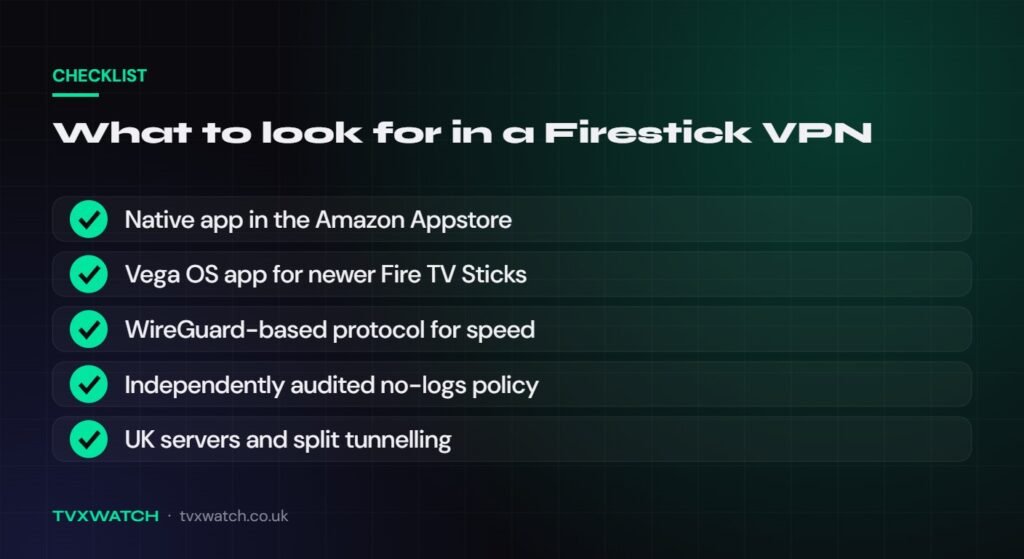
The features that matter most are a native Fire TV app, a fast modern protocol, an audited no-logs policy, UK servers and split tunnelling. Features can differ between a provider’s phone app and its Fire TV app, so check the TV version specifically.
A Native Fire TV App (Fire OS or Vega OS)
Choose a VPN with its own app in the Amazon Appstore, because installing from the Appstore is simpler and safer than sideloading. NordVPN, Surfshark, ExpressVPN and Proton VPN all have Fire TV apps for Android-based Fire OS models. Very old sticks are the exception: NordVPN says the first-generation Fire TV Stick does not allow VPN connections.
Newer Fire TV devices, such as the Fire TV Stick 4K Select, run Amazon’s Vega OS and need a VPN with a dedicated Vega OS app. Vega OS cannot sideload Android apps, and at the time of writing (October 2026) NordVPN, Surfshark, ExpressVPN and Proton VPN have all released Vega OS versions. These are more basic for now: Surfshark says its app offers core VPN features only, and NordVPN says some features are temporarily missing.
Speed and WireGuard
Look for WireGuard or a similar modern protocol, because these are usually faster and lighter on a Firestick’s processor than older OpenVPN connections. NordVPN’s NordLynx is built on WireGuard, Surfshark supports WireGuard, and ExpressVPN uses its own Lightway protocol, which it says needs less processing power. You can usually switch protocol in the app’s settings.
An Audited No-Logs Policy and UK Servers
An audited no-logs policy means an independent firm has checked that the provider does not keep records of what you do online. Look for a published audit rather than a marketing line. Plenty of UK servers keep speeds up and let UK apps behave normally, so server coverage should be high on your list when comparing the best VPN for Firestick UK options.
Split Tunnelling
Split tunnelling lets you choose which apps go through the VPN and which use your normal broadband connection. It is useful when one app runs better without the VPN, or when a service refuses VPN connections. NordVPN’s Fire OS app includes it, but not every Fire TV app does.
There is no special IPTV VPN: any reputable VPN with a Fire TV app works alongside your IPTV player. The best VPN for IPTV is simply one that is fast, private and easy to switch on and off. It runs in the background, so players covered in our TiviMate setup guide and IPTV Smarters Pro walkthrough work the same way with it switched on.
Free VPN for Firestick: What You Get and What You Give Up
Free VPNs can work for occasional privacy on a Firestick, but they come with limits on data, speed, servers or devices. Running a VPN network costs money, so free plans are usually a taster for a paid one. Some lesser-known free VPNs fund themselves through adverts or user data, which defeats the point.
Proton VPN is a well-known free option with a Fire TV app, and its free plan has no monthly data limit. The trade-offs are one connected device, a small set of free server countries that does not include the UK, and automatic server selection. Proton also says streaming support is for paid plans only, and free servers are shared, so speeds can vary.
Windscribe also offers a Fire TV app with a free plan, but it is capped at 10GB of data a month with a confirmed email address. Without a confirmed email the allowance drops to 2GB, which video streaming can use up quickly. Free plans are fine for testing, but for a Firestick VPN you use every day, a paid plan is usually more practical.
How to Install a VPN on Firestick, Step by Step
The safest way to install a VPN on a Firestick is through the Amazon Appstore, and the steps are almost identical on Fire OS and Vega OS devices. Create your VPN account on a phone or computer first, as typing passwords with the remote is slow. On Vega OS models, which cannot sideload apps, the Appstore is the only option anyway.
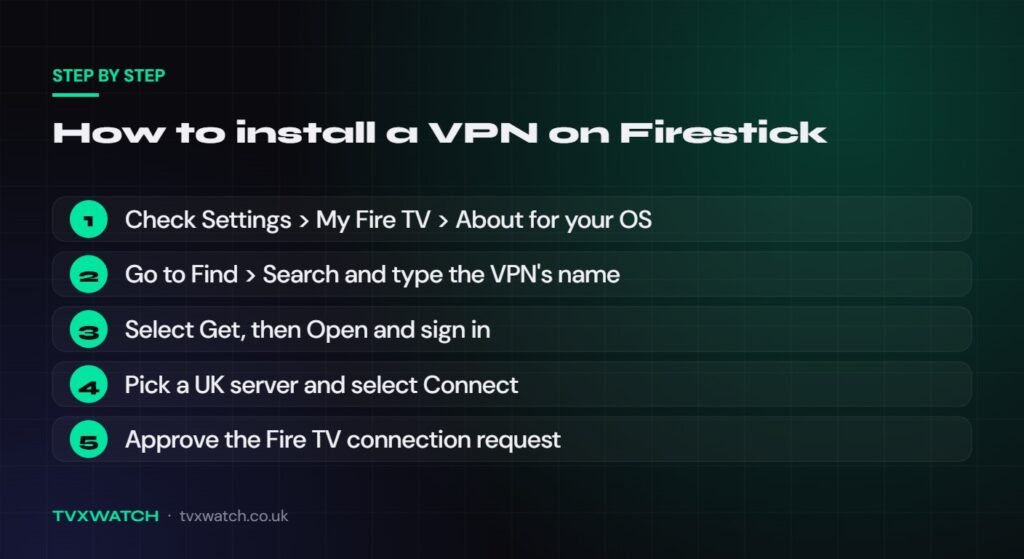
- Check your system: go to Settings > My Fire TV > About and look for Fire OS or Vega OS.
- On the home screen, select Find > Search and type the name of your VPN.
- Select the app and choose Get or Download.
- Select Open, then Log in or Sign in.
- Follow the sign-in prompt: most apps show a QR code to scan with your phone or a short code to enter online.
- Choose a UK server (or the quick-connect option) and select Connect.
- Approve the Connection request Fire TV shows the first time; it is a standard VPN warning.
- Play something in a streaming app to check that the picture is smooth.
Once connected, the VPN keeps running in the background while you use other apps on the Firestick. Open the VPN app again to disconnect or change server. If you are new to IPTV, follow our guide on how to set up IPTV on a Firestick first, then switch the VPN on.
How to Fix Slow Speeds With a VPN on Firestick
Some speed loss with a VPN is normal, but a big drop usually comes from a distant server, an older protocol or a weak Wi-Fi signal. Switch the VPN off and run a speed test first; for smooth streaming you want at least 25 Mbps for HD and 50 Mbps for 4K. If the line is slow without the VPN, the VPN is not the cause.
- Connect to a UK server near you rather than one abroad.
- Switch the protocol to WireGuard, NordLynx or Lightway.
- Try another server in the same city if the first one is busy.
- Move the router closer, use 5GHz Wi-Fi or add an Ethernet adapter.
- Update the VPN app and your Firestick software, then restart both the stick and the router.
If the Firestick itself feels sluggish, a restart and a cache clear often help more than any VPN setting. Our guide to restarting, updating and clearing the cache on a Firestick walks through each step. If one app only struggles with the VPN on, split tunnelling lets you exclude it.
FAQ
Do I need a VPN to use IPTV on a Firestick?
No, a VPN is not required to use IPTV on a Firestick, and licensed IPTV apps work perfectly well without one. It is an optional privacy tool that is most useful on shared or public Wi-Fi.
Can I use Proton VPN for free on a Firestick?
Yes, Proton VPN’s free plan runs on Fire TV devices, including newer Vega OS models, with no monthly data cap. You are limited to one device, free servers outside the UK and automatic server choice, and Proton says streaming support needs a paid plan.
Will a VPN stop my ISP from seeing what I watch?
A VPN hides the services you use from your broadband provider, although your provider can still see that you are connected to a VPN. The VPN company handles your traffic instead, which is why an audited no-logs policy matters.
Does a VPN work with every IPTV app?
A VPN works at system level on a Firestick, so it covers almost every app you install, including IPTV players. If a service refuses VPN connections, split tunnelling can exclude it. Our overview of the IPTV app options for Firestick helps you pick a player that suits your model.
Why won’t my VPN connect on my Firestick?
Connection problems are usually fixed by restarting the Firestick, updating the VPN app or switching to another server or protocol. The oldest Fire TV Sticks cannot run current VPN apps at all. On a Vega OS device, check that your provider offers a Vega OS app and that the stick has the latest software.
A VPN for Firestick is a sensible privacy upgrade, but it is optional and it is not a way to make unlicensed content legal. Pick one with a native Fire TV app, a WireGuard-style protocol and an audited no-logs policy, install it from the Amazon Appstore and pair it with a licensed service.
